
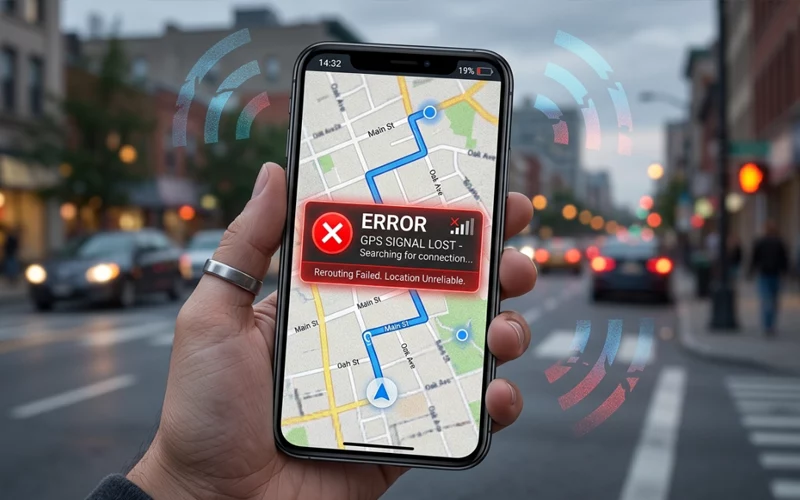
Most people rely on their phone’s location services every day without paying much attention to how they work. From getting directions and booking rides to checking nearby places, GPS quietly handles these tasks in the background. However, when it starts showing inaccurate locations or fails to connect properly, even simple activities can become frustrating. That can feel frustrating, especially when you are already in a hurry. The good news is that most location problems are not serious. Most users can restore normal GPS functionality by following a few practical methods.
This guide explains how to fix gps not working in a simple and practical way. It covers the common reasons GPS fails, the best ways to repair it, and the small settings that often get ignored. Whether your phone is showing the wrong place, taking too long to find your position, or not moving at all on the map, the steps below can help you get things working again.
GPS Not Working Causes
Before trying to solve the issue, it is useful to first figure out what is actually causing it. Location tracking is powered by a combination of software, hardware, and network services working in sync. Your phone needs a clear signal from satellites, permission to use location services, a stable network connection in some cases, and settings that are not blocking the feature. If even one of these parts is disturbed, GPS may become inaccurate or stop responding.
Sometimes the issue is as simple as being indoors, near tall buildings, or in a crowded area where signals are weaker. Other times, the problem is caused by a software glitch, a disabled setting, or an app that is not allowed to access location. Although uncommon, damaged internal components can sometimes interfere with GPS performance. Most of the time, though, the fix is much easier than people expect.
Another important thing to remember is that GPS problems do not always mean the GPS chip is broken. In many cases, what appears to be a serious phone problem is actually a simple software-related issue. That is why the best way to approach the problem is step by step, starting with the easiest solutions first.
Start with the Simple Checks
The first thing to do is make sure your phone is not hiding a basic problem. Verify that your device’s location feature is enabled and actively switched on in settings. If they are off, maps and navigation apps cannot identify where you are. Also make sure airplane mode is not enabled, because that cfan interfere with signals and create location errors. Even if mobile data is not always required for GPS, it can improve location accuracy and speed up map loading.
Simply rebooting the device is one of the easiest yet most effective solutions. Restarting your device removes temporary glitches and refreshes system processes running in the background. Many people skip this step, but it often solves location issues faster than anything else. If your phone has been running for a long time without a restart, this can make a big difference.
You should also check if the problem happens in every app or only one app. If only one navigation app is affected, the issue may be with that app instead of the phone. In that case, reinstalling or updating the app may solve it. This first check saves time because it helps you avoid fixing the wrong thing.
If you are trying to understand how to fix gps not working, this is the safest place to begin. A few small checks often lead to a quick solution before you need to do anything more advanced.
Check Permissions, Accuracy & Settings
One of the most common reasons for location problems is missing permission. Many apps need access to your location, and if permission is denied, they cannot show your position correctly. Check the app settings and confirm that location access is set to “While Using the App” or “Always” if background tracking is required.
You should also check the phone’s location accuracy settings. Some devices have a mode that uses Wi-Fi, Bluetooth, and mobile networks along with GPS to improve precision. When this setting is off, the phone may still work, but it can be slower and less exact. Turning on high accuracy or precise location can often improve performance, especially in cities or inside buildings.
Date and time settings matter more than many people realize. If your phone’s clock is incorrect, GPS and related services may struggle to sync properly. Set the date and time to automatic if it is not already. This small adjustment can solve strange location behavior that seems unrelated at first.
Battery saver mode can also cause trouble. When battery saver mode is enabled, certain phones limit background processes, which may reduce the accuracy or responsiveness of GPS. If your location keeps freezing or lagging, turn battery saver off for a while and test again. It is a simple test, but it helps you rule out one of the most overlooked causes.
Fix GPS Not Working on Android
Android phones can have different menus depending on the brand, but the main ideas are usually the same. First, open location settings and make sure location is turned on. Then check that the apps you use most often have permission to access location. If maps or ride apps are not allowed to use location, they may show a wrong point or fail to load route data properly.
If the problem continues, clear the cache of your map or navigation app. Cached files can become corrupted over time, and that can affect how location data is displayed. Clearing the cache does not remove your personal data in most cases, but it can remove temporary files that are causing confusion. After that, reopen the app and test it again.
Another useful step is to update Google Play services and the map app itself. On Android, these background services play a major role in helping apps locate you accurately. Outdated versions may create glitches that affect GPS behavior. A simple software update can solve a problem that looked much bigger than it was.
If location still seems wrong, test the phone outside in an open area. GPS works better when the device has a clear view of the sky. If it suddenly improves outdoors, the issue may not be the phone at all. It may simply be weak signal conditions indoors or around heavy structures. This is especially helpful when people search for fix gps not working on android because they often assume their device is broken when it is actually dealing with poor signal conditions.
You can also try resetting network settings if the issue keeps coming back. This will remove saved Wi-Fi networks and Bluetooth connections, so use it carefully, but it can clear deeper connectivity problems that affect location performance. On some Android phones, a fresh network reset is enough to bring GPS back to normal.
Fixing iPhone GPS Issues
Apple devices usually handle location well, but they can still run into problems. The first step is to make sure Location Services is enabled in settings. Then check which apps have permission to access your location. Some apps may be set to “never” or “while using,” and that can affect how they behave in the background. Choosing the right permission often makes a big difference.
Another important setting is Precise Location. If it is off, the app may only know your general area instead of your exact place. That can be fine for some apps, but it is not ideal for navigation. Turning precise location on usually gives better results.
It’s also a good idea to see if Low Power Mode is currently turned on. On iPhone, this can reduce background activity and sometimes affect location performance. If the GPS seems slow or inaccurate, turn it off and test again. A simple restart after changing the setting can also help the phone refresh location services properly.
Some users face issues after an iOS update or before installing the latest version. In that case, updating the phone may help because Apple often fixes bugs related to system services. If the device has been updated recently and the problem started right after that, wait a short while and test different apps before assuming the hardware is damaged.
When people say iphone gps not working, the cause is often a small setting, not a major fault. The good news is that iPhone location problems are often easier to solve than they appear because the system gives clear permission and privacy controls.
Fix App & Software Issues
Sometimes the GPS problem is not in the phone settings but in the app itself. If maps, food delivery, fitness tracking, or ride apps are not showing your location correctly, try force closing the app and opening it again. This removes a stuck session and gives the app a fresh start. If that does not work, uninstall the app and install it again from the official app store.
Keeping the phone updated is also important. Software updates often include fixes for location services, network handling, and power management. When these parts work better together, GPS performance usually improves too. Many location issues start after an update that was interrupted or not installed fully, so checking for updates can be a smart move.
You should also free up some storage if your phone is running very low on space. A device that is almost full can slow down in ways that affect all kinds of features, including apps that depend on real-time location. Deleting unused files, old downloads, and large applications can help free up system resources, boosting overall performance and allowing the device to operate more smoothly and efficiently.
Another useful step is to check for app conflicts. Some battery-saving apps, security tools, or optimization apps can block background activity. These tools may seem helpful, but they can interfere with GPS and stop apps from updating your position properly. Temporarily disabling such apps can show whether they are the cause.
When It’s a Signal Issue, Not the Phone
Not every location issue means something is wrong with the device. GPS often becomes weak in places like basements, parking structures, tunnels, dense woods, and streets surrounded by tall buildings. Even strong phones can have trouble in those conditions because the satellite signal is blocked or weakened.
Weather can also have a small effect, especially during heavy rain or storms. Even though GPS often continues functioning, the signal strength can become less stable and slightly distorted than normal. If your phone only acts up in certain places and works fine elsewhere, the problem may be environmental rather than technical.
This is why it helps to test your phone in different locations. Move to an open area, away from walls and roofs, and see whether the position improves. If it does, then the GPS is probably fine, and the real issue is signal quality. That saves you from wasting time on unnecessary resets.
You can also compare the phone with another device in the same area. If both devices struggle, the location conditions are likely the reason. If only one device fails, then the phone itself needs closer attention. That kind of simple comparison can tell you a lot without any technical skill.
Advanced Fixes for GPS Issues
If the basic steps do not work, you may need to go deeper. Resetting location settings or network settings can help clear hidden software problems. This does not always solve the issue instantly, but it is one of the most effective ways to refresh your device’s location system. After the reset, reconnect to Wi-Fi and Bluetooth, then test GPS again.
Another advanced step is checking whether the device has been damaged by water, heat, or a drop. Physical damage can affect the antenna or internal components that help the phone receive signals. If the GPS stopped working after the phone fell or got wet, hardware damage becomes more likely.
In some cases, third-party apps can interfere with normal phone behavior. Apps that change system settings, hide location, or alter network behavior may create strange GPS errors. If you recently installed a new utility app or privacy app, remove it and test again. The timing of the problem often gives the clue.
You can also try safe mode on Android devices. Safe mode starts the phone with only the basic system apps, which helps you see whether a downloaded app is causing the issue. If GPS works in safe mode, then one of your installed apps is probably responsible. This is a helpful way to narrow things down without guessing.
Prevent GPS Issues
Once your GPS starts working again, it is worth keeping it healthy. Keep your phone software updated so it can benefit from the latest bug fixes. Avoid turning off location services unless you really need to, because switching settings on and off too often can sometimes cause confusion for apps that depend on stable access.
Be careful with battery saver and optimization apps. These tools can be useful in some situations, but if they are too aggressive, they may interrupt background services that support location tracking. Use them wisely and test GPS after changing power settings.
It also helps to give your apps the correct permissions from the beginning. When an app does not have the access it needs, it may fail in ways that are hard to notice at first. Checking permission settings early can prevent confusion later.
Finally, restart your phone occasionally. A simple restart clears minor errors, refreshes system services, and gives the device a cleaner start. It is one of the easiest habits you can build for keeping GPS and other features stable.
FAQs:
1. Why is my phone unable to detect my exact location properly?
This usually happens due to disabled location services, weak signal reception, or incorrect system settings that prevent accurate positioning.
2. What steps can I take when my GPS stops responding on my device?
You can restart your phone, enable high-accuracy mode, check app permissions, and ensure your location services are turned on properly.
3. How do I resolve inaccurate navigation issues while using maps?
Inaccurate navigation often improves by recalibrating location settings, updating map apps, and switching to outdoor open-sky environments.
4. Why does my phone keep showing the wrong position on maps?
Wrong location display can occur due to outdated software, poor satellite connection, or interference from battery-saving settings.
5. How can I troubleshoot location errors on Android phones effectively?
Start by enabling precise location, clearing app cache, updating system services, and testing GPS in an open area for better signal reception.
6. What should I do if my iPhone cannot track location accurately?
Check location permissions, turn on precise location, disable low power mode, and restart the device to refresh GPS functionality.
7. Can network settings affect GPS performance on smartphones?
Yes, Wi-Fi, mobile data, and Bluetooth help improve location accuracy, and incorrect network settings can reduce GPS reliability.
8. Why does GPS work outdoors but fail indoors or in certain areas?
GPS signals weaken indoors or near tall buildings because satellites cannot provide a clear line of signal to the device.
9. How do app settings impact GPS not working issues?
If apps are denied location access or restricted in background activity, they may fail to update or detect your real-time position.
10. When should I consider hardware damage as the reason for GPS failure?
If GPS stops working after physical damage, water exposure, or persists after all software fixes, the internal GPS antenna may be affected.
Final Note
GPS problems can feel annoying, but they are usually manageable. In many cases, the fix is a simple setting change, an app permission adjustment, or a quick restart. The important part is to follow a gradual, step-by-step approach rather than relying on random assumptions. Start with the basics, test the device in a clear outdoor area, and then move to deeper fixes only if needed.
If you are still wondering how to fix gps not working, remember that most location problems come from software, permissions, signal conditions, or temporary glitches. Real hardware failure is less common than people think. That is why it makes sense to try the practical steps first before assuming the phone needs repair.
For Android users, small system settings, app permissions, and background service updates are often the answer. For iPhone users, precise location, location permissions, and power settings usually matter most. And in every case, understanding the difference between a phone issue and a signal issue can save time and stress.
A working GPS is one of those features that makes daily life easier in a hundred small ways. When it stops behaving, the fix does not have to be complicated. With the right steps, you can usually get it back on track and trust it again.
If you want to read more interesting and detailed guides, visit EmbossitWorld now. You’ll find useful Information, and a lot of practical information. Don’t miss out.





Add comment