
Removing an app from a Mac sounds simple until you try it and realize not every app leaves the same way. Some apps disappear in a second, while others leave behind files, settings, and hidden data that stay on your system. That is why learning how to uninstall apps on mac properly can save storage space, reduce clutter, and keep your Mac running more smoothly. In this guide, I will explain the process in easy English so anyone can follow it without stress. Whether you are clearing out old software, fixing a slow Mac, or just making space for something better, this guide will show you the clean and smart way to do it.
Why proper app removal matters
A lot of people think deleting an app is only about dragging it to the Trash. That method is effective in certain situations, but it does not work every time. Many apps create support files, caches, saved preferences, and login items that remain on the device even after the app icon is gone. Over time, those extra files can take up space and sometimes cause small issues when you install a similar app later.
Understanding how to uninstall apps on mac is useful because it helps you remove both the app and the extra files that belong to it. This is especially important for larger programs like design tools, video editors, old games, and productivity apps that store more data than a simple app. A clean uninstall is about more than just keeping your system tidy. It also helps your Mac feel lighter and more organized.
Another reason this matters is that macOS apps do not all behave the same way. Some come from the App Store and can be removed directly from Launchpad. Others are installed from websites, and those often need to be removed from the Applications folder or with a built-in uninstaller. That is why people often search for how to uninstall programs on mac when they want a proper solution instead of a quick guess.
Easy App Removal Method
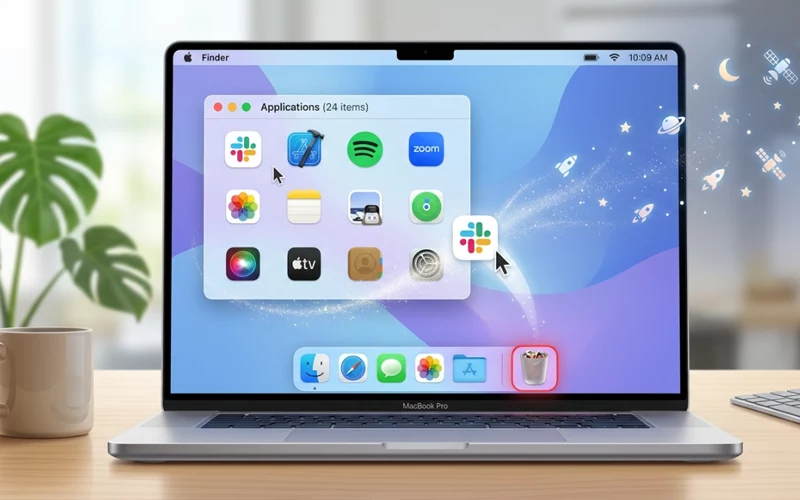
For many apps, the easiest method is still the best one. Open the Applications folder, find the app you no longer want, and drag it to the Trash. Then empty the Trash if you want the app fully removed from local storage. This is the first thing most users try when learning how to uninstall apps on mac, and for many normal apps, it works well.
If the app was installed from the App Store, another simple method is Launchpad. Open Launchpad, press and hold the app icon until it starts shaking, then click the small delete button if it appears. This method works for certain App Store apps and is very quick. Still, not every app supports this kind of removal, so do not be surprised if the option does not appear.
When using this approach, make sure you don’t accidentally remove something that just appears to be the app but isn’t actually it. Some apps are bundled with helper tools or folders that should not be removed unless you know exactly what they are. A safe habit is to make sure the app is really inside the Applications folder before deleting it. That small check can save you from removing the wrong item.
Uninstalling Apps That Leave Files Behind
This is where many people get confused. The app icon may be gone, but pieces of it can still be hiding in Library folders. Those leftover files usually include preferences, support data, caches, and saved states. They may not always cause problems, but if you want a truly clean removal, they should also be deleted.
When you are figuring out how to uninstall apps on mac, the main thing to remember is that the visible app is only one part of the package. Some software stores data in places like Application Support, Preferences, and Caches. These files are often small, but if you remove several heavy apps, the space adds up.
A good way to check for leftovers is to look in your user Library folder. You can open Finder, press Option, then click Go in the top menu to reveal the Library option. Inside, you may find folders linked to the app you removed. If you are not sure what a file does, it is better to leave it alone. The goal is a clean uninstall, not a risky one.
This is one reason many users search for uninstall apps on mac instead of only deleting the app icon. They want the whole thing gone, not just the front part of it. That is a smart approach, especially for apps that save a lot of personal settings or background data.
How to Remove Stubborn Software
Some apps do not behave like normal apps. They might resist deletion, ask for an admin password, or keep running in the background. In those cases, the first step is to quit the app completely. Open Activity Monitor if needed and check whether any related processes are still active. If the app is running, macOS may not let you remove it cleanly.
A second useful step is to look for a built-in uninstaller. Many professional apps, especially large utilities and older software packages, include their own removal tool inside the app folder. This is often the cleanest way to handle how to uninstall apps on mac when the software is stubborn. The developer is aware of all the files the app installs, so its built-in uninstaller can usually clean up more completely than just dragging the app to the Trash.
If no uninstaller is available, you can remove the main app from Applications and then check for leftover files in Library folders. Be calm and careful during this process. Rushing is how people end up deleting the wrong thing. On a Mac, a little patience usually works better than a fast click.
There is also the case of apps that install login items or helper services. These may start automatically when your Mac boots up. Even after deleting the app, you may still see them in settings. In that case, open System Settings and check the Login Items section. Removing those extra entries helps the app disappear fully from startup.
MacBook Pro Users Guide
If you are using a MacBook Pro, the steps are mostly the same, but there is one thing worth keeping in mind: many MacBook Pro owners use powerful software for editing, coding, music, or design. These apps often create larger support files than basic everyday apps. So when people ask how to delete apps on macbook pro, they are often trying to clear much more than just an app icon.
For heavier software, emptying the Trash alone may not be enough. The app may have created plugins, templates, project files, or cache folders that stay on the system. If the software was large, these leftovers can take meaningful space. That is why a proper cleanup is valuable, especially on laptops where storage can fill up fast.
Battery life and performance are not usually affected by a single app removal, but reducing background clutter can still help your Mac stay more organized. If your MacBook Pro has limited storage, regular cleanup makes a real difference over time. This is one reason it is worth learning how to uninstall apps on mac the correct way instead of deleting things blindly.
Removing Apps Installed from Websites
Apps installed from the web often have different removal habits. Some are easy to drag into the Trash, while others spread files in several folders. If you downloaded an app from a company website, the installation instructions usually mention how to remove it too. That is often the best place to look before guessing.
A lot of people assume all Mac software works the same way, but that is not true. Some apps come as .dmg files, some are zip archives, and some use installers that place files in more than one location. When learning how to uninstall apps on mac, it helps to remember that the installation method often decides the removal method.
If the app came with a separate uninstaller, use that first. If not, remove the app from Applications and then inspect Library folders for related support files. This approach is especially helpful for older software or niche tools that do not follow modern App Store behavior. It may take a little more time, but the result is better.
Simple Way to Uninstall Apps Cleanly
Many people worry that removing apps on a Mac is technical, but it does not have to be. The main idea is simple: remove the app itself, then check whether it left anything behind. Once you understand that basic flow, how to uninstall apps on mac becomes much easier to handle.
You do not need expert-level knowledge to do this well. You only need a careful eye and a little patience. Start with the Applications folder or Launchpad. If that is not enough, look for a built-in uninstaller. After that, check for leftover files in the Library. These steps cover most situations without making the process feel complicated.
The best thing about this approach is that it gives you control. Instead of wondering whether your Mac is still carrying old software in the background, you can remove it with confidence. That is a better feeling than simply hoping the app is gone.
Common Uninstall Mistakes
One common mistake is deleting only the app icon and assuming the job is done. Another is removing random folders from the Library without knowing what they are. A third mistake is ignoring login items and helper tools, which can make it look like the app is still active.
If you are serious about how to uninstall apps on mac, avoid the habit of deleting things just because they seem related. Some folders may be shared by more than one app. Some files may support important features. When you are unsure, stop and check before removing anything. That one habit can save you from unnecessary problems.
People also sometimes forget to empty the Trash after deleting the app. Until that happens, the file still sits on the system. Even if it is not actively running, it can still occupy storage space on your device. A complete uninstall usually includes the final Trash step.
Another mistake is expecting one method to work for every app. macOS is flexible, and software developers use different installation styles. That means there is no single perfect method for every case. The best approach is to understand a few removal methods and pick the one that fits the app you are dealing with.
Keep Your Mac Organized
Once you know how to uninstall apps on mac, it becomes easier to keep your computer clean on a regular basis. You can remove old trial apps, programs you no longer use, and tools that were installed for one-time tasks. That helps prevent clutter from building up in the background.
A useful practice is to go through your Applications folder once every few months and see what you actually still need. Look for apps you have not opened in a long time. If you have not used them and do not plan to, remove them properly. This does not only save space. It also makes your Mac easier to navigate because you are left with the tools you actually use.
This is also useful if you share your Mac with family members or use it for work. A clean app list makes things less confusing. You do not have to scroll past old software every time you open Launchpad or Finder. Small cleanup habits can make the whole computer feel more comfortable.
Frequently Asked Questions (FAQ’s)
How do I uninstall apps on Mac?
The easiest way is to open the Applications folder, find the app, and drag it to the Trash. After that, empty the Trash if you want the app removed from your Mac completely.
Is dragging an app to the Trash enough to uninstall it?
For some apps, yes. But many apps also leave behind support files, cache, and preferences. If you want a cleaner removal, you may need to check the Library folder too.
How to uninstall apps on Mac from Launchpad?
Open Launchpad, press and hold the app icon until it starts shaking, then click the delete button if it appears. This works for some App Store apps, but not for every app.
How to delete apps on MacBook Pro safely?
Open the Applications folder, remove the app, and then check whether it has a built-in uninstaller. This is the safest way to avoid leaving leftover files behind.
Why do some apps not delete fully from Mac?
Some apps create extra files in different folders on your system. Even after the main app is deleted, those files may stay on the Mac unless you remove them separately.
How to uninstall programs on Mac that are hard to remove?
First quit the app completely. Then look for an uninstaller inside the app folder. If there is no uninstaller, remove the app from Applications and check for leftover files in Library folders.
Do I need to empty the Trash after uninstalling an app?
Yes, if you want the app fully removed from local storage. Until the Trash is emptied, the deleted app still takes up space on your Mac.
Can I uninstall App Store apps differently from other apps?
Yes. App Store apps can often be removed from Launchpad, while apps downloaded from websites usually need to be deleted from the Applications folder or removed with an uninstaller.
Where are leftover app files stored on Mac?
Leftover files are often found in the Library folder, especially in places like Application Support, Preferences, and Caches. These files may remain after the app is deleted.
What is the best way to uninstall apps on Mac completely?
The best way is to remove the app itself, then check for leftover files, login items, and support folders. This gives you a cleaner uninstall and helps keep your Mac organized.
Final note
Learning how to uninstall apps on mac is one of those simple skills that saves time again and again. It helps you free up storage, remove clutter, and keep your Mac working in a cleaner way. The process is usually easy, but the real difference comes from doing it properly, not just quickly.
For normal apps, deleting from Applications or Launchpad may be enough. For bigger or stubborn apps, a built-in uninstaller or a careful check of leftover files may be needed. Once you understand the process, you will know exactly what to do instead of guessing.
If you remember only one thing from this guide, make it this: a proper uninstall is not just about removing the app icon. It is about clearing the app, its extra files, and anything that keeps it hanging around. That is the most reliable way to handle how to uninstall apps on mac, and it is the method that keeps your system neat for the long run.
If you want to read more interesting and detailed guides, visit EmbossitWorld now. You’ll find useful Information, and a lot of practical information. Don’t miss out.





Add comment