
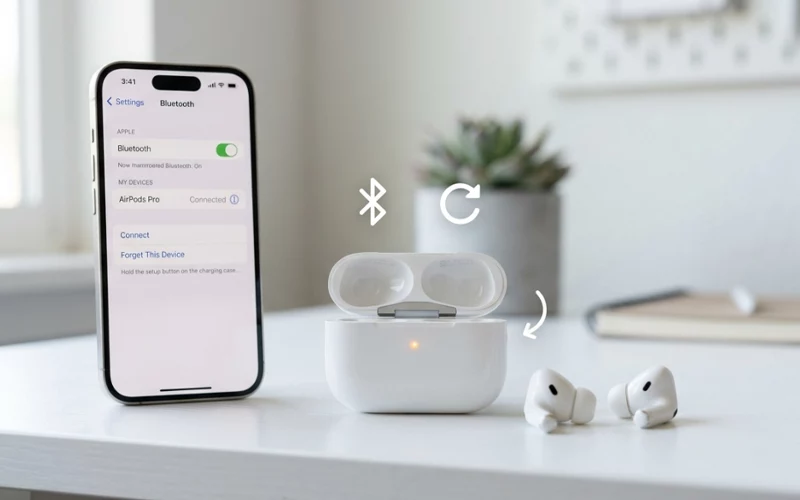
AirPods have become one of the most widely used wireless earbuds today because of their convenience and simple design. But even the best devices sometimes stop working properly. Random disconnections, audio issues, charging problems, microphone glitches, or pairing failures are all common situations where you might need to reset your AirPods. Learning how to reset AirPods correctly can save you time, prevent frustration, and even fix issues you didn’t expect.
A reset sounds simple, but each AirPods model behaves slightly differently. Understanding these small differences helps you choose the right method for your device. This guide explains everything in clear, easy English—no complicated tech terms, no unnecessary steps, and no confusing instructions. Whether you are using the standard earbuds, Pro version, AirPods Max, or newer generations, you’ll find complete solutions in this article.
Restoring them often brings them back to a fresh state similar to when you first took them out of the box. That doesn’t delete your iCloud account or Apple ID data; it only refreshes the Bluetooth memory, connection records, and internal pairing settings. After this process, they will respond faster, connect more reliably, and perform more smoothly. For many users, a simple reset solves problems that even software updates cannot fix.
This article provides detailed guidance for every model, including special cases like resetting without the button or resetting to factory settings. By the end, you’ll understand why resets work, when to use them, and how to keep your AirPods running perfectly.
Why Your Earbuds Need a Reset
AirPods are tiny but powerful devices packed with sensors, microphones, chips, and wireless components. Over time, regular use can cause small errors inside the system. These errors are not harmful, but they do interrupt normal functioning. A reset helps remove these internal glitches and rebuild the connection from scratch.
Common signs that your earbuds may need a refresh include slow connectivity, sound coming from only one side, not charging properly, the case failing to respond, poor audio quality, or the device connecting to the wrong phone. Sometimes the problem is not the earbuds but your phone’s Bluetooth settings. This process clears both ends of the connection pathway and helps them start fresh.
Another reason to reset is when you plan to sell or give your AirPods to someone else. A reset breaks the connection with your iCloud ID, making it ready for the next user. This is especially important for AirPods Max because of their advanced features.
In short, resetting is a safe maintenance step—not a dangerous one. It doesn’t harm your device or delete important information. Instead, it just refreshes both the hardware and software, helping the device run more smoothly.
What Changes After a Reset
When you perform a reset, the AirPods forget all previous Bluetooth connections. They also remove temporary system data that might be causing issues. This gives the AirPods a clean start when you pair them again.
A reset does not affect the hardware, speaker quality, internal battery, or physical components. Everything remains intact. What changes is the connection environment and internal configuration. Think of it as rebooting a laptop that has been running for too long.
This is why many users notice immediate improvements after a reset. Problems that seemed serious suddenly disappear because those issues were linked to temporary software errors.
Pro Model Guide
If you are using AirPods Pro, resetting them is straightforward. AirPods Pro may require a reset when noise cancellation stops responding or when transparency mode becomes unstable. The internal chip sometimes collects faulty data that prevents these features from working correctly.
To restore the Pro model, you typically need the charging case. This process brings back all settings to default, including microphone behavior, ear detection, and audio performance. Once completed, they behave like new. This also helps when Pro earbuds show connection issues after a software update.
After completing the reset, make sure to pair them again by placing them near your iPhone or other device. This ensures that all new settings are applied successfully.
Max Model Steps
AirPods Max work differently from the smaller AirPods because they have dedicated hardware buttons instead of a case button. People often reset them when the Digital Crown becomes unresponsive, when the noise control button stops registering, or when the headphones fail to wake from low-power mode.
Learning how to reset AirPods Max is helpful because this model has more advanced internal software. A reset helps the headphones refresh their Bluetooth system, audio balancing technology, and ANC performance. It also helps if the headphones are connecting to the wrong Apple device again and again.
A full restore also prepares the AirPods Max for switching owners. Since these headphones store a bit more configuration than regular AirPods, performing a complete restore ensures a safe and clean transfer.
First Gen Method
First-generation AirPods are simple and reliable, but after years of use, they may start lagging, lose sound quality, or show pairing problems. Resetting them helps restore their performance. Knowing how to reset AirPods 1 is especially useful because these older models often face more connectivity challenges.
Sometimes the issue is not the AirPods themselves but the battery aging inside the case. Resetting helps the system read the battery levels correctly again. After the reset, users often notice smoother pairing and better response time.
Even after many years, the first-generation AirPods continue to work well when they receive the proper maintenance.
Second Gen Quick Fix
Second-generation AirPods come with a more powerful chip and improved connectivity compared to the first model, yet they may still experience occasional glitches. Learning how to reset AirPods 2 can help fix microphone failures, audio delays, tapping gestures not responding, or unusual battery drain.
Refreshing also improves device switching speed. If your second-generation earbuds are taking too long to transfer between iPhone, iPad, or laptop, a restart refreshes the internal memory responsible for managing these connections.
If your AirPods 2 suddenly stop being recognized by your phone, a reset almost always solves the issue. Once complete, the AirPods return to their familiar quick-connect behavior.
Third Gen Instructions
AirPods 3 introduced spatial audio and stronger sound processing. These features sometimes require recalibration, especially after a pairing failure. Knowing how to reset AirPods 3 lets you fix audio imbalance, spatial audio not activating, or issues with ear detection.
Because the 3rd generation uses updated sensors, they may misread gestures or stop responding when touched. A reset helps them refresh their internal sensor data. It also solves problems when spatial audio becomes unstable.
Many users notice that AirPods 3 perform much better after a proper reset, especially if they have been connected to multiple devices recently.
Fourth Gen Process
AirPods 4 bring even better noise controls, faster processors, and more advanced features. With these improvements come more chances for temporary software conflicts. If you’re experiencing pairing interruptions or sound cutting out, learning how to reset AirPods 4 can restore the device’s stability.
A reset helps the newest models return to their original performance level. Since these models are designed to switch quickly between devices, the internal memory can occasionally get overloaded. This process clears this load and improves connection speed.
Whether you’re using them for gaming, calls, or music, a reset ensures the AirPods remain at top performance.
AirPods Pro 2 Reset Guide
AirPods Pro 2 come with adaptive transparency and advanced noise cancellation. These features depend heavily on sensors and software communication. If something feels off—like modes not switching correctly—learning how to reset AirPods Pro 2 is the best step.
Resetting helps the system reconfigure adaptive audio, microphone behavior, and Bluetooth connections. It also clears errors caused by updates or switching between several Apple devices.
Once reset, the AirPods Pro 2 usually function more efficiently, and the sound quality becomes stable again.
Pro 3 Setup Guide
Even newer versions like AirPods Pro 3 may develop unusual behavior after extended use. Knowing how to reset AirPods Pro 3 helps restore their advanced adaptive audio system, personalized spatial audio, and noise control settings.
If your AirPods are switching modes unexpectedly or failing to respond to touch gestures, a reset typically removes the problem entirely. Newer models benefit greatly from a clean Bluetooth start.
After a reset, users often see a noticeable improvement in responsiveness and sound stability.
Common Issues & When It Helps
Below is a simple table showing some of the most common AirPods issues and how effective a reset usually is in solving them. This helps you understand when a reset is worth trying.
Common Problem | Does Resetting Help? | Why It Helps |
| AirPods not connecting | Yes | Removes connection errors and Bluetooth conflicts |
| One side not working | Yes | Resets audio routing and sensor data |
Poor sound quality | Yes | Refreshes audio processing settings |
Charging issues | Sometimes | Helps case and pods sync correctly |
Microphone glitches | Yes | Clears outdated mic configurations |
Device switching problems | Yes | Rebuilds memory responsible for multi-device linking |
Noise cancellation not working | Yes | Resets ANC chip behavior |
| Spatial audio errors | Yes | Recalibrates sensors and sound profiles |
Factory Settings Restore
Sometimes a basic reset is not enough, especially if your device has major problems or if you want to give it to someone else. Learning how to reset AirPods to factory settings helps restore the device to a fully fresh state, removing all previous settings and making it work like a newly purchased unit.
A factory reset removes all saved configurations, restores the original connection behavior, and prepares the earbuds for first-time pairing again. It essentially clears all previously stored Bluetooth pairings and internal settings so the device can start fresh, just like when it was brand new out of the box. This process is especially useful when the device does not appear in Bluetooth settings, fails to connect, or keeps showing repeated pairing errors despite normal troubleshooting steps.
After this process, you’ll need to set up the AirPods again. This includes pairing them with your device and adjusting any sound preferences. Factory resetting is simple, safe, and the best long-term solution for persistent issues.
Without Button Fix
Some users wonder if they can learn how to reset AirPods without button because the case button is broken, missing, or damaged. While the usual method relies on the button, there are cases where resets can be performed automatically through settings.
For example, unpairing AirPods from all devices and letting the system forget them can sometimes achieve a partial reset. Charging the AirPods fully and reconnecting them can also refresh the connection.
Although a complete reset is easiest with the button, you can still attempt a software-based reset when the case button doesn’t work. This method works for users who don’t have access to the case or are using replacement parts.
When This Fix Is Actually Needed
Rebooting is not something you need to do daily, but it is extremely helpful during specific situations. If the audio feels different, if you switch between multiple devices, or if your AirPods behave slowly, a reset refreshes everything. Many users reset their AirPods once a month as a maintenance habit, which helps improve long-term performance.
You should also reset them before updating your phone’s software or when you start using a new device. This prevents unexpected conflicts between older data and new settings.
Reconfiguring is also recommended when you experience sudden battery drain. In many cases, the AirPods misreport battery percentages, and a reset helps the system read them correctly again.
What to Try If the Problem Continues
While resets solve most issues, some problems may need additional solutions. For example, if your AirPods are physically damaged, resetting cannot repair hardware. Similarly, when battery health drops too low, a reset alone cannot restore performance.
In such cases, updating your device software, cleaning the earbuds properly, or trying a different charging cable may help. Sometimes the problem may be with the phone, not the earbuds. Restarting your device can also support the process.
If none of these steps work, professional support may be necessary. However, this is rare because most AirPods problems disappear after a proper reset.
FAQs
How to reset AirPods if they are not pairing with my phone?
When earbuds refuse to connect properly, it usually means the stored Bluetooth connection is corrupted. In this situation, learning how to reset AirPods helps clear previous device memory and allows a clean reconnection. This process often resolves pairing problems in just a few seconds.
Why do earbuds sometimes disconnect during calls?
This usually happens due to weak Bluetooth signals, interference from nearby devices, or temporary software lag. Restarting the connection or moving closer to the paired device often solves the issue.
What should I do if only one side is producing sound?
If one earbud stops working, it may be due to dirt blockage, low battery, or syncing issues between left and right sides. Cleaning the mesh and re-establishing the connection often brings back proper audio balance.
Why does battery percentage suddenly drop or show incorrectly?
This issue often appears when the device loses calibration over time. The system may display inaccurate battery levels until it re-syncs with actual battery performance.
How can I improve switching speed between multiple devices?
Slow switching usually happens when too many devices are connected under the same account. Removing unused connections and reconnecting fresh devices can make switching faster and smoother.
What is the correct method to reboot AirPods Pro when audio feels uneven?
If sound becomes unbalanced or one side feels louder than the other, performing how to reset AirPods Pro can help restore normal audio behavior. It refreshes internal sound settings and removes temporary glitches affecting playback.
What causes noise control features to stop working properly?
This can happen due to temporary sensor glitches or software mismatches. In most cases, reconnecting the device or refreshing settings restores normal noise control behavior.
Why does microphone quality sometimes get worse during calls?
Microphone issues are often caused by dust, background noise interference, or incorrect input selection on the connected device. Cleaning and rechecking settings usually improves clarity.
What should I do if my device keeps reconnecting automatically?
This usually happens when multiple saved devices are competing for connection. Removing old pairings and setting a primary device can stop unwanted automatic switching.
How to restore AirPods to factory settings before giving them to someone else?
Before selling or gifting, it is important to use how to reset AirPods to factory settings so all previous connections and settings are removed. This ensures the new user can pair them without any issues or account conflicts.
Final Thoughts
Wireless earbuds are incredibly convenient, but like any wireless device, they can face glitches, connection bugs, or audio problems. Learning how to reset AirPods is one of the easiest and most effective ways to solve these issues. Every model—from AirPods 1 to AirPods 4, and from AirPods Pro to AirPods Max—benefits from occasional resets.
Each section in this guide explains the reset process and why it matters. By knowing how to reset your specific model, you can fix problems faster, maintain smoother performance, and enjoy a more stable listening experience.
Resetting is safe, quick, and powerful. Whether you’re dealing with pairing errors, sound issues, or general slow performance, a reset gives your AirPods a fresh start—exactly when they need it.
If you want to read more interesting and detailed guides, visit EmbossitWorld now. You’ll find useful Information, and a lot of practical information. Don’t miss out.





Add comment