
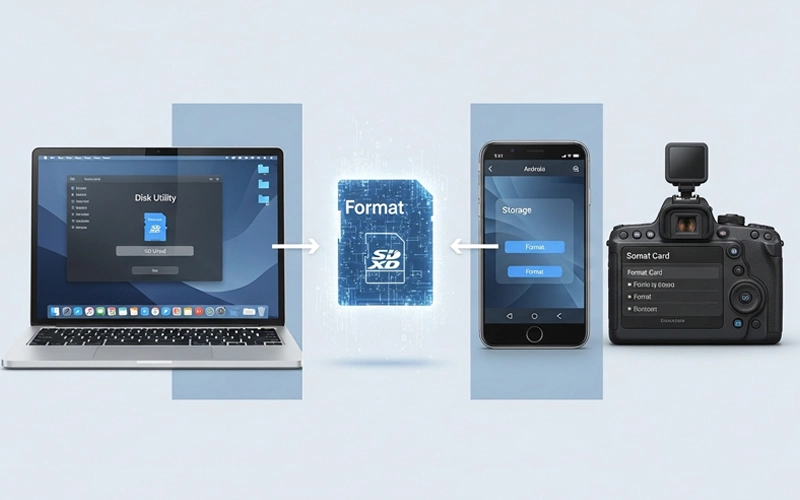
Formatting an SD card is something most people don’t really pay attention to until they start facing problems like errors, slow speed, or storage not working properly. Whether you’re using it in a camera, Android phone, Mac, dash cam, or gaming device, doing it the right way really matters. A proper format can fix many common issues and also help your memory card work more smoothly for a longer time.
In this guide, I’ll walk you through how to format SD card on different devices in a simple and easy way. You’ll also learn about file systems like FAT32 and get step-by-step instructions for Mac, Android, cameras, and more — without any confusing technical language.
What Does Formatting an SD Card Mean?
A lot of people think deleting files and formatting are the same thing, but they’re actually quite different. When you delete files, only the visible data is removed, but the overall structure of the card stays the same. Formatting, on the other hand, clears everything and resets the whole system from scratch.
So when someone searches how to format an SD card, it usually means they’re trying to fix errors, switch file systems like FAT32, or prepare the card for a specific device like a camera, phone, or gaming console such as the Nintendo Switch.
Why Is Important
There are many situations where formatting an SD card becomes necessary. Sometimes the card starts acting up — it may get corrupted, slow, or even stop being detected by your device. In other cases, devices like cameras or gaming consoles may ask for a fresh format before you can use the card properly.
Formatting is useful for several reasons. It can remove hidden or corrupted files that may be causing errors, improve the overall read and write speed, and prepare the card for a specific device system. It also clears everything completely, giving you a clean start, and helps avoid file conflicts when the card is used in different devices.
That’s why understanding how to safely format an SD card is important — it helps you protect your data and keeps your memory card working smoothly without unnecessary damage or issues.
Important Things Before Formatting
Before you format your SD card, there are a few important things you should keep in mind. A lot of people skip this step and end up losing important data later.
First of all, always make a backup of your files because formatting will erase everything on the card permanently. Next, double-check that you’re selecting the correct SD card, especially if you have multiple drives or storage devices connected. It’s very easy to pick the wrong one by mistake.
Also, try to choose the right file system based on your device. If you’re not sure, FAT32 is usually the safest choice since it works well with most cameras, phones, and gaming devices.
Formatting on Windows
Even though this guide covers different devices, a lot of people still prefer using a Windows computer for formatting because it’s quick and straightforward.
All you need to do is insert the SD card into a card reader, open “This PC,” right-click on the SD card drive, and choose the format option. After that, select FAT32 or exFAT depending on what your device needs, then click Start.
However, since this article mainly focuses on Mac, Android, and other device-specific methods, we’ll take a closer look at those in the next sections.
Formatting on Mac
Many users search for how to format SD card on Mac or how to format SD card MacBook because macOS works differently from Windows. The process is simple but must be done carefully.
On Mac, you use a built-in tool called Disk Utility. First, insert your SD card into the Mac using a card reader. Open Disk Utility from Applications. Select your SD card from the left side list. Then click Erase.
Now you must choose a format type. If you want wide compatibility, choose MS-DOS (FAT) which is FAT32. After that, click erase and wait for the process to complete.
Once done, your SD card will be clean and ready to use.
How to Format to FAT32
One of the most common things people look up is how to format an SD card to FAT32. The reason FAT32 is so popular is simple — it works on almost every device, whether it’s a camera, dash cam, or gaming console.
That said, FAT32 does have one limitation. It can’t handle single files larger than 4GB. But for everyday use like photos, videos, and general storage, it still works perfectly fine.
If you want to format your card to FAT32, you can do it using Windows Disk Management or Mac Disk Utility. On Windows, things can get a bit tricky because the system sometimes doesn’t allow FAT32 formatting for larger SD cards, so in those cases people often use third-party tools.
Overall, if you’re not sure which file system to choose, FAT32 is usually the safest and most compatible option.
Comparison of File Systems for SD Card
Here is a simple table to help you understand different file systems:
File System | Best Use | Compatibility | File Size Limit |
FAT32 | Cameras, Dash cams, gaming devices | Very High | 4GB per file |
exFAT | Modern devices, large files | High | Very Large |
| NTFS | Windows systems | Medium | Very Large |
Choosing the right file system is an important part of how to format SD card correctly.
How to Format in Camera
The simplest and most reliable method is to format the SD card inside the camera itself. Just insert the card, open the settings menu, find the format option, and confirm the action. It only takes a few seconds.
Doing it this way helps the memory card adjust properly to that specific camera. If you format it on a computer instead, there’s a chance the camera might still show errors or not read the card correctly in some cases.
That’s why many photographers prefer and recommend formatting the SD card directly in the camera for the best and most stable performance.
How to Format for Dash Cam
Dash cams keep recording video continuously, so the SD card is under constant use. Because of this, the card can sometimes become slow or even get corrupted if it’s not managed properly. That’s why many people look up how to format an SD card for a dash cam.
To do it, the first step is to check what file system your dash cam recommends — most of the time it’s FAT32. After that, you can format the card either using a computer or directly through the dash cam’s own settings.
It’s also a good habit to reformat the SD card every few weeks. This helps keep the recording smooth and reduces the chances of errors or missing footage over time.
How to Format SD Card on Android
Many smartphone users often search for how to format an SD card on Android because the process is actually quite simple.
To do it, open your phone’s Settings, go to Storage, and then select your SD card. There you’ll usually find the format option. Just tap it and confirm the action.
On some Android versions, you might see “Erase SD card” instead of “Format.” Don’t worry — both options basically do the same thing.
Just remember to back up your important data first, because once you format the card, everything stored on it will be deleted.
How to Format on iPhone
iPhones don’t support SD cards directly like Android phones or cameras. However, if you’re using an external SD card reader, you won’t be able to format the card through the iPhone itself.
So when people search how to format an SD card on iPhone, the simple answer is that it isn’t possible directly on the device. Instead, you’ll need to connect the SD card to a computer and use either a Mac or Windows system to format it properly.
Preparing Storage for Switch
Gaming users often search for how to format an SD card for the Nintendo Switch because the console needs the card to be set up in a specific way.
The Nintendo Switch works best with SD cards formatted in exFAT, especially when you want to store larger games and files. You can first format the card on a computer, then insert it into the Switch.
After inserting the card, the console may ask you to confirm the setup or automatically guide you through the final steps.
Using the correct format helps ensure that games run smoothly and reduces the chances of errors, lag, or storage issues while playing.
How to Format for 3DS
For older gaming devices like the Nintendo 3DS, the SD card usually needs to be in FAT32 format. That’s why many users search for how to format an SD card for 3DS.
In most cases, you just need to format the card to FAT32 using a computer and then insert it into the device. It’s a pretty straightforward process.
If the format isn’t correct, the system may not recognize the SD card at all or could show errors when you try to use it.
How to Format for Trail Camera
Trail cameras are usually used outdoors, where conditions can be rough, so the SD card needs to work reliably. That’s why people often search for how to format an SD card for a trail camera.
The best approach is to format the card directly inside the trail camera if that option is available. If not, you can format it on a computer using FAT32.
Doing this helps ensure better compatibility and reduces the chances of recording errors, especially when the camera is exposed to different weather conditions.
Common Problems After Formatting
Sometimes, even after formatting, users still run into problems. This usually happens because the wrong file system was selected or the SD card itself has some issues.
The most common problems include the card not being detected, slow performance, or files getting corrupted. In many cases, simply reformatting the card or switching to a different file system can solve the issue.
However, if the problem keeps coming back, there’s a good chance the SD card is physically damaged and may need to be replaced.
Best Practices for Safe Formatting
To safely format an SD card, it’s important to follow a few simple but important habits. Never remove the card while it is being formatted, as this can easily cause damage or corruption. Always eject it properly from your device before taking it out.
Try not to format the card too often unless it’s really needed, because unnecessary formatting can sometimes reduce its reliability over time.
It’s also a good idea to use good-quality SD cards from trusted brands. Cheap or low-quality cards are more likely to develop errors or become corrupted, especially with regular use.
FAQs
Why do I need to format an SD card before using it?
Formatting prepares the memory card for proper use by creating a clean file system. It helps remove hidden errors, ensures smooth performance, and makes the card compatible with your device.
Will formatting delete all my files permanently?
Yes, formatting removes everything stored on the SD card. Once it is formatted, data cannot be recovered easily, so it is always recommended to back up important files first.
What is the safest file system to use for most devices?
For general use, FAT32 and exFAT are considered the most reliable options. FAT32 works with older devices, while exFAT is better for modern devices that handle large files.
Why does my device ask me to format the card again and again?
This usually happens when the file system is corrupted or the card was not removed safely from another device. It may also indicate that the memory card is damaged or fake.
Can I use the same SD card in different devices?
Yes, but it is better to format it according to the new device before using it. This avoids compatibility issues and reduces the chance of errors.
Is formatting on a computer better than formatting on a device?
Both methods are fine, but formatting directly on the device (like a camera or console) is often more reliable because it sets the correct system automatically.
How often should a memory card be formatted?
There is no fixed rule, but regular formatting after heavy use or before important recording sessions can help maintain performance and prevent errors.
What happens if I remove the card during formatting?
Removing it during formatting can corrupt the card completely. It may stop working or become unreadable, so it should always be left untouched during the process.
Conclusion
Learning how to properly format an SD card is really important for anyone using devices like cameras, smartphones, dash cams, or gaming consoles. It’s not just about deleting files — it’s about getting the card ready so it can work smoothly and last longer.
Whether you’re doing it on a Mac, Android phone, or directly inside a camera, the main thing is to pick the right file system like FAT32 or exFAT and follow the steps carefully.
When you do it the right way, formatting solves most common SD card issues and improves your device’s overall performance.
If you want to read more interesting and detailed guides, visit EmbossitWorld now. You’ll find useful iPhone tips, tech tutorials, and a lot of practical information. Don’t miss out.





Add comment