
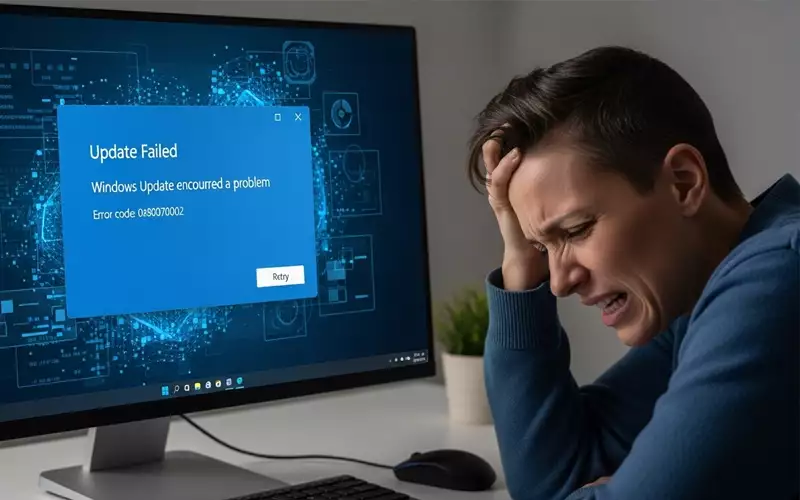
Millions of people use Windows computers every day, and keeping them up to date is essential for both safety and smooth performance. Updates not only fix glitches but also help your system run faster and protect it from security threats. Still, it can be really frustrating when a Windows update doesn’t go through. Even a small error can eat up your time and leave you unsure about what to do next.
No matter if you are using Windows 7, Windows 10, or Windows 11, problems with updates can show up in many different ways. Sometimes the update stops at one percentage and does not move further. Other times it keeps loading for a very long time without finishing. In some situations, the update fails completely and an error message appears on the screen. That is why it’s important for every user to know what causes these issues and how they can fix them.
This article talks about the common reasons why Windows updates stop working and also explains simple ways to fix them. The main aim is to help you understand the problem clearly and solve it without any stress or confusion.
Understanding Why Windows Update Fails
When you get a message that your Windows update is not working, it usually means something is stopping the update. Windows needs several system parts, services, and important files to download and install updates correctly. If even one of these stops working or gets damaged, the update can fail and will not finish.
Sometimes the problem happens because your internet connection is not stable. Other times, the issue comes from inside the system, like damaged files or a broken update folder. In many cases, the update service itself stops working properly. The good thing is that most of these issues can be fixed easily once you know what is causing the update to stop.
Many people often ask, “Why is my Windows update not working?” The truth is, there isn’t just one reason. It can depend on your computer, the version of Windows you are using, and even the age of your device. Older computers usually have more trouble with updates than newer ones. Still, the ways to fix this problem are mostly the same for all versions of Windows.
Windows Update Not Working in Windows 11
Many users who have moved to Windows 11 have noticed that their Windows updates sometimes don’t work. Since Windows 11 is a new operating system, Microsoft keeps sending out regular updates. These updates bring better security, new features, and improved performance. However, because the system is still developing, it is common to face issues with updates not installing properly.
On Windows 11, sometimes updates can get stuck while downloading or installing. You might also see a strange error number appear. Another common problem is when Windows says your system is fully updated, even though you know new updates are available.
Sometimes, Windows 11 updates don’t work because the computer doesn’t meet all the system requirements. Windows 11 needs certain hardware features, and if your device is missing even one, updates can fail. Also, sometimes other programs running in the background can stop the update process without you noticing.
No matter what is causing the problem, the fix usually means checking your system files, resetting the update settings, restarting important services, or making sure your device has enough free storage. After doing the right steps, Windows 11 updates should start working properly again.
Windows Update Not Working in Windows 10
The issue of Windows updates not working is most common on Windows 10. This is because Windows 10 is still used by a lot of people around the world. Many choose it for its stability and long support. But even though it’s so popular, problems with updates still happen often.
Sometimes Windows 10 updates do not work because some update files get damaged. This happens when the computer downloads files incorrectly, and then it keeps trying to use these broken files. Another reason is that the update service may stop running or its settings might change on their own.
Some people notice that Windows 10 updates stop working after they install third-party antivirus programs. These security programs are very strict and can block files they don’t recognize. Sometimes, they even block Windows updates by mistake. If this happens, turning off the antivirus temporarily or changing its settings usually fixes the problem.
Windows 10 updates can sometimes fail if some system files are broken or missing. When important files are damaged, Windows cannot install the new updates properly. Running repair commands can usually fix these problems. After repairing, updates should install normally without any errors.
Windows 10 is older than Windows 11, so it doesn’t get many new features anymore. However, it still gets regular security updates. Solving any update problems is important to keep your computer safe from new threats.
Windows Update Not Working in Windows 7
Even though Windows 7 is old and Microsoft no longer supports it, many people still have problems with Windows Update not working. Since regular updates are no longer released, the update feature doesn’t work like it used to. However, on some systems, certain extended security updates can still be applied.
When Windows 7 users notice that updates are not working, it usually happens because Microsoft no longer sends updates to Windows 7 devices. In this case, the only updates you can get are offline update files, which you have to download and install by yourself.
Older computers sometimes have trouble with updates that need the internet. This happens because their systems don’t always work well with newer servers. As a result, the update process can get stuck or take a very long time to load.
Even though Windows 7 can’t get regular updates anymore, its update system may still try to look for them. This can make it keep checking forever, which makes users think something is wrong. The best way to fix this is to turn off automatic updates or upgrade to a newer Windows version like Windows 10 or 11.
How to Fix Windows Update Not Working (General Solutions)
If you want an easy way to fix Windows updates not working, the first step is to know what kind of problem you have. For some people, the update gets stuck. For others, it shows an error message. And for some, the update doesn’t start at all.
To fix update problems, start by restarting your computer and making sure your internet is working. Many people don’t realize that a simple restart can solve a lot of issues because it refreshes important system services and removes temporary conflicts.
If the problem doesn’t go away, the next step is to fix your system files. Windows has built-in tools that can check for damaged files and repair them automatically. Once the files are fixed, updates usually start working again. Another thing you can do is reset the update components. This clears the cache, rebuilds the update folders, and restarts the services Windows needs to update properly.
Sometimes, freeing up disk space, clearing temporary files, or deleting old update files can help updates work smoothly. These steps remove the things that block the update process.
Why Some Devices Face Frequent Update Problems
Computers can have update problems for different reasons. Newer computers usually update easily because they have modern hardware and up-to-date drivers. Older computers often have more trouble, especially if they are running a newer version of Windows.
If your Windows updates keep failing, it might be because your system has old drivers or outdated parts. Drivers are small programs that help your hardware work with Windows. If they are too old, they might not support new updates.
Another reason updates fail is low storage space. Updates need room to download, unpack, and install. If your device is almost full, the updates can keep failing.
Background programs can also stop updates from working. Large software like antivirus programs, system cleaners, or firewalls may block updates without warning. This can be confusing because users don’t know why the update keeps failing.
Power problems can also cause update issues. If your laptop’s battery is low or unstable during an update, Windows may stop the update to protect your device.
Why Understanding the Update Issue Matters
It’s easy to ignore update errors. Some people just click ‘retry’ without knowing the real problem. But understanding the issue can help prevent future problems. When Windows updates don’t work, your computer misses important security patches, which can make it vulnerable to viruses, hacks, and slow performance.
Updates also fix bugs and make your system more stable. If updates keep failing, your device may stay slow and have more errors. Fixing the update system once helps keep your computer safe and running smoothly for a long time.
Knowing how to fix update problems can also save you money. Many people go to repair shops for simple update issues that can be fixed at home in minutes. Understanding the real cause lets you solve the problem yourself without relying on a technician.
Windows Update Problems After a Fresh Installation
Sometimes Windows updates just don’t work, even after you’ve done a fresh install. It’s frustrating because you expect everything to run perfectly on a new system. But in reality, issues can still happen — like missing drivers, outdated components, or even small problems during the installation process that you might not notice at first.
If updates fail after installing Windows, it often means the system needs a few restarts before updates work properly. Sometimes the update service doesn’t start automatically, so you may need to turn it on manually. Once everything is set up and the services are running, updates will work normally.
Another reason updates may fail is using old installation media. If you installed Windows from an old USB or DVD, your system might be missing the latest update files. Updating your installation media usually fixes this problem.
Fixing Updates When They Are Stuck
One common problem is an update getting stuck at a certain percentage. It might freeze at 0%, 10%, 20%, 80%, or even 99%. This can make users think the update isn’t working, but in many cases, it is still running in the background.
Windows can take a long time to install some updates. How fast it goes depends on your computer and the size of the update. But if it stays stuck for several hours, the update is likely not working correctly.
Restarting the update service, clearing the cache, and removing damaged files often fix this problem. If the system is stuck while installing, a restart can help. But you should avoid turning off your computer during important updates, or it may cause file corruption.
Update Issues Caused by Corrupted System Files
Windows needs thousands of system files to work properly. If even a few files are missing or damaged, updates may stop working. This often happens if third-party software changes system files or if the computer has been infected by a virus.
When corrupted files cause update problems, repair tools can scan and fix the missing or damaged parts. This may take a little time, but once it’s done, updates usually start working again. This is a reliable way to fix the issue if other methods haven’t worked.
Internet Problems Affecting Windows Updates
Sometimes updates get stuck at a certain percentage, like 0%, 10%, or even 99%, and it can be really frustrating. It often feels like nothing is happening, but in many cases the update is still running in the background—you just can’t see the progress properly.
Updates include large files, and even a small interruption can stop or damage the download. Checking your internet speed, switching to a better network, or restarting your router often fixes the problem.
Public Wi-Fi networks sometimes block the ports Windows needs to update. Using a private network is better. Once your connection is stable, Windows can download updates without any errors.
Why Drivers Affect Windows Updates
Drivers help your hardware work properly with Windows. If your drivers are old or damaged, they can cause update problems. This is especially true for display, network, and security drivers.
When Windows finds drivers that don’t match the system, it may block updates to prevent crashes. Updating the drivers usually fixes this. Once the drivers are compatible, updates work normally again.
Conclusion
Windows update not working problems can happen in any version, whether it’s Windows 7, Windows 10, or Windows 11. The main reasons are usually the same: corrupted files, weak internet, old drivers, blocked services, or background programs interfering with updates.
Knowing these causes makes it easier to fix the problem. Whether you have Windows 7, Windows 10, or Windows 11, the solutions usually work if you follow them correctly.
If you ever wonder why Windows updates aren’t working, it’s usually caused by a small system conflict. Fixing that conflict gets your updates working again and keeps your computer safe, secure, and running smoothly.
FAQs About Windows Update Not Working
Q1: Why is my Windows update not working?
A: Windows updates can stop working because of damaged system files, old drivers, slow internet, or conflicts with antivirus programs. Sometimes the update service is turned off, which can also cause errors.
Q2: How do I fix Windows update not working in Windows 11?
A: To fix update problems in Windows 11, try restarting your computer, using the Windows Update Troubleshooter, repairing system files with SFC, or resetting the update components. Also, make sure your device meets the system requirements.
Q3: What should I do if Windows 10 update is stuck?
A: If a Windows 10 update is stuck, try restarting the update service, clearing the update cache, checking your internet, and making sure your device has enough storage. You can also use built-in repair tools like SFC or DISM to fix the problem.
Q4: Why is Windows 7 update not working?
A: Windows 7 updates may stop working because Microsoft no longer supports it, the update servers don’t provide patches, or the system files are old. Now, some updates can only be installed manually.
Q5: Can antivirus software block Windows updates?
A: Some antivirus programs can block Windows updates to protect your computer. Temporarily turning off the antivirus or changing its settings usually lets the updates install successfully.
Q6: How do I reset Windows Update components?
A: Resetting Windows Update components means stopping the update services, clearing the SoftwareDistribution and Catroot2 folders, and then restarting the services. This removes corrupted update files and lets Windows download fresh updates.
Q7: How can I fix corrupted system files affecting updates?
A: You can use built-in Windows tools like SFC (System File Checker) and DISM to check and fix damaged system files. This often makes Windows updates work again.
Q8: What causes Windows updates to fail repeatedly?
A: Updates can fail often if your disk space is low, your internet is slow or unstable, your drivers are outdated, system files are corrupted, or third-party software is interfering.
Q9: Do I need to upgrade my Windows if updates are not working?
A: If your Windows version is no longer supported, like Windows 7, it’s best to upgrade to Windows 10 or Windows 11. This way, your computer will get regular updates and better security.
Q10: How long should I wait if a Windows update seems stuck?
A: Some updates can take several hours depending on your computer and the size of the update. If it stays stuck for too long, try restarting your PC, running the update troubleshooter, or clearing the update cache.




Add comment