
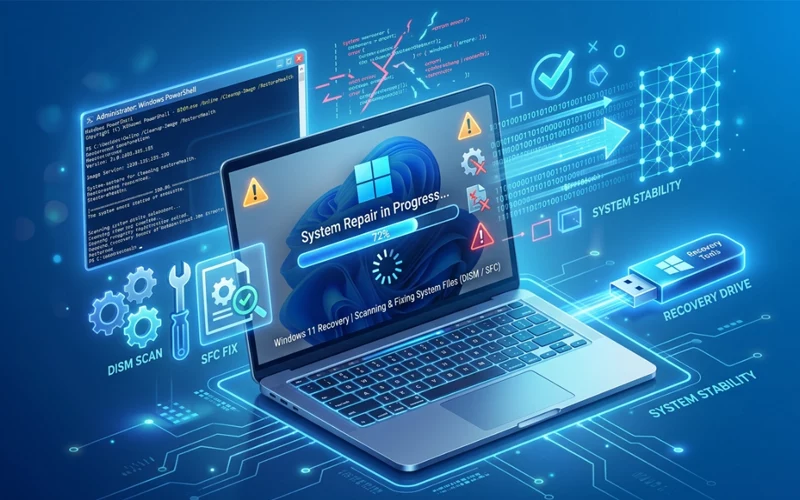
Windows 11 is a powerful operating system, but even the best systems run into issues with time. Many users face problems like slow performance, frequent crashes, boot errors, black screens, or the infamous Preparing Automatic Repair loop. These issues can interrupt workflow and create unnecessary frustration. The good news is that most of these problems can be fixed without reinstalling your system from scratch.
This guide explains everything you need to know about repair Windows 11 using different methods, tools, and commands. Every solution is explained in easy English so that anyone—even beginners—can follow along confidently.
Common Reasons System Needs Repair
Before repairing anything, it helps to understand why issues happen. Problems in Windows 11 usually come from corrupted system files, damaged boot configurations, unstable updates, faulty drivers, malware, or improper shutdowns. Sometimes, storage problems, registry errors, or hardware failure may also trigger system crashes.
When you understand the root cause, choosing the best fix method becomes easier. Some problems require a simple restart, while others need deeper tools like the DISM option or boot-related solutions.
With this article, you’ll learn how to fix each type of repair Windows 11 issue step-by-step.
What Automatic Repair Really Means in Windows 11
You may have seen the message Preparing Automatic Repair appear while you turn on your PC. This happens when your system detects a boot problem and attempts to fix it automatically. While it can solve minor issues, sometimes it gets stuck in a loop.
The preparing automatic repair screen often appears due to corrupted boot files, sudden shutdowns, bad updates, or damaged system files.
If the system manages to fix itself, that’s great. But if it keeps looping, you’ll need to manually resolve the issue using advanced methods. The next sections explain how to handle such situations safely.
Startup Repair for Quick Boot Fixes
While your computer struggles to boot, the startup repair Windows 11 option can help restore essential settings. This built-in tool automatically checks for missing or damaged boot files and repairs them. You can access Startup Repair from the Advanced Startup menu. It works well for common boot errors, power failures, and improper shutdown problems.
Startup Repair is also helpful when updates fail and the system cannot load properly. If it doesn’t solve the issue, you may need to move toward deeper repair methods like Command Prompt or DISM tools.
How DISM Fixes Deep System Corruption
For deeper problems, the DISM repair Windows method is one of the most powerful solutions. DISM stands for Deployment Image Servicing and Management. It can repair system image corruption that even SFC cannot fix. DISM scans the Windows image for inconsistencies and replaces damaged components with fresh ones.
Many users notice that system performance improves significantly after running DISM commands. This is especially helpful when Windows update files become corrupted. If you often see freezes, slowdowns, or unexplained errors, DISM can help bring stability back to your device.
What Automatic Repair Tries to Fix
The automatic repair tool is part of the system’s self-recovery features. It attempts to fix key things like configuration files, boot data, and startup conflicts.
It runs on its own when the OS detects something wrong during boot. However, automatic repair can only fix simple problems. More complex cases need manual methods.
If Automatic Repair keeps reappearing even after several restarts, it’s a sign that your system might have deeper corruption. In such cases, using commands or installing Windows from a bootable USB may be necessary.
Fixing Boot Issues Using USB
Once your PC cannot boot at all, repairing Windows 11 directly from USB becomes the best option. The repair windows 11 from USB method loads the Windows Recovery Environment from a flash drive. It lets you access advanced tools even if your operating system is completely unavailable.
This method is perfect when you face major boot corruption or malware damage. To use it, you need a bootable USB created using the official Media Creation Tool. Once the system boots through the USB, you can run commands, repair startup files, or reinstall the OS without deleting your data.
How to Use USB for System Recovery
Beginners often ask how to fix the system using a USB without losing files. Fortunately, the process is simple.
You boot into the USB, access the recovery tools, and choose the option that suits your issue. You can perform system restore, startup repair, and even in-place upgrades. This method is one of the safest ways to fix a completely unresponsive PC.
It is useful when the operating system fails to start, patches break system files, or viruses damage important components. The USB method gives complete control over how you want to repair your system.
Using Command Prompt for Advanced Fixes
Many powerful repair tools in Windows can only be accessed through Command Prompt. The repair windows command prompt method gives deeper access to system components, allowing you to use tools like SFC, DISM, bootrec, and chkdsk.
Command Prompt repairs are often used by experts, but they are simple enough for beginners if instructions are followed correctly. This method is perfect for repairing boot records, restoring corrupted system files, and rebuilding configuration data.
Reinstalling Without Losing Data
Sometimes the system may stop working properly because some setup or installation files get corrupted or broken. In that case, you can fix the installation using an in-place upgrade. This method reinstalls the operating system while keeping your apps, files, and settings untouched.
Unlike a reset, an installation repair is gentle and safe. It refreshes all operating system components, fixes broken features, and resolves update problems. Users often choose this method when facing repeated crashes, performance issues, or missing Windows features.
Essential Tools for System Repair
Windows 11 includes several built-in tools that help with system recovery. The windows repair Windows features include System Restore, SFC Scan, DISM, Startup Repair, and Reset This PC.
Each tool handles specific types of issues. Knowing which tool to use saves time and prevents unnecessary reinstallation. Microsoft designed these tools so that even a severe failure can be repaired without losing your files.
How to Stop Automatic Repair Loop
Sometimes the system forces the Automatic Repair cycle even when you don’t need it. This can be annoying. Many users wonder how to stop the automatic repair loop permanently.
You can disable automatic repair through Command Prompt by modifying the recovery settings. But be cautious—disabling it means the OS won’t attempt to fix boot issues automatically. Use this option only when you are sure the repair loop is unnecessary or caused by software glitches.
Fixing Disk-Related Problems
Storage issues can severely affect your system’s performance. The disk repair method is used to detect and fix hard drive errors.
When the drive has bad sectors, the system may freeze, crash, or fail to boot. The most common tool used for disk repair is CHKDSK, which scans your drive and tries to fix file system problems. It’s useful for resolving data inconsistencies and preventing future corruption.
Improving Overall System Stability
A full system repair Windows 11 approach checks everything—from system files to configurations and hardware communication. It includes restoring older system states, repairing disk structures, and replacing corrupted components.
System repair helps when your PC becomes unusually slow, certain applications stop working, or system settings break after updates or malware attacks.
This method aims to restore the overall health of your Windows environment.
Fixing Registry Errors
The registry holds thousands of important settings for the system and applications. Over time, registry entries may become corrupted. The registry fix method helps remove damaged keys and restore missing values.
Registry problems often cause random errors, app failures, and slow performance. Repairing the registry can bring stability back to your Windows system, but it must be done carefully to avoid accidental damage.
Advanced Recovery Using Command Prompt
If you want complete control over the repair process, the command prompt method is ideal.
Here, you use a combination of SFC, DISM, bootrec, chkdsk, and bcdboot commands to diagnose and fix problems.
Command-based repair is used while graphical tools fail or when the system refuses to boot. It’s a powerful method for restoring lost functionality and repairing deep corruption.
Boot Recovery via CMD
The repair Windows CMD approach focuses on fixing issues using command-line tools. It is especially effective for repairing boot files, rebuilding the boot configuration, and fixing master boot records. CMD repairs are also useful when you face issues like black screens or automatic repair loops.
Users who want a more technical solution prefer CMD because it gives detailed control over system processes.
Offline DISM Fix When System Won’t Start
If your system is too damaged to load normally, the DISM offline repair Windows 11 method becomes useful. Here, DISM is run from outside the OS using Windows Recovery Environment or USB boot options. This allows repairing the system image even when Windows cannot start.
It is particularly effective when updates break the system or when essential files become corrupted beyond normal repair capabilities.
Easy Ways to Fix Installation Issues
Sometimes users ask how to fix the system without losing their data. The easiest method is using the in-place upgrade tool, which refreshes all system components. This method eliminates bugs caused by broken features, corrupted settings, or incomplete updates.
Repairing the installation this way keeps all your personal files safe and restores Windows to a clean, fast, stable state.
How to Fix System Problems
People often ask, how do I fix system issues? The answer depends on what issue your PC is facing.
Minor errors can be repaired through Restart, SFC scan, or Startup Repair.
Bigger problems may require Command Prompt, DISM, or repair from USB.
Windows 11 includes many tools to fix itself, so a complete reinstall is rarely necessary. The goal is to choose the right repair method based on the symptoms your device displays.
Common Issues and Best Fix Methods
Problem Type | Best Repair Method | Why It Works |
| Boot Loop | Startup Repair / CMD | Repairs boot files and restores configuration |
| Slow System | SFC + DISM | Fixes corrupted system files and image problems |
| Black Screen | Repair from USB | Gives access to offline tools |
| Registry Errors | Registry Repair | Restores missing or corrupted keys |
| Disk Corruption | CHKDSK | Fixes file system and bad sector errors |
| Broken Installation | In-place Upgrade | Reinstalls components without deleting files |
Keeping Windows Healthy After Fixes
Once your system is repaired, preventive care is important. Keep your storage clean, update drivers regularly, avoid forced shutdowns, and protect your PC from malware. A well-maintained system remains fast, stable, and reliable for years. Regular system checks also prevent corruption from building up again.
Backing up your important data is equally important. With regular backups, even major failures become easy to handle.
FAQs
Why does my PC keep showing a recovery screen on startup?
This usually happens when the system detects a startup failure and tries to fix it automatically. It may be caused by corrupted boot files, sudden power loss, or failed updates. If it keeps happening again and again, it usually means deeper issues in the operating system that need manual troubleshooting instead of relying only on automatic fixes.
What should I do if startup repair doesn’t work?
If the built-in startup fix fails, you may need to use advanced recovery options like system restore or command-based tools. Sometimes basic recovery tools are not enough when the system corruption is more serious, so manual methods become necessary to restore stability.
How can I fix deep system file corruption?
For serious file damage, system scanning tools are the most effective option. Utilities like SFC and DISM help detect and replace corrupted files. The DISM tool is especially useful when internal system images are damaged and normal troubleshooting doesn’t help in resolving issues inside Windows.
Is automatic recovery enough for system errors?
Automatic recovery is designed for simple startup issues. It checks boot settings and tries basic fixes while something goes wrong during startup. However, it cannot handle complex corruption or repeated failures in Windows 11, so advanced troubleshooting is often required.
What should I do if my PC does not start at all?
When the system fails to boot completely, using a bootable USB becomes the most reliable option. It allows access to recovery tools even when the main operating system is not loading. This method is commonly used when normal startup is not possible on a Windows 11 device.
Can I fix my system using USB without losing data?
Yes, in many cases it is possible to restore system functionality without deleting personal files. A USB recovery drive gives access to tools like system restore, startup repair, and command utilities to help resolve issues safely without affecting your data.
How do I use Command Prompt for system recovery?
Command Prompt provides advanced control over system troubleshooting. It can be used to fix boot issues, restore missing files, and rebuild system configuration data. It is a powerful method in Windows 11 recovery, but it should be used carefully to avoid mistakes.
Can reinstalling fix problems without deleting files?
Yes, there is a method called in-place upgrade that refreshes system files while keeping personal data safe. It is useful when the system becomes unstable or certain features stop working properly in Windows 11.
Why does my system keep restarting into recovery mode?
This happens when the system cannot complete startup and keeps looping into recovery mode. It is usually caused by corrupted boot data or failed updates. Breaking this loop requires advanced troubleshooting steps in most cases.
How do I fix slow performance caused by disk issues?
Slow performance can sometimes be linked to storage errors or bad sectors. Running disk-check tools helps identify and fix these problems, improving speed and preventing further data corruption on the system drive.
Final Thoughts
Learning repair Windows 11 empowers you to fix almost any issue on your PC without relying on a full reinstall. Whether you’re dealing with boot loops, slow performance, or corrupted files, Windows offers powerful tools like DISM, SFC, Startup Repair, registry repair, and USB recovery options. By understanding each method and when to use it, you can keep your system running smoothly and avoid major downtime. The goal is not just to repair Windows but to maintain it so it stays stable and efficient in the long run.
If you want to read more interesting and detailed guides, visit EmbossitWorld now. You’ll find useful Information, and a lot of practical information. Don’t miss out.





Add comment