
Introduction
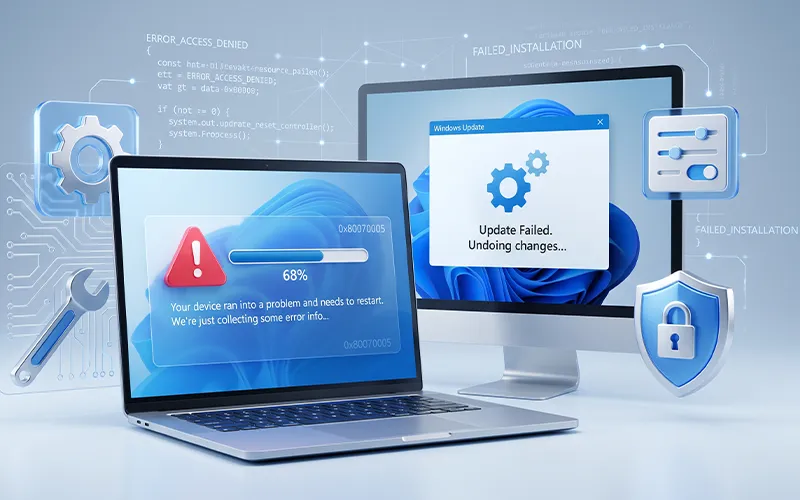
Windows Update is one of the most important parts of the Windows operating system. It keeps your computer protected with security patches, improves system stability, fixes known bugs, and adds compatibility for newer software and hardware. Most of the time, updates install automatically in the background without causing any trouble. However, there are situations where an update fails, gets stuck, refuses to download, or repeatedly shows an unfamiliar error code.
For anyone searching how to fix windows update error, the first thing to understand is that there is usually no need to panic or immediately reinstall Windows. Update failures can happen because of corrupted update files, damaged system components, insufficient disk space, unstable internet connections, stopped Windows services, driver conflicts, or incorrect system settings. The exact error code can also provide an important clue about the problem.
This guide explains several safe and practical ways to troubleshoot Windows Update. The methods start with simple checks and gradually move toward more advanced repairs There is no need to apply every troubleshooting method at the same time. Start with the easiest method, check Windows Update again, and continue only if the problem remains.
What Causes Windows Update Problems?
Windows Update relies on several different services and system components. When these components communicate correctly, Windows can search for available updates, download the required files, verify them, and install them. If one part of this process stops working, an error can appear.
One common cause is a corrupted update download. An update may not download completely because of an unstable connection or another interruption. Windows can then attempt to use incomplete files during installation and fail again.
System file corruption is another possibility. Important Windows components can become damaged after unexpected shutdowns, software conflicts, failed installations, or other system problems. In these cases, repair tools such as System File Checker and DISM can be useful.
Storage space should not be ignored either. Large Windows updates need room not only for the downloaded package but also for temporary installation files. A nearly full system drive can therefore cause an update to fail.
Other problems may involve drivers, security applications, VPN or proxy settings, Windows services, or compatibility issues. Because different error codes can have different causes, identifying the exact code shown on your screen is often the best starting point.
Run the Windows Update Troubleshooter
Windows provides a built-in troubleshooter designed to detect common update-related problems. It can check certain services, settings, and configuration issues without requiring you to manually modify system files.
Open Settings, go to System, select Troubleshoot, and then open Other troubleshooters. Find Windows Update and select Run.
The exact location can differ slightly depending on your Windows version. You can also use the Settings search box and type “Windows Update troubleshooter.”
Allow the tool to complete its checks. If it reports that a problem was repaired, restart your computer and try the update again.
For beginners, this is one of the safest solutions because Windows performs the diagnostic work for you.
Restart Important Windows Services
Windows Update depends on background services to download, verify, and install update packages. If one of these services has stopped or become stuck, updates may fail.
Press Windows + R, type services.msc, and press Enter. Look for services such as Windows Update, Background Intelligent Transfer Service, and Cryptographic Services.
Check whether these services are running. If an important service has stopped, right-click it and select Start. If it is already running but appears unresponsive, restarting the service may help.
After making service changes, restart Windows and check for updates.
You should avoid changing the startup type of multiple Windows services without knowing what they do. The goal is to troubleshoot the update process, not change unrelated parts of the operating system.
Repair Windows With SFC
When system files are damaged, Windows Update may not be able to complete an installation. Microsoft provides System File Checker, usually called SFC, for checking protected Windows system files.
Open the Start menu, type Command Prompt, then right-click the result and choose Run as administrator.Then enter:
sfc /scannow
Press Enter and wait for the scan to finish. Do not close the Command Prompt while the scan is running.
SFC may find corrupted files and repair them automatically. When the scan finishes, restart the computer and try Windows Update again.
If SFC says that some files could not be repaired, that does not necessarily mean the system is beyond repair. DISM can be used to repair the Windows component store.
Use DISM for Component Repair
Deployment Image Servicing and Management, commonly known as DISM, is another built-in Windows repair utility. It can help repair the component store when Windows has damaged or missing components.
Open Command Prompt as an administrator and run:
DISM /Online /Cleanup-Image /RestoreHealth
The command can take some time. The progress percentage may appear to remain at one point for several minutes, so avoid closing the window too quickly.
When the command finishes, restart the computer. You can then run SFC again if necessary.
Using DISM and SFC together is particularly useful when update failures are caused by damaged Windows components rather than a simple internet or storage problem.
Reset Windows Update Components
If Windows repeatedly fails to download or install updates, damaged update cache files may be responsible. In this situation, resetting Windows Update components can give the system a fresh start.
This process normally involves stopping relevant Windows services, resetting update-related folders, and starting the services again. Because the process uses administrative commands and system folders, it should be performed carefully.
Do not randomly delete Windows directories or download replacement system files from unknown websites. A mistake can create a larger system problem than the original update failure.
If you are uncomfortable with command-line troubleshooting, use Microsoft’s official Windows Update reset guidance or stick with the built-in troubleshooting tools.
Fixing Different Windows Update Error Codes
Different Windows Update codes can point toward different categories of problems. The following sections cover the specific phrases people commonly search for when an update fails.
0x8007371b
If you are searching how to fix windows update error 0x8007371b, begin by checking Windows system health. Run the Windows Update troubleshooter first and then use DISM and SFC to look for damaged components.
Restart Windows after completing the repair commands. If the same code returns, consider resetting Windows Update components and checking whether the problem affects one update or every available update.
Avoid downloading individual DLL files from random websites. System files should come from trusted Microsoft installation sources.
0x80070643
People searching how to fix windows update error 0x80070643 may be dealing with a problem affecting a particular update or Windows component. Start by checking Windows Update history so you know exactly which update is failing.
Restart the computer, run the troubleshooter, and use DISM and SFC if necessary. If the error appears only with one particular package, investigate that update rather than making broad changes to the entire Windows installation.
80070103
If you need how to fix windows update error 80070103, pay particular attention to drivers. This code can appear when Windows encounters a driver update that may already be installed or may not be appropriate for the hardware.
Open Device Manager and look for devices showing warning symbols. Check the manufacturer’s official website when a driver needs to be updated manually.
Installing random driver packages from third-party websites is not recommended because the wrong driver can create additional compatibility problems.
8024402c
For users searching how to fix windows update error 8024402c, network communication should be one of the first areas to check. Confirm that your internet connection is stable and review any VPN or proxy configuration.
Restart your router and computer, then try the update again. If the computer is connected to a managed business or school network, an administrator may need to check network policies.
0x800f081f
If you are researching how to fix windows update error 0x800f081f, damaged or unavailable Windows components may be involved. Start with DISM and SFC before attempting more complicated repairs.
Run the DISM repair command, allow it to finish, restart Windows, and then run SFC. After that, check Windows Update again.
If Windows still cannot locate required component files, an official Windows installation source may be required for advanced repair.
80072ee2
When searching how to fix windows update error 80072ee2, check communication between your computer and Windows Update services. Network interruptions, proxy settings, VPN software, or temporary server communication problems can contribute to this type of failure.
Try another trusted network if possible. If the update works on another connection, your original network configuration may need further investigation.
0x80070005
Users searching how to fix windows update error 0x80070005 should consider permissions and access problems. Make sure you are using an account with appropriate administrative permissions.
Check that Windows Update services are running correctly and review whether security software or other system-management applications could be interfering with the installation.
Do not permanently disable your security protection simply to install an update. If third-party software is suspected, follow its official troubleshooting instructions.
0x800f0983
If your search is how to fix windows update error 0x800f0983, first identify the exact update that is failing. Windows Update history can help you determine whether the problem is limited to a specific package.
Run the troubleshooter and check system health using DISM and SFC. If the issue began after changing language settings or installing optional Windows features, review those changes as well.
0x80070057
For users asking how to fix windows update error 0x80070057, the exact situation in which the code appears matters. This code can be associated with different Windows operations, so check the update history and surrounding error message.
Start with the Windows Update troubleshooter, check free storage, and use DISM and SFC if required.
0x80070003
If you want to know how to fix windows update error 0x80070003, begin by checking whether Windows has incomplete update downloads or temporary update files.
Restart the computer and run the troubleshooter. If the issue continues, resetting the Windows Update cache can allow Windows to download fresh installation files.
0x80240fff
When searching how to fix windows update error 0x80240fff, start with basic network and Windows Update checks. Make sure the internet connection is reliable and that your computer has enough free storage.
Run the troubleshooter and use DISM and SFC if the issue appears to involve system corruption. If you are manually installing an update, make sure the package comes from an official Microsoft source and matches your Windows version.
Avoid Random Registry and System Changes
When an update fails, it is tempting to search for a quick registry tweak or download a “one-click repair” program. This can be risky.
The Windows Registry contains important configuration information. Changing unrelated entries without understanding their purpose can create new problems, including application failures or startup issues.
Similarly, downloading modified system files from unknown websites can expose your computer to malware. Built-in Windows tools are usually a much safer starting point.
If advanced repair becomes necessary, use official Microsoft documentation and installation media rather than relying on questionable third-party downloads.
When Manual Update Installation Makes Sense
Sometimes a particular Windows update fails through the normal Windows Update interface while the rest of the system works correctly. In such cases, manually installing the update from an official Microsoft source may be an option.
Before doing this, identify the exact update number and make sure the package matches your Windows version, edition, architecture, and system requirements.
Manual installation should not be used as a replacement for troubleshooting every Windows Update problem. If the underlying Windows components are damaged, another update may fail later.
Frequently Asked Questions
1. How can I identify the cause of a Windows Update failure?
The error code shown by Windows is usually the best clue. Note the complete code and the update number, then search for solutions specific to that combination. This can help you avoid trying unrelated fixes that may not apply to your system.
2. Can a Windows Update fail because of an incompatible driver?
Yes. Some updates can conflict with older or incompatible drivers, particularly graphics, network, storage, or chipset drivers. If an update failure started after a driver change, checking the hardware manufacturer’s support page can help identify a compatible version.
3. What if only one Windows update refuses to install?
If other updates install normally, the problem may be limited to that particular package. Check its update number and requirements before changing system-wide settings. A failed single update does not necessarily mean that the entire Windows Update system is damaged.
4. Why can VPN or proxy settings interfere with Windows Update?
Windows needs to communicate with Microsoft’s update servers to download and verify files. A VPN, proxy, firewall rule, or restricted network can sometimes interfere with that communication. Testing the update without an unnecessary network intermediary can help determine whether connectivity is involved.
5. Should I keep trying the same Windows Update after it fails?
Repeatedly clicking retry is unlikely to solve a persistent problem by itself. If the same error appears several times, note the error code and failed update instead of repeatedly restarting the same installation attempt. This gives you useful information for choosing the next troubleshooting step.
6. Can a Windows Update error affect my personal files?
A normal failed update does not usually mean that your personal files have been deleted. However, major repair operations or reinstalling Windows can involve additional risks. It is always sensible to maintain a current backup of important documents, photos, and other personal data.
7. Is manually installing a Windows update always safe?
Manual installation can be appropriate when you have identified the exact failed update and obtained the correct package from Microsoft. The package should match your Windows version and system architecture. Installing an unrelated package can cause compatibility or installation problems.
8. When should I stop troubleshooting and seek professional help?
Consider getting professional assistance if Windows repeatedly fails to update despite standard repair methods, the computer experiences crashes or startup problems, or you are unsure about advanced system changes. This is especially important before modifying the registry, deleting system files, or performing a major Windows repair.
Final Thoughts
Finding the right solution becomes much easier when you treat the error code as a clue rather than simply a message to ignore. Whether the problem is related to damaged system files, network communication, insufficient storage, drivers, permissions, or Windows Update components, a step-by-step approach can prevent unnecessary system changes.
The safest strategy is to start with a restart, verify your internet connection and storage, run the built-in Windows Update troubleshooter, and then move toward SFC, DISM, service checks, and update-component repairs when necessary. Specific error codes can then guide you toward more targeted troubleshooting.
Most importantly, avoid shortcuts that involve downloading unknown system files, modifying the registry without understanding the change, or installing questionable repair software. Windows already provides several useful tools for diagnosing and repairing common update problems.
With a little patience and the right troubleshooting order, many Windows Update failures can be resolved without reinstalling the operating system or losing personal files.
For more interesting articles, visit embossitworld.com and explore helpful guides, tips, and the latest tech updates.





Add comment