
Introduction
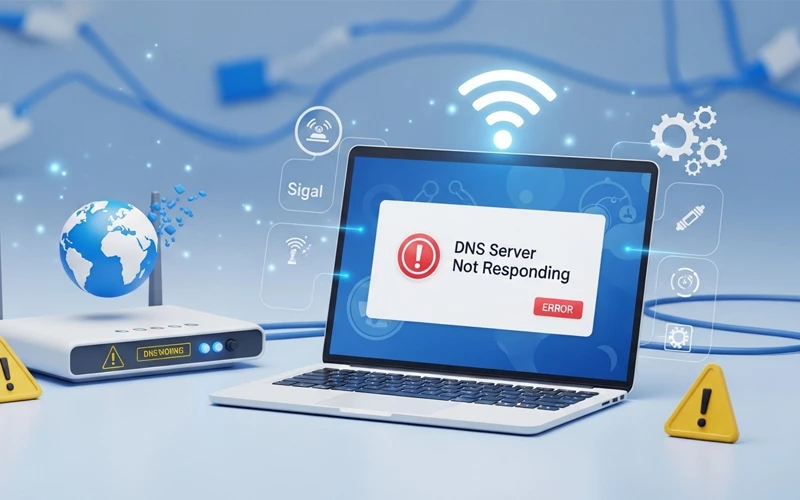
When your internet suddenly stops working and a message appears like dns server not responding, it can feel confusing and frustrating. You may be trying to open a website, play a game, check your email, or simply use Wi-Fi, and then everything stops working at once. Many people think this is a serious technical problem, but in most cases, it is not difficult to fix.
In simple words, DNS is a system that helps your device find the correct address of a website. When it fails, your device becomes unable to understand where to go, even if the internet connection is still active. Because of this, websites may stop loading or apps may fail to connect properly. You might also see different error messages related to network or server issues across various devices and internet providers, depending on the situation.
The good news is that you do not need to be a technical expert to solve this problem. In this article, you will understand what this error means, why it happens, and how to fix it step by step in very simple English. You will also learn how this issue can appear on different devices such as phones, laptops, gaming consoles, and email applications, where users sometimes face connection or server-related problems.
What Does DNS Server Not Responding Mean?
Before learning the fix, it is important to understand the problem itself. DNS stands for Domain Name System. It functions like an internet phonebook. When you type a website name like google.com, DNS changes that name into an IP address that your device can understand.
If the DNS server is not working properly, your device cannot translate the website name into the correct address. Then the page does not open, and you may see an error saying dns server not responding. In some cases, people also ask what is dns server not responding because the message sounds more technical than it really is.
This issue does not always mean your whole internet is broken. Sometimes the problem is with the router, sometimes with your device, and sometimes with the DNS settings from your internet provider. That is why a simple restart or a small settings change often solves it.
Why Is My DNS Server Not Responding?
There can be several reasons behind this issue. Sometimes the problem starts because your Wi-Fi signal is weak or unstable. Sometimes the router gets confused and needs a restart. In other cases, the DNS settings on your computer or phone may be wrong. A software update, antivirus program, or temporary network glitch can also cause it.
If you are using a game console, you might see dns server not responding ps5 or server not responding fortnite. This does not always mean the game is down. It can simply mean your console cannot reach the DNS server fast enough. On a computer, you may see dns server not responding windows 10 when the network adapter or DNS cache has a problem. On mobile devices, people often search mail server not responding iphone or mail server not responding on iphone when the email app cannot connect to the server correctly.
Sometimes the issue is linked to your internet company as well. For example, users of Comcast may search dns server not responding no internet comcast when the connection is working poorly on the provider side. In other cases, the router brand may matter, so people may notice netgear dns server not responding if the router needs a reset or a settings update.
Common Signs of DNS Problems
A DNS problem does not always look the same. You may be able to open some apps but not others. A website may load slowly or not open at all. Your browser may say the site cannot be reached. Games may refuse to connect. Email may stop syncing. Even if the Wi-Fi icon looks normal, the internet may still fail.
Some users also confuse DNS problems with a general server not responding error. That can happen in websites, apps, and games. For example, fortnite server not responding may appear when the game server is busy, but sometimes the actual issue is your DNS or network connection. That is why understanding the difference is useful before trying to fix it.
Quick Fix Overview
Problem Area | What It Usually Means | Simple Fix |
DNS server not responding | Device cannot find the website address | Restart router and device |
DNS server not responding wifi | Wi-Fi connection may be weak or unstable | Reconnect to Wi-Fi |
DNS server not responding windows 10 | Windows network settings or cache issue | Flush DNS and change DNS settings |
DNS server not responding ps5 | Console cannot reach DNS properly | Change console DNS settings |
| Mail server not responding on iphone | Email app cannot connect to mail server | Check internet and email account settings |
DNS server not responding no internet comcast | ISP issue or modem/router issue | Restart modem and contact ISP if needed |
| Server not responding fortnite | Game or connection issue | Check internet and DNS settings |
Restart Your Router and Device
The first and easiest step in how to fix dns server not responding is to restart both your router and your device. This simple step solves many network problems because it clears temporary bugs and gives the system a fresh start.
Turn off your router, wait about 30 seconds, and turn it back on. Then restart your phone, laptop, tablet, or gaming console. After everything starts again, try opening a website or app one more time. In many cases, the connection comes back immediately. This method works well for dns server not responding wifi, server not responding, and even some mail server not responding issues.
Check If Other Devices Have the Same Problem
If only one device has the issue, then the problem is probably in that device. If all devices in your home show the same error, then the router, DNS service, or internet provider may be the real cause.
This step saves time because it helps you understand whether the issue is local or shared. For example, if your phone is fine but your laptop shows dns server not responding windows 10, then the laptop likely needs a settings fix. But if your phone, TV, and laptop all show errors at the same time, the problem may be your internet connection or router.
Reconnect to Wi-Fi
Sometimes the connection is not fully stable even though Wi-Fi is turned on. Forget the network and connect again. This often refreshes the link between your device and the router.
This is especially useful when people search for dns server not responding wifi. If your device has been connected for a long time, it may simply need to reconnect. Move closer to the router if the signal is weak, because a poor signal can also make DNS requests fail.
Change Your DNS Settings
One of the most effective ways to fix this issue is by updating your DNS settings. Internet providers usually assign a default DNS automatically, but sometimes it can become slow, unstable, or temporarily unresponsive. Switching to a more reliable public DNS can often resolve the problem and improve overall connection speed.
Many users are able to solve this error by using trusted DNS services like Google DNS or Cloudflare DNS. These are widely used because they are faster and more stable than default provider settings. On most devices, you can easily access network settings and manually replace the automatic DNS values. After applying the changes, restarting your browser or reconnecting to Wi-Fi helps ensure everything works properly.
This solution is helpful across different devices, including computers, gaming consoles, and home routers. In many cases, users notice that connection issues disappear once DNS settings are updated, and the internet becomes more stable and responsive again.
Clear DNS Cache
Your device stores old network data in a cache to load websites faster. But sometimes this saved data becomes outdated or broken. When that happens, you may see errors even if your internet is technically working.
Clearing the DNS cache forces your device to ask for fresh information. This is one of the most effective steps for how to fix dns server not responding on a computer. It also helps if you are seeing random site loading problems or repeated connection failures.
After clearing the cache, restart the browser and test the connection again. This step is small, but it can make a big difference.
Disable Temporary Security or Firewall Blocks
Sometimes antivirus software, firewall settings, or browser extensions block DNS traffic by mistake. This can make a normal connection look like a DNS failure. If you recently installed new software or changed security settings, this may be the reason.
Try turning off the antivirus or firewall for a short time and then test the internet again. If the problem disappears, you know the security tool was the cause. You do not need to keep it off permanently. Instead, adjust the settings so it allows normal network traffic without blocking DNS requests.
This can also help when people wonder why is my server not responding even though the internet is connected.
Check Your Internet Provider Status
Sometimes the problem is not your device at all. Your internet provider may be having a temporary outage, maintenance work, or DNS trouble. This is common when several users in the same area report similar errors.
If you see dns server not responding no internet comcast or a similar message, the issue may be on the provider side. In that case, restart your modem and router first. If the error remains, contact your provider and ask whether there is an outage or DNS problem in your area.
This step is important because there is no point changing lots of settings if the problem is coming from outside your home network.
Fix Device-Specific Errors on Phones and Consoles
DNS-related issues are not limited to computers only. They can also appear on smartphones and gaming consoles, especially when the network connection becomes unstable. On mobile devices, email apps sometimes fail to connect properly, which causes messages not to load or sync. In such situations, the problem is usually related to network settings or account synchronization, and simple steps like restarting the device or refreshing the connection often resolve it.
On gaming consoles, online services may stop working when the system cannot properly reach game servers. This is often linked to network configuration or DNS settings. Adjusting these settings or restarting the connection can usually restore access to online features.
The important thing is to stay calm because these issues are mostly temporary. In most cases, they are not serious technical faults but simple connectivity problems that can be fixed with basic troubleshooting steps.
Test Another Browser or App
Sometimes the problem is not your internet at all. It may be the browser or app you are using. A browser extension, outdated app version, or corrupted cache can create a fake DNS error.
Try another browser and see whether the same website opens there. If it works in one browser but not another, then the problem is in the browser settings, not the DNS itself. The same method works for email apps too. If one mail app shows mail server not responding, try another mail app or open your mail in a browser to compare.
This is a smart way to narrow down the real cause without wasting time.
Reset Network Settings If Nothing Else Works
If none of the earlier steps work, a network reset may help. This should be used only after you try the simpler methods because it will remove saved network information and return the settings to default.
A reset can fix stubborn problems in dns server not responding windows 10, phone network issues, and some router-related errors. After the reset, reconnect to Wi-Fi and test the internet again. This step often clears hidden problems that regular restarts cannot solve.
How to Prevent DNS Problems in Future
Once you fix the issue, it helps to keep your system stable so the same problem does not come back again. Restart your router once in a while. Keep your phone, computer, and console updated. Use a strong Wi-Fi connection. Do not overload your browser with too many unknown extensions. If your internet provider often gives DNS problems, consider using a stable public DNS.
These habits may seem small, but they reduce the chance of seeing dns server not responding, server not responding, or similar errors again. A clean network setup usually means fewer interruptions and a smoother internet experience.
Frequently Asked Questions (FAQ)
What does DNS server not responding mean?
It simply means your device is unable to connect with the system that translates website names into IP addresses. Because of this, websites or apps fail to load even when the internet seems connected.
Why does this problem happen?
This issue usually appears due to weak internet signals, temporary router glitches, incorrect network settings, or problems from the internet provider. Sometimes a simple restart fixes it completely.
Can internet still be connected during this error?
Yes, your Wi-Fi or mobile data may still show as connected, but websites will not open because the system that helps locate them is not responding properly.
How can I fix this issue quickly?
In most cases, restarting your router and device solves the problem. If that doesn’t work, reconnecting to Wi-Fi or updating network settings often restores the connection.
Is changing DNS settings helpful?
Yes, switching to a more stable and public DNS often improves connection reliability and can solve loading or browsing issues.
Why do apps and games stop working because of this issue?
When the connection system fails, apps and games cannot find their servers. That is why websites, online games, and services may stop working at the same time.
Can a router cause internet connection problems like this?
Yes, sometimes the router develops temporary issues or gets overloaded, which can stop websites from loading properly even when Wi-Fi looks connected. Restarting the router often clears these problems.
Is this problem related to internet provider issues?
In some cases, yes. If many users in the same area are facing the same issue, it may be due to a temporary outage or network problem from the internet service provider.
Final Thoughts
If you are still asking how to fix dns server not responding, the answer is usually simpler than it first looks. In most cases, the issue comes from a weak Wi-Fi connection, bad DNS settings, a temporary router problem, or a short network glitch. You do not need advanced technical skills to solve it.
Start with the easiest fixes first. Restart your router and device. Reconnect to your Wi-Fi connection and try again. You can also update or adjust your DNS settings and clear the cache to remove any temporary issues. After that, check if the problem is affecting all your devices or only one. If you are using a phone, gaming console, or playing online games, the same basic network troubleshooting steps usually help. Many users face similar issues on different devices like PlayStation, Windows computers, or mobile phones, and in most cases, the main problem is simply that the device is unable to reach the correct server.
With the steps in this guide, you can fix most DNS problems at home without stress. The next time the internet stops and you see a server message, you will know exactly what to do.
If you want to read more interesting and detailed guides, visit EmbossitWorld now. You’ll find useful iPhone tips, tech tutorials, and a lot of practical information. Don’t miss out.





Add comment