
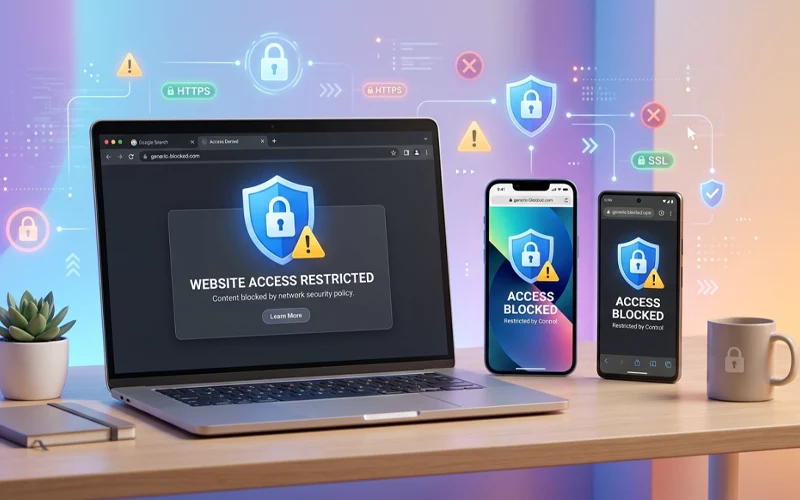
Managing online time has become one of the biggest digital challenges today. Whether you want to reduce time spent on distracting sites, keep kids away from harmful content, or create a more focused work environment, limiting access in Chrome is a simple but powerful solution. The best part is that the browser offers several ways to restrict websites without needing advanced technical knowledge. With the right method, anyone can learn how to block websites on Chrome and maintain a cleaner, safer browsing experience.
Many people assume that website blocking requires technical skills or paid tools. In reality, Chrome supports multiple built-in features, device settings, and smart approaches that make the process easy. You can block websites on computers, mobile phones, Android devices, and iPhones by using simple steps. You can even do it without installing any extensions at all. This guide explains every method in clear English with step-by-step explanations, real-world usefulness, and practical tips so you can block sites efficiently and safely.
Reasons for Site Restrictions
People block websites for many different personal and professional reasons. Some do it for focus, some for safety, and some for productivity. A student may want to avoid social media during study hours, while a parent may want to protect children from adult content or gaming sites. Employees may need to stay away from addictive platforms to improve their work performance. Even individuals simply trying to limit screen time find website restrictions extremely helpful. Because Chrome runs on almost every device, learning how to block sites becomes a useful skill for daily life.
Website blocking is not only about stopping access. It is also about building better digital habits, controlling distractions, reducing online risks, and ensuring that your device is used responsibly. Google Chrome delivers a smooth experience across laptops, phones, and tablets. Once you learn the correct method for your specific device, you can apply it whenever you need to regain digital control.
Chrome Website Control Features
Chrome does not directly include a visible “block website” button. However, it supports several methods that work through device settings, supervision tools, DNS filtering, startup pages, SafeSearch features, and local system files. These approaches vary depending on the device you are using. For example, a Windows laptop allows modification of the Hosts File, while an iPhone uses Screen Time restrictions to block sites globally, and Android devices allow Google Family Link to manage browsing access effectively.
Because Chrome is deeply connected with Google services, the browser works smoothly with parental-control systems and safe-browsing tools. This means the browser can be controlled not only inside Chrome but through the device itself. The biggest advantage of using these methods is that they cannot be bypassed easily, unlike simple browser add-ons that can be turned off.
Website Blocking Without Extensions
Some users prefer to learn how to block websites on Chrome without extension because extensions can slow down the browser, track activity, or get disabled by accident. Fortunately, blocking sites without add-ons is completely possible by using system-level restrictions. On Windows, this can be done by editing the Host File, which tells the computer which sites to allow or reject. On macOS, restrictions can be applied using Screen Time controls. Both of these methods work even if someone tries to bypass them through incognito mode.
This approach is extremely useful when you want a clean browser with no third-party tools, minimal distraction, and stable long-term restrictions. Since these methods are built into the operating system, they remain active for every user profile on the device. The only drawback is that you must manually add or remove site entries, but once you learn the basic process, it becomes quick to manage.
Blocking Sites on Mobile
On mobile devices, users usually browse the internet more frequently than on larger screens. This makes learning how to block websites on Chrome mobile very important, especially for children who use phones unsupervised or adults who want to limit distractions. Chrome mobile does not provide a direct block option inside the browser, but Android and iOS both include tools that manage website access at the device level.
On most smartphones, restrictions can be applied through parental-control features or safe browsing modes. These tools allow users to block specific websites, and the browser follows these rules across the entire device. This method works even if the browser is uninstalled and reinstalled, because the restriction is tied to the device settings rather than the browser itself.
Site Access Limits on Android
Android phones allow very flexible control over Chrome through Google’s own supervision tools. If you want to understand how to block websites on Chrome Android, the most effective method is Google Family Link. This feature lets you set restrictions for either yourself or anyone else using the same Google account. Family Link can block harmful content, restrict adult websites, and prevent access to specific addresses you manually add.
Android also allows DNS filtering, which can be used to block websites system-wide. This means your phone simply refuses to load the blocked websites no matter which browser someone uses. Because Android devices are widely used for entertainment and multimedia, blocking sites becomes a practical way to stay productive and avoid unhealthy screen habits.
Website Restrictions on iPhone Chrome
iPhone users get strong built-in tools that make content control easier when learning how to block websites on Chrome iPhone because Apple provides a complete content-restriction system. Through Screen Time settings, you can specify which websites should be allowed or disallowed. Since Chrome on iPhone follows iOS content policies, the restrictions apply across all browsers automatically. This makes the process extremely efficient for parents who want consistent controls for children or users who want to remove distractions permanently.
Unlike Android, iPhones do not allow apps or browsers to bypass Screen Time settings. Once a website is blocked at the system level, all browsers—including Chrome—follow the rule strictly. This gives iPhone users a straightforward and reliable way to manage their browsing environment.
Device-Wise Blocking Comparison
Below is a simple comparison of different blocking methods based on the device you are using. This will help you choose the approach that matches your purpose and comfort level.
Device Type | Best Method | Difficulty Level | Can It Be Bypassed Easily? | Works on Chrome Only or Entire Device? |
Windows Laptop | Host File Editing | Medium | Hard to bypass | Entire Device |
MacBook | Screen Time Restrictions | Easy | Cannot bypass | Entire Device |
Android Phone | Google Family Link | Easy | Hard | Chrome + Other Browsers |
iPhone | Screen Time | Very Easy | No | Entire Device |
| Any Device | DNS Filtering | Medium | Hard | Entire Device |
Safe Browsing Controls on Chrome Laptop
Work-focused laptop users often require tighter control over websites to stay productive, studies, multitasking, and projects that require concentration. Learning how to block websites on Chrome laptop offers a reliable way to avoid distractions such as entertainment, social media, streaming, or gaming sites. The two most common methods for laptops include using the built-in Host File on Windows and Screen Time controls on macOS.
In Windows, users also have options to restrict specific websites for safer browsing by redirecting unwanted URLs to a local address, which forces the browser to load a blank page whenever someone tries to access blocked sites. Mac users can add websites to their restricted list through Screen Time, making them completely inaccessible. Both methods work across different browsers. Because laptops are often shared among multiple people, these restrictions help ensure a consistent browsing environment for everyone.
Why Blocking Tools Improve Focus
The human brain is naturally attracted to stimulation, excitement, and novelty. Distraction-based websites are designed to keep people scrolling endlessly. This is why website blocking becomes a practical tool instead of relying on willpower alone. When a site is blocked, your brain no longer receives constant temptation, allowing you to focus on work, study, or healthier digital habits.
Blocking websites also frees mental energy. When you know that certain sites are not available, you stop thinking about them, stop habitually typing their names, and reduce the urge to check them. Over time, this builds discipline and better time management. People who block distracting sites often experience improved productivity, less stress, and a more organized digital routine.
Protecting Kids Online
The internet is full of both useful and harmful content. Children, especially younger ones, often access websites without understanding the consequences. Blocking websites on Chrome gives parents peace of mind by creating a safe digital environment. Whether the concern is adult content, violent games, scams, or social-media dangers, restrictions ensure children remain within a safe online space.
Chrome combined with device-level parental controls makes it easy to monitor and guide a child’s online behavior without invading their privacy. Instead of checking every page they visit, you simply decide which websites are off-limits. This helps children focus on educational or creative content while staying protected from harmful material.
Boosting Productivity with Digital Control
Many workplaces encourage employees to stay focused by limiting access to unproductive websites. But even for personal use, blocking distracting websites is a simple way to maintain productivity. When you stop visiting time-wasting sites, your work quality improves, tasks are completed faster, and your mind stays clearer. Chrome is often used in offices, universities, and professional environments, making its blocking options especially valuable.
Research shows that people check distracting websites out of habit, not necessity. Blocking these sites breaks the cycle and allows you to create healthier digital patterns. Even freelancers, students, remote workers, and creators benefit from restricting certain websites so they can give full attention to their responsibilities.
FAQs
Can I restrict specific websites in Chrome without installing any tool?
Yes, you can restrict websites without any extra software by using built-in system settings. On Windows, the Host File method works well, while Mac users can use Screen Time controls. These methods are more stable because they are not dependent on browser add-ons and remain active even if Chrome is updated or reinstalled.
Is it possible to control websites directly inside Chrome settings?
Chrome itself does not offer a direct one-click blocking feature, but it works with system-level restrictions and Google services. This means you can still control access to websites through device settings, SafeSearch, or DNS filtering, which apply across the browser automatically.
What is the easiest way to limit browsing on a mobile phone?
The easiest method is using built-in parental control features available on both Android and iPhone. These tools allow you to set website restrictions that apply to Chrome and other browsers. Once configured, the blocked sites cannot be accessed unless the restrictions are removed from device settings.
Why do Android users prefer Family Link for website control?
Android users often choose Google Family Link because it provides full supervision over browsing activity. It allows parents or users themselves to decide which websites should be allowed or blocked. It also works across Chrome and other apps, making it more effective than browser-only solutions.
How does iPhone handle website restrictions compared to other devices?
iPhones use Screen Time settings, which apply restrictions across the entire system. Once a website is blocked, it becomes inaccessible in Chrome as well as any other browser. This system-level control makes iPhone one of the most secure environments for managing online content.
Can I block websites on a laptop used for work or study?
Yes, laptops provide strong options for restricting websites. On Windows, editing system settings allows you to block unwanted sites, while macOS offers built-in screen control features. These methods are especially useful in professional or study environments where focus is important.
Is there a way to control websites without slowing down Chrome?
Yes, system-based restrictions are better for performance because they do not depend on extensions. Since these methods work outside the browser, they do not consume memory or affect browsing speed. This makes them ideal for long-term use.
Why do people search for how to block websites on Chrome?
Most users search for this because they want better focus, reduced distractions, or safer browsing. Some want to improve productivity, while others want to protect children from harmful content. The need is common across students, professionals, and families.
Can blocked websites be accessed again later?
Yes, blocked websites can always be unblocked if needed. You can simply remove them from the restriction list or disable the control feature you used. This flexibility allows users to adjust their browsing rules anytime based on changing needs.
Does blocking websites really improve productivity?
Yes, it can make a noticeable difference. When distracting websites are removed, users spend less time switching between tasks and more time focusing on work or study. Over time, this helps build better digital habits and reduces unnecessary screen time.
Conclusion
Website blocking is not a complicated task, and anyone can do it with the right guidance. Whether you use a laptop, Android phone, or iPhone, learning how to block websites on Chrome gives you better control over your time, focus, and digital health. Chrome works smoothly with built-in device tools, so you do not always need extensions to restrict website access. Each device offers its own reliable method that stays active even if someone tries to bypass it.
By blocking wesites you no longer want to visit, you create a digital environment that supports your goals instead of pulling you away from them. Whether the purpose is productivity, child safety, concentration, or self-improvement, these methods help you shape a cleaner and more meaningful browsing experience. This guide gives you the practical knowledge to take full control of your online habits and build a more focused, distraction-free digital life.
If you want to read more interesting and detailed guides, visit EmbossitWorld now. You’ll find useful Information, and a lot of practical information. Don’t miss out.





Add comment