
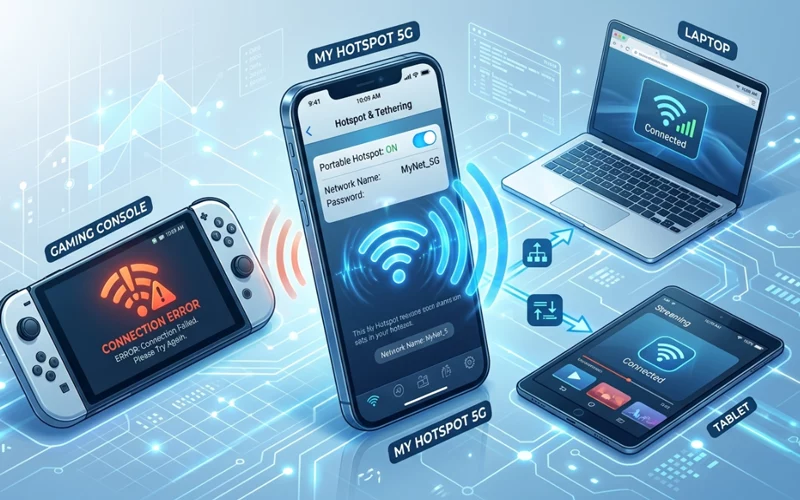
When your internet is working on your phone but your hotspot is not working, it can feel confusing and frustrating. The good news is that this problem usually has a simple reason behind it. It may be a setting issue, a network limit, a device compatibility problem, or even a carrier restriction. In most cases, you do not need advanced technical knowledge to fix it.
This guide explains the most common reasons behind hotspot not working and shows you step by step how to solve them in a simple way. The goal is to help you understand the problem clearly, not just try random fixes. Whether you are using an iPhone, Android phone, laptop, or gaming console, this article will help you figure out what is going wrong and what to do next.
Why Is My Hotspot stops Working?
The most common reason people ask why is my hotspot not working is that the tethering feature depends on more than just mobile data. Your phone may have internet access, but that does not always mean it can share that internet properly. Sometimes the tethering option is turned off by mistake. Sometimes the password is wrong. In other cases, the carrier has blocked tethering, the data plan does not support tethering use, or the connected device is not accepting the signal properly.
Another common reason is that the phone is connected to a weak mobile network. If the signal is poor, hotspot sharing may fail even when the phone itself can still open apps or browse slowly. Battery saver mode, VPN settings, software bugs, and network glitches can also stop hotspot sharing from working correctly.
The best way to solve this issue is to check the problem in a logical order. Start from the phone settings, then move to the network, then test the device that is trying to connect.
Check Basic Settings First
Before doing anything advanced, check the simple settings first. Make sure the hotspot feature is enabled on your phone. Confirm that the hotspot name and password are correct. If another device was connected before, remove it and try connecting again from scratch.
Sometimes the internet sharing is turned on but not visible to other devices. In that case, turning it off and back on again can refresh the connection. A restart of the phone may also help because it clears temporary software issues that can stop the internet sharing from broadcasting properly.
If you recently changed the hotspot password, the old saved password on your other device may no longer match. That small mismatch can make it look like the hotspot is broken when it is really just a password issue.
When Mobile Data Works but Sharing Doesn’t
A very common situation is mobile data working but hotspot not working. This often makes users think their phone is fine because apps still load and web pages still open. But hotspot sharing is a separate function from normal browsing, so both features can behave differently.
This issue may happen when the carrier allows regular internet use but restricts tethering on your plan. It can also happen if your APN settings are incorrect or if your phone has a software problem affecting hotspot sharing only. In some cases, your mobile internet may be too slow or unstable to support a second device.
Whether this happens, test whether tethering works after switching airplane mode on and off, restarting the phone, or removing any active VPN. If that does not help, check your carrier plan to see whether tethering is included. Many users find that mobile data still works while tethering is blocked by the network provider.
Fixing iPhone Internet Sharing Issues
If you are dealing with iphone hotspot not working, there are a few Apple-specific things to check. First, make sure Personal Hotspot is turned on in settings. On some iPhones, the hotspot option may only appear after mobile data is active. If your cellular data is off, the hotspot feature may not appear or may fail to activate properly.
Also check whether “Allow Others to Join” is enabled. If the hotspot is on but this option is off, other devices will not be able to connect. Another important step is to make sure both Wi-Fi and Bluetooth are working correctly, because iPhones often use these connections to help nearby devices find the hotspot.
A software update can also make a big difference. Sometimes the issue is caused by a small iOS bug that gets fixed in a newer version. If the hotspot still does not work after a restart and settings check, reset the network settings on the iPhone. That often removes hidden configuration problems without deleting your personal data.
Connection Problems on Different Devices
The phrase personal hotspot not working usually means the phone is not sharing data the way it should. On iPhone, this feature is called Personal Hotspot, but the same type of issue can happen on Android phones too. The reason may be simple, such as the hotspot being off, or more technical, such as a carrier profile problem.
One helpful method is to forget the tethering network on the device that is trying to connect, then reconnect using the password again. This can solve hidden connection errors. If your device keeps trying to use an old saved setting, it may fail even when the tethering itself is active.
It is also worth checking whether your device is too far away from the phone. A weak signal between devices can make it seem like the hotspot is broken, especially in crowded areas or places with interference from other wireless networks.
Step-by-Step Troubleshooting Guide
Here is a simple hotspot not working troubleshooting guide that you can follow in order without wasting time.
Start by turning internet sharing off and on again. If that does not work, restart both devices. Then check whether mobile data is active on the phone sharing the internet sharing. After that, verify the internet sharing password and make sure the receiving device is joining the correct network.
Next, check battery saver mode, data saver mode, and VPN settings. These features can interfere with hotspot sharing on some phones. If you are still stuck, try changing the hotspot band between 2.4 GHz and 5 GHz, depending on what your phone allows. Older devices often connect better to 2.4 GHz, while newer devices may work better on 5 GHz.
In case none of that works, reset the network settings. This is one of the most effective fixes because it clears hidden network conflicts without changing the whole phone. If the problem continues after that, the carrier or software may be the real cause.
Common Issues and Their Causes
| Problem | Most Likely Cause | Simple Fix |
| Hotspot turns on but no device can see it | Broadcast issue or Wi-Fi glitch | Restart hotspot and phone |
| Hotspot connects but there is no internet | Mobile data, APN, or carrier issue | Test mobile data and reset network settings |
| Hotspot worked before but stopped suddenly | Temporary software bug | Restart device and update software |
| Hotspot shows connected but loads slowly | Weak signal or network congestion | Move to a stronger coverage area |
| Hotspot password is rejected | Saved password mismatch | Forget network and reconnect |
| Hotspot option is missing | Carrier restriction or setting issue | Check data plan and cellular settings |
Internet Not Working on Laptop
Supposing that you are facing hotspot not working on laptop, the issue may be on the laptop side instead of the phone. A laptop may fail to connect because of an outdated Wi-Fi driver, a saved wrong password, airplane mode, or a network adapter problem.
First, try forgetting the tethering network on the laptop and then reconnecting. If that does not help, restart the laptop and check whether Wi-Fi is turned on properly. Sometimes the laptop connects to the tethering but fails to get internet because it still holds old network information from a previous connection.
Driver problems are also common. If the laptop is old or has not been updated in a long time, the Wi-Fi adapter may not handle the hotspot signal well. Updating the driver or restarting the network adapter can solve this. In some cases, the issue is as simple as the laptop being too far from the phone or the hotspot being set to a band the laptop cannot support.
Why PS5 Has No Internet Access
Many people search why is my hotspot not working on my ps5 when they try to use their phone data for gaming. The PS5 can be more sensitive than a phone or laptop because it needs a stable connection, not just basic internet access. Even if the hotspot works for browsing, it may still struggle with gaming, downloads, or sign-ins on the console.
The main issue is often speed and stability. A tethering may provide enough internet for websites, but the PS5 may need a stronger and steadier connection. Another problem is that some phones use tethering settings that are not ideal for consoles. The PS5 may also have trouble detecting the tethering if the network band is not supported or if the signal is weak.
Whether your PS5 cannot connect, move the phone closer to the console and test again. Try switching the hotspot band if your phone allows it. Restart both devices and re-enter the password carefully. If the connection still fails, the issue may be that your carrier limits hotspot use or the network is too unstable for gaming.
How to Make Your Hotspot More Reliable
Once the internet sharing starts working again, it is smart to keep it stable. Good internet sharing performance depends on strong signal, clean settings, and a device that is not overloaded. Keep the phone charged, because very low battery can sometimes reduce network performance. Avoid running too many apps in the background while using internet sharing.
You should also keep your software updated. Both the phone and the receiving device may need updates to stay compatible. If you often use hotspot for work or school, it helps to test it occasionally before you really need it. That way, you can catch problems early instead of discovering them during an important task.
Another useful habit is to change the hotspot password from time to time and keep the name simple. This reduces connection confusion and makes it easier to identify your network when several devices are nearby.
Common Mistakes People Make
Many users make the same mistakes when trying to fix hotspot problems. They keep turning the hotspot on and off without checking whether mobile data is active. They also forget to verify the password on the receiving device. Some people spend time changing phone settings when the real issue is that the laptop or PS5 has a saved network error.
Another common mistake is assuming that mobile data working means hotspot should automatically work too. These are related, but not identical. Tethering can fail for reasons that do not affect normal browsing. That is why a step by step approach is more effective than trying random fixes.
FAQs
Why is my hotspot not working even though my internet is on?
This usually happens when tethering settings are misconfigured or the network temporarily glitches. Sometimes the mobile carrier also restricts sharing even if data is active.
What should I do first when the sharing feature stops working?
Start with a simple restart of your phone and toggle the feature off and on again. Also confirm that your data connection is stable and the correct password is being used on the other device.
Why is my hotspot stops working on my PS5?
The console often fails to connect when the signal is weak or unstable. Gaming devices require a stronger and more consistent connection than normal browsing, so distance and network quality matter a lot here.
Can mobile data work but the sharing feature still fail?
Yes, this is quite common. Even when internet is working, tethering can fail due to carrier restrictions, APN issues, or software glitches affecting only the sharing function.
Why does my laptop show connected but no internet?
This usually means the laptop is connected to the network but not receiving data properly. It can happen due to outdated drivers, saved network errors, or device-side configuration issues.
Does battery saver affect performance?
Yes, on some devices power-saving modes can limit background network activity, which may reduce stability or cause interruptions during sharing.
Why does the connection drop randomly?
Frequent drops are often caused by weak signal, overheating, or too many connected devices. Moving closer to the phone or improving signal strength usually helps.
How can I fix sharing issues on laptop devices?
Forget the saved network on the laptop, then reconnect again. Restarting both devices and updating Wi-Fi drivers can also resolve most connection problems.
Is there a quick fix for iPhone hotspot issues?
Yes, turning the feature off and on, restarting the phone, and resetting network settings usually solves most iOS-related connectivity issues.
What is the best way to keep it stable?
Maintaining a strong mobile signal, keeping software updated, and avoiding heavy background usage helps keep the connection more stable over time.
Final Thoughts
A hotspot not working problem can be annoying, but it is usually fixable with simple checks. In many cases, the issue comes from a setting, a network restriction, a saved password, or a temporary glitch. By checking the phone, the carrier, and the connected device one by one, you can usually find the real cause without stress.
Whether the issue appears on a phone, laptop, or gaming console, the solution is usually the same approach: verify your connection, restart devices, and rule out any configuration or network restrictions. With a calm and structured method, most hotspot problems can be fixed without any technical help.
If you want to read more interesting and detailed guides, visit EmbossitWorld now. You’ll find useful Information, and a lot of practical information. Don’t miss out.





Add comment