
Introduction
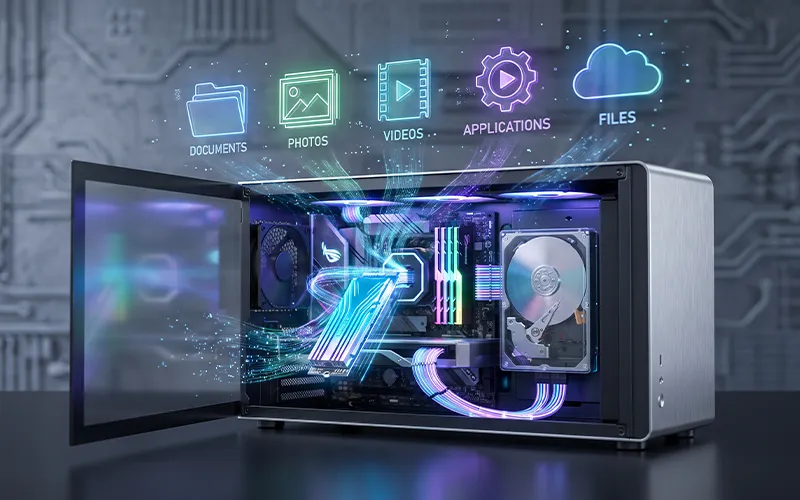
Every computer needs a place to keep files, programs, photos, videos, documents, and other important information. Without a way to save data, a computer would not be very useful because everything would disappear when the system was turned off. This is where computer storage becomes important. It allows a device to save information for later use and gives users a practical way to manage everything from small documents to large collections of media.
Storage has changed dramatically over the years. Older computers often relied on large mechanical drives with limited capacity, while modern systems can use fast solid-state drives, portable storage, network-based systems, and online services. The amount of storage available today can be many times larger than what was common in older computers, while the physical size of storage hardware has become much smaller.
Understanding storage does not have to be complicated. Once you know the difference between a storage device, a storage unit, a drive, and a storage medium, most of the terminology becomes easier to understand. This guide explains the basics in simple English and covers the major storage technologies, capacity measurements, storage systems, and practical considerations that can help you choose the right solution.
What Is Computer Storage?
Computer storage is the technology used to save digital information so it can be accessed again when needed. The information may include operating system files, applications, personal documents, photographs, music, videos, games, and backups. Storage keeps this information available even after the computer is switched off.
It is useful to separate storage from memory. RAM is designed to hold information that the processor needs while programs are running. It is temporary and loses its contents when power is removed. Storage, on the other hand, is designed for long-term data retention.
For example, when you download a picture and save it to your SSD, the file remains there after you shut down the computer. When you open that picture later, the system reads the stored data and loads it into memory so the processor can work with it.
This difference explains why a computer can have both RAM and a storage drive. RAM supports active tasks, while permanent storage keeps files and software available over time.
Why Storage Matters
Storage affects much more than the number of files a computer can hold. The technology used for storage can influence startup times, application loading, file transfers, backups, and overall system responsiveness.
A computer with a fast SSD can usually start an operating system and open applications much faster than an older system using a mechanical hard drive. However, speed is only one factor. Capacity, reliability, price, physical size, power consumption, and intended use also matter.
For a student, a moderate-capacity SSD may be enough for documents, presentations, software, and educational material. Someone who works with high-resolution video may need several terabytes. Businesses handling large databases may require specialized storage systems that provide both capacity and protection against hardware failures.
The right choice therefore depends on how the storage will actually be used rather than simply selecting the largest available drive.
Understanding Storage Devices
Computer storage devices are physical or electronic components used to store digital information. Common examples include hard disk drives, solid-state drives, USB flash drives, memory cards, and external drives.
A hard disk drive, commonly called an HDD, stores information magnetically on spinning platters. It has been widely used for many years because it can provide large amounts of capacity at a relatively low cost.
A solid-state drive, or SSD, stores information using flash memory. It has no spinning disks or mechanical read/write heads. This allows SSDs to provide faster access to data and generally makes them more resistant to physical movement than traditional HDDs.
USB flash drives are small and convenient devices that connect through USB ports. They are useful for moving files between computers, although they are generally not the best choice for maintaining a large permanent archive.
Memory cards are commonly found in cameras, smartphones, tablets, and other portable devices. They are available in different capacities and speed classes.
External HDDs and SSDs provide additional space without requiring the user to replace the internal drive. They are especially useful for backups and moving large collections of files.
Common Types of Computer Storage
There are several types of computer storage, and each one has its own strengths. The most familiar options are HDDs, SSDs, USB flash storage, memory cards, optical discs, and network-based storage.
HDDs remain useful when a large amount of capacity is required at a lower cost. They are commonly used for desktop computers, external backup drives, media libraries, and other situations where maximum speed is not the primary requirement.
SSDs are popular in modern laptops and desktop computers because they provide quick data access and have no moving mechanical parts. They are especially useful when fast startup and application loading are important.
USB flash drives are portable and convenient. They can be used to transfer documents, installers, presentations, and other files between compatible devices.
Optical storage, such as CDs, DVDs, and Blu-ray discs, is less common than it once was, but it can still be useful for specific purposes.
Network storage adds another option. Instead of connecting directly to one computer, storage can be shared across a local network or accessed through the internet.
Computer Storage Units Explained
To understand storage capacity, you need to understand computer storage units. Digital information is represented using bits and bytes.
A bit is the smallest basic unit of digital information. It can represent a binary value such as 0 or 1. Eight bits make one byte.
From there, storage capacity is commonly described using larger units such as kilobytes, megabytes, gigabytes, terabytes, and petabytes. A document might take only a few kilobytes, while a high-quality video can require several gigabytes.
Modern drives are often advertised in gigabytes or terabytes. For example, a 1 TB SSD provides substantially more space than a 256 GB SSD. The actual usable space shown by an operating system can be slightly lower than the advertised capacity because manufacturers and operating systems may calculate capacity differently and some space is reserved for system functions.
Knowing these units makes it easier to compare drives and estimate how much data a particular device can hold.
SSD vs. HDD
Choosing between an SSD and HDD depends on priorities. An SSD is usually the better choice when speed, responsiveness, silence, and compact size are important. An HDD can be attractive when large capacity and lower cost per unit of storage are the main concerns.
For a typical modern computer, using an SSD for the operating system and frequently used applications can make the system feel significantly faster. An HDD can then be used for less frequently accessed files, archives, or backups.
Some users combine both technologies. This approach provides the speed of an SSD for everyday tasks while using an HDD for storing large collections of photos, videos, games, or other files.
Storage Media and Storage Mediums
The term computer storage mediums refers to the materials or technologies used to hold digital information. Different storage technologies use different methods to represent and retain data.
Magnetic storage is used by traditional hard drives. Optical storage uses lasers to read information from discs. Flash storage is used in SSDs, USB drives, and memory cards.
Each medium has different characteristics. Some are designed for high performance, some for portability, and others for long-term archiving. The best medium depends on how often the data needs to be accessed, how much capacity is required, and how important portability or durability is.
Internal and External Storage
Internal storage is installed inside a computer and normally contains the operating system, applications, and frequently used files. External storage connects to the computer when additional capacity is needed.
An external SSD can be useful for moving large projects between computers or working with files without replacing the internal drive. External HDDs are often chosen for backups because they can provide large capacity at a reasonable cost.
Portable storage also gives users flexibility. Instead of keeping everything on one computer, important files can be copied to an external device and stored separately.
However, an external drive should not automatically be considered a complete backup strategy. If the drive is kept next to the computer and both are damaged, stolen, or affected by the same incident, the backup may also be lost.
Network Attached Storage
NAS computer storage is designed to make storage available over a network. A NAS device usually contains one or more drives and connects to a home or business network.
Instead of connecting an external drive to one computer, users can access shared files from multiple compatible devices. This makes NAS useful for households, offices, creative teams, and small businesses.
A NAS can also support automated backups, media libraries, file sharing, and remote access depending on its software and configuration. However, a NAS should not be treated as automatically protected simply because it uses multiple drives. Proper backup planning is still necessary.
SAN Storage Systems
SAN computer storage refers to Storage Area Network technology. A SAN is generally used in larger organizations where high-performance, centralized storage needs to be provided to multiple servers.
Unlike a typical NAS, which commonly provides file-level access over a network, a SAN is designed around block-level storage and specialized networking technologies. SAN environments can support databases, virtualization platforms, enterprise applications, and other demanding workloads.
SAN systems are more complex than the storage solutions normally used by home users. They require appropriate hardware, networking, management, and maintenance.
RAID and Data Protection
RAID computer storage combines multiple drives into a logical storage arrangement. Different RAID levels provide different combinations of performance, capacity, and redundancy.
For example, some RAID configurations mirror data across drives, while others distribute data across multiple drives with parity information. The purpose can be to improve performance, provide redundancy, or combine both characteristics.
However, RAID is not the same as a backup. If files are accidentally deleted, corrupted by software, or affected by malware, RAID may not protect the original information. A proper backup should maintain separate copies of important data.
Understanding this difference is essential for anyone managing valuable files.
Online and Cloud Storage
Online computer storage allows users to keep files on remote servers and access them through an internet connection. Cloud storage services are commonly used for document synchronization, photo storage, collaboration, and backups.
One advantage of online storage is accessibility. A file uploaded from one device can often be accessed from another device after signing into the appropriate service.
Cloud storage can also provide an additional layer of protection against problems affecting local hardware. However, users should consider storage limits, subscription costs, privacy, account security, and internet availability before relying heavily on cloud services.
Using strong passwords and multi-factor authentication is especially important when important personal or business files are stored online.
Storage Cabinets and Carts
In offices, schools, laboratories, and technical environments, physical organization can become just as important as digital capacity. A computer storage cabinet can provide a secure and organized place for computers, accessories, external drives, cables, and other equipment.
Storage cabinets can help reduce clutter and protect equipment from unnecessary handling. Lockable designs can also provide additional physical security when devices contain important information.
Computer storage carts are another practical solution, especially in schools, training centers, offices, and workplaces where multiple computers or devices need to be moved or organized. A properly designed cart can make equipment easier to transport while reducing the risk of accidental drops or damage.
These physical storage solutions do not store digital information themselves, but they support the safe organization and handling of computer equipment.
How to Choose the Right Storage
When choosing a storage solution, start by considering the type and amount of data you need to keep. Documents require relatively little space, while videos, games, design projects, and backups can consume much more.
Next, consider speed. If the storage will hold the operating system or applications that you use frequently, an SSD is usually a sensible choice. If the main goal is affordable high-capacity storage, an HDD may still be useful.
Portability is another factor. A compact external SSD may be convenient for professionals who regularly move large files. A desktop-based storage system may be better for a permanent archive.
Reliability also matters. Important files should ideally exist in more than one location. A good backup strategy protects against hardware failure, accidental deletion, theft, malware, and other unexpected events.
Finally, consider future growth. Buying a drive that is only just large enough may result in another upgrade sooner than expected. A little extra capacity can make storage management easier over time.
How to Keep Storage Healthy
Good storage habits can make a significant difference. Keep enough free space available on the main drive and regularly remove unnecessary files.
Important documents and personal files should be backed up. For valuable information, keeping more than one backup copy in different locations is safer than relying on a single drive.
Avoid disconnecting external drives while they are actively transferring data. For portable devices, protect them from excessive heat, moisture, impact, and other environmental risks.
For SSDs, keeping firmware and operating system software reasonably up to date can help maintain compatibility and reliability. HDDs should also be handled carefully because they contain moving mechanical components.
Most importantly, never assume that a storage device will last forever. Every storage technology can eventually fail, so backups are an essential part of responsible data management.
Frequently Asked Questions
- What is computer storage in simple words?
Computer storage is the place and technology used to save digital information for future use. It can hold files, applications, photos, videos, operating system data, and backups. Unlike temporary memory such as RAM, stored information remains available after the computer is turned off.
- What are the main types of computer storage devices?
The main types include HDDs, SSDs, USB flash drives, memory cards, optical discs, external drives, NAS systems, and cloud storage. Each option has different advantages related to speed, capacity, portability, cost, and reliability.
- What is the smallest unit of computer storage capacity?
The bit is the smallest basic unit of digital information. It can represent a binary value of 0 or 1. Eight bits make one byte, and larger storage measurements are built from bytes.
- Is an SSD better than an HDD?
An SSD is generally better when speed, responsiveness, durability against movement, and low noise are important. An HDD can be a better option when you need a large amount of capacity at a lower cost. Many computers can benefit from using both.
- What is the difference between NAS and SAN?
NAS usually provides shared file storage over a network and is common in homes, offices, and small businesses. SAN is generally designed for enterprise environments and provides block-level storage for servers and demanding applications.
- Does RAID replace a backup?
No. RAID can provide redundancy and may help keep a system running when a drive fails, depending on the RAID configuration. However, RAID does not protect against accidental deletion, malware, corruption, theft, or other problems. A separate backup is still necessary.
- How much storage does a computer need?
It depends on how the computer is used. Basic users may need only a few hundred gigabytes, while gamers, photographers, video editors, and professionals may need one terabyte or more. It is usually sensible to leave additional room for future files and applications.
- What is the best way to protect stored files?
The safest approach is to maintain multiple copies of important files, ideally in different locations. Combining local storage with an external backup and, when appropriate, cloud or remote storage can provide stronger protection than relying on a single drive.
Conclusion
Understanding computer storage makes it much easier to choose the right technology for a laptop, desktop, home network, office, or professional environment. From traditional hard drives and modern SSDs to USB devices, NAS systems, SAN infrastructure, RAID configurations, and cloud platforms, each option serves a different purpose.
The most important thing is not simply choosing the biggest drive. You should consider speed, capacity, reliability, portability, cost, and how your data will be used. A fast SSD can improve everyday performance, while a large HDD can provide economical space for archives. Network and online solutions can make files easier to share and access across multiple devices.
Good storage management also requires regular backups and sensible organization. When you understand the available options and their limitations, you can build a storage setup that keeps your files accessible, organized, and better protected for the long term.
If you want to read more interesting and detailed guides, visit EmbossitWorld now. You’ll find useful Information, and a lot of practical information. Don’t miss out.





Add comment