
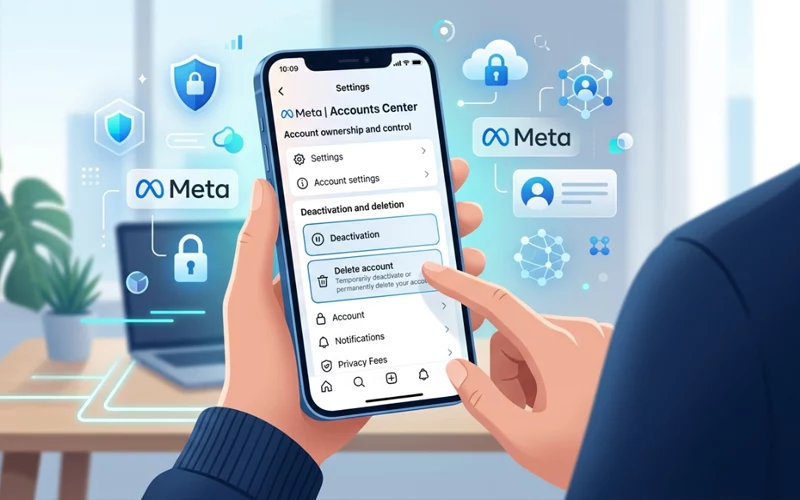
If you are looking for how to delete Instagram account, the process is now handled through Instagram’s Accounts Center. Instagram’s help pages also note that deleting content can take time, and the deletion process may take up to 90 days after it begins, with some copies possibly remaining in backup storage for a while.
Many people decide to leave Instagram for privacy reasons, to reduce screen time, or simply to start fresh. Whatever the reason, it helps to understand the difference between temporary deactivation and permanent deletion before you press the final button. Instagram’s support pages separate these actions and route both through the same account-management area in Accounts Center.
Step-by-Step Account Removal Guide
The most important thing to know is that Instagram now places account deletion inside Accounts Center. From the Instagram app, you typically open your profile, tap the menu, go to Accounts Center, then open Personal details, choose Account ownership and control, and select Deactivation or deletion. After that, you pick the account, tap Delete account, and continue through the prompts. Instagram’s help pages also show this same Accounts Center path for related account actions.
That is why how to delete instagram account step by step is not complicated, but it does require careful clicks. The key is to follow the prompts slowly, read each screen, and make sure you are selecting permanent deletion rather than simply removing login information from the device. Instagram’s mobile help page for stored logins shows that removing profiles from a device is a separate action from deleting the account itself.
Before confirming anything, make sure to consider whether you want to keep a backup of your posts, photos, messages, or other data. Instagram’s Help Center includes an export feature within the Accounts Center under “Your information and permissions,” where you can request a copy of your data. This is the safest first move before permanent deletion, because once the profile is gone, recovery is not the usual outcome.
Permanently Delete Your Instagram Profile
People searching for how to delete Instagram account permanently usually want a real, final removal instead of a pause. Instagram’s help pages describe deletion as a permanent action, and they note that the deletion process can take up to 90 days to complete after it starts. During that period, some data may still exist in backup storage while the process finishes.
Permanent deletion is different from deactivation. Deactivation temporarily hides your profile, while deletion is intended to permanently remove the account along with its content over a period of time. Instagram’s help center specifically groups these choices together, which is why the same menu path can lead to either option depending on what you choose.
A smart habit is to decide in advance what you want to keep. If you are leaving permanently, export your Instagram information first and then continue with the deletion request. That way you do not have to worry later about whether an old photo, caption, or memory should have been saved. Instagram’s official export option is built for exactly this purpose.
Method comparison
Method | Where it happens | Best for | Main note |
App | Instagram app on phone | Most users | Uses Accounts Center. |
iPhone | Instagram app on iPhone | iPhone users | Same Accounts Center flow inside the app. |
Android | Instagram app on Android | Android users | Same Accounts Center flow inside the app. |
Computer | Web browser on desktop or laptop | People who prefer a bigger screen | You can manage account ownership and control through Accounts Center. |
Website | Instagram web access | Users signing in from browser | The same deletion tools are tied to Accounts Center. |
Computer-Based Removal Process
In case you want how to delete Instagram account on computer, the process is useful because the bigger screen makes the menus easier to follow. Instagram’s account management tools are tied to Accounts Center, which is the central place for connected experiences and account settings across Meta products.
On a computer, log in to Instagram in your browser, open the account settings area, and move into Accounts Center. From there, you should reach the same account-ownership options that Instagram documents in its help pages. The main point is not the device itself, but getting to the correct account-control menu before you choose deletion.
This method suits people who do not like using small phone screens or who prefer to review settings carefully before making a permanent decision. It is also useful if you are already signed in on a desktop and want to finish the process without switching devices. Official help pages explain that the deletion process is managed through profile settings rather than any hidden or app-specific method.
Using the Web Version
A lot of people search for how to delete Instagram account on website, and the answer is simple: use the web version, sign in, then follow the same Accounts Center route. Instagram’s help center treats deletion as an account-level setting rather than a device-level setting, so the website is a normal and valid place to start.
The web version is useful because it lets you view each screen more clearly and helps reduce the chance of selecting the wrong option. It is also helpful if you are already working on your laptop or desktop and want one clean session to handle the profile removal. The important thing is to confirm that you are in the Account ownership and control area before you approve deletion.
Remember that deletion is not instant. Instagram says the process can take up to 90 days after it starts, so even after you request it, the account may not disappear everywhere right away. That delay is normal and part of the platform’s deletion process.
Method on a Phone
For how to delete Instagram account on phone, the process is almost the same across mobile devices. Open the Instagram app, go to your profile, open the menu, and then move into Accounts Center. From there, you move through “Personal details” and “Account ownership and control,” and eventually arrive at the “Deactivation or deletion” option.
Many users assume that deleting the app from their phone will delete the profile, but that is not true. Removing the app only removes the app from the device; it does not remove the Instagram profile from Instagram’s systems. Instagram’s mobile help also shows that removing saved login information from a device is a separate action from profile deletion.
This is why the phone method should be handled carefully. First, use the app to reach the deletion settings. Second, confirm the account you want to delete. Third, make sure you are not just cleaning up login data on the device by mistake. Even a small difference like this can have a meaningful impact.
Guide for iPhone Users
The search phrase how to delete Instagram account on iphone usually means the user wants the iPhone app path in simple words. On iPhone, the flow is still the same Accounts Center route inside Instagram. You open your profile, tap the menu, enter Accounts Center, and continue to Account ownership and control before choosing deletion. Instagram’s help pages show this as the current official route.
iPhone users should also keep in mind that removing the Instagram app from iOS is not the same as deleting their Instagram account. If the goal is permanent removal, the profile settings inside Instagram must be used. If the goal is only to clear saved login details from the phone, Instagram provides a different option for removing profiles from that device.
This is especially useful for people who share a device or who once logged in to multiple accounts. The app can store login information on the device, but that storage is separate from the account itself. So on an iPhone, always double-check whether you’re clearing the device or actually deleting the account.
Steps for Android Devices
If you are searching how to delete Instagram account on android, the answer is again the same official account-management path inside the Instagram app. Android users should open the app, go to the profile page, open the menu, and look for Accounts Center. From there, the deletion choice sits under personal and ownership controls.
Android phone owners often confuse app removal with account deletion. Uninstalling Instagram from Android only removes the app from the phone, and Android’s own help center treats app uninstalling as a separate device action. That means the Instagram account remains unless you specifically delete it from Instagram’s settings.
This matters because many people want to leave Instagram for a while, but only a full profile deletion actually begins the permanent removal process. If you are sure, use the official in-app route, confirm the profile, and submit the deletion request. If you are not fully sure, export your information first so you keep a copy of what matters.
Delete Directly from the App
When people ask how to delete Instagram account from app, they usually want the fastest practical method. The Instagram app is actually the most common place to start because it takes you straight into Accounts Center. The official deletion path is straightforward: go to your profile, open the menu, access Accounts Center, then navigate to Personal details, Account ownership and control, Deactivation or deletion, and finally select Delete account.
The app method is convenient because you do not need a browser or desktop computer. It is also useful when you are already logged in and do not want to reset anything. Just make sure you are deleting the account and not only removing the account from the device’s saved login list, because those are two different actions.
For people with multiple Instagram profiles, the app can show several profiles in one place through Accounts Center. That makes it easier to choose the correct profile before deleting anything. Instagram’s help pages explain that Accounts Center manages connected experiences and profile settings across Meta services, so the app becomes the main gateway to profile-level controls.
What Happens After Closing It
Once the deletion request is submitted, the process does not always finish immediately. Instagram says it may take up to 90 days to complete the deletion process after it begins, and backup copies may remain for some time while that process is underway.
That is why it is best to avoid logging back in unless you are sure you want to cancel or review the process. The platform’s help pages emphasize account recovery and control through official support tools, which is another reason to think carefully before pressing delete.
Also, remember that deleting the account is more serious than hiding the profile. Temporary deactivation keeps your account accessible again later, while permanent deletion closes it gradually and removes it over time. The official help center keeps both options in the same account-management area for a reason: they solve different problems.
Before You Confirm the Action
A practical approach is to back up anything important before proceeding. Instagram provides a built-in way to export your information from Accounts Center, and that is the safest preparation step before permanent deletion. This helps preserve your posts, photos, and other account data in a format you can keep outside Instagram.
It is also worth checking whether you are deleting the correct profile if you have more than one profile. Instagram’s help pages show that Accounts Center can manage more than one connected profile, which makes careful selection important. One wrong tap can send you into the deletion flow for the wrong profile, and that is not something you want to discover later.
If your goal is only to reduce distraction, deactivation may be enough. If your goal is to fully remove your presence, then permanent deletion is the right choice. The best option depends on whether you want a break or a clean exit.
FAQs
1. What is the easiest way for how to delete Instagram account safely?
The easiest way is through the Instagram app using Accounts Center. You go into settings, open account ownership controls, and follow the deletion option carefully. This method ensures you complete the official process without missing any step.
2. Is it possible to permanently delete an Instagram account so that it cannot be recovered later?
Yes, once you confirm deletion, the account enters a permanent removal process. After that, recovery is usually not possible, and it may take some time before all data is fully removed from the system.
3. What happens if I just uninstall the app instead of deleting the account?
Uninstalling only removes the app from your phone. Your profile, posts, and data remain active unless you go through the proper account settings and complete the deletion process.
4. How long does it take for the profile to fully disappear after deletion?
The removal process can take several weeks, and in some cases up to around 90 days. During this time, some data may still exist in backup storage systems.
5. Can I use a computer to delete Instagram profile?
Yes, you can log in from a browser and access the same account management settings. The process is similar to mobile, just displayed on a larger screen for easier navigation.
6. What should I do before removing my social profile?
It is recommended to download your data first, including photos, messages, and profile information. This ensures you don’t lose anything important permanently.
7. Is it possible to temporarily disable instead of removing it completely?
Yes, there is an option to deactivate your account temporarily. This hides your profile until you log in again, unlike full removal which is permanent.
8. Can multiple profiles affect the delete process?
Yes, if you have multiple profiles connected, you need to carefully select the correct one in Accounts Center. Choosing the wrong account can lead to accidental removal of the wrong profile.
9. Do I need internet access during the removal process?
Yes, a stable connection is required because all steps are completed through Instagram’s online system. Without internet, you cannot proceed with confirmation.
10. What is the difference between app removal and profile removal?
Removing the app only affects your device storage, while profile removal permanently deletes your presence from Instagram’s system after confirmation through settings.
Closing statement
The safest way to handle how to delete instagram account is to go slowly, use the current Accounts Center path, and back up your information first. Instagram’s official help pages show that the deletion and deactivation tools are connected to the same control area, and they also confirm that deletion can take up to 90 days to finish.
If you are deleting from iPhone, Android, computer, website, phone, or directly from the app, the main lesson is the same: account deletion is a settings action, not a simple uninstall. Once you understand that difference, the whole process becomes much easier to follow.
Instagram changes its interface from time to time, but the official support path still centers on Accounts Center. So the best way to avoid confusion is to follow the current menu labels, read each screen carefully, and confirm the account before final submission.
If you want to read more interesting and detailed guides, visit EmbossitWorld now. You’ll find useful Information, and a lot of practical information. Don’t miss out.





Add comment