
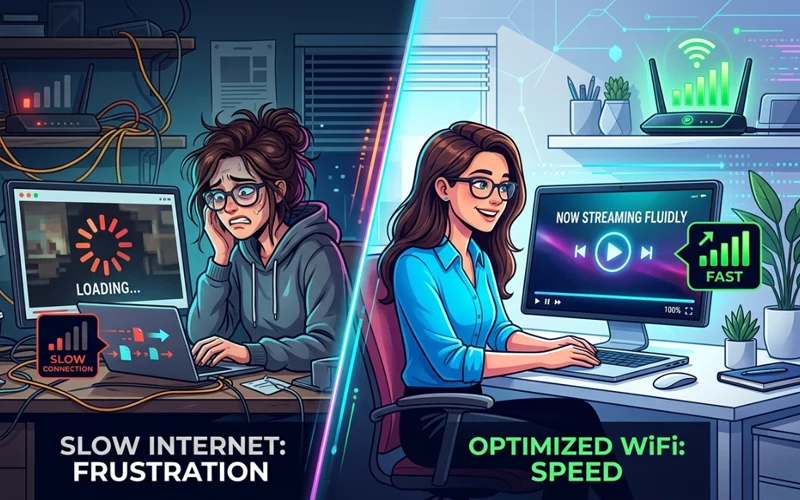
Slow internet can ruin a normal day very quickly. A page takes too long to load, videos keep buffering, online classes freeze, and downloads move at a painful speed. Many people think the problem is always with their internet company, but that is not always true. Sometimes the issue is inside the home, inside the device, or even caused by the time of day. That is why learning how to fix slow internet is useful for every home, office, student, and remote worker.
In this article, you will learn simple and practical ways to improve your connection. The goal is not only to make your internet faster for a few minutes, but to help you understand what is causing the slowdown and how to deal with it properly. This guide uses easy English, clear explanations, and real-life solutions so you can follow it step by step without confusion.
Why Internet Becomes Slow
Before trying any fix, it helps to understand why the internet slows down. Many people search for how to fix slow internet connection, but they often skip the reason behind the problem. In reality, internet speed can drop because of weak Wi-Fi signals, too many connected devices, old routers, background apps, damaged cables, bad placement of the router, or poor service from the provider.
Sometimes the connection feels slow only on one device, which means the issue is not with the full network. In some cases, the issue affects the entire home, which often indicates a problem with the router, modem, or the internet service itself. If you know the source, you can save time and avoid unnecessary guessing. A smart fix always starts with finding the real cause.
Start With the Basics
Start by rebooting your modem and router as the first step. This sounds simple, but it often works surprisingly well. Unplug them, wait roughly 30 seconds, and then power them back on again. This gives the devices a fresh start and can clear small errors that build up over time. Many users notice an improvement right after this step.
After that, find out if the issue is affecting all devices or just a single one. Try opening websites on your phone, laptop, and tablet. If only one device is slow, then the issue may be in that device’s settings, browser, or network connection. If every device is slow, then the problem is likely with the Wi-Fi, the router, or the internet line itself.
You should also check if any big downloads, cloud backups, game updates, or streaming apps are running in the background. These can use a lot of bandwidth and make the connection feel slow for everyone else. Pausing them for a few minutes can make a big difference.
A Quick Comparison of Common Causes
Problem Area | What You May Notice | What to Try |
Router issue | Wi-Fi is weak in all rooms | Restart router, move it to a better place |
Device issue | Only one phone or PC is slow | Restart device, update software, forget and reconnect Wi-Fi |
Network congestion | Internet is slower at certain hours | Reduce heavy use, test speed at different times |
ISP issue | All devices are slow even after restart | Contact internet provider |
Background apps | Web pages load slowly while apps run | Close unused apps and downloads |
This simple table can help you quickly understand where the real problem may be. Once you know the likely cause, the next fix becomes much easier.
Fix Slow Connection at Home
Many people ask how to fix slow internet at home? The answer depends on your home setup, but there are several smart steps that help in most cases. First, place your router in an open area, not hidden inside a cabinet or behind a TV. Walls, furniture, and metal objects can block the Wi-Fi signal. Placing it in the middle of your home usually provides stronger and more balanced coverage than keeping it in a corner.
Second, reduce the distance between your device and the router whenever possible. If you are very far away, the signal becomes weaker. For larger homes, a Wi-Fi extender or mesh system may help spread the signal more evenly across rooms.
Third, check how many people are using the internet at the same time. In many homes, one person is watching video, another is gaming, someone is on a video call, and a smart TV may also be active. That can use a lot of bandwidth. If your internet plan is too small for your household, upgrading may be the best long-term fix.
Fourth, protect your network by setting a strong, secure password. If neighbors or strangers are using your Wi-Fi, your connection can become much slower. A password change can protect your network and improve performance.
Reasons Your Speed Drops at Night
A lot of users notice that their connection gets worse in the evening, so they search for how to fix slow internet at night. This usually happens because many people in the area are online at the same time. In the evening, families stream movies, play games, make video calls, and download large files. When more users are active, the network can slow down.
One good step is to test your speed at different times of the day. If your internet is fast in the morning but slow at night, the issue may be network congestion from your provider. In that case, you may not be able to fully solve it inside your home, but you can reduce the impact by avoiding heavy downloads during peak hours.
You can also schedule large updates for late night or early morning when the network is less busy. If your router supports Quality of Service settings, you may be able to give priority to work or study devices. Another useful habit is to disconnect unused devices at night so fewer gadgets compete for bandwidth.
Improve Performance on Your PC
When the issue shows up on a desktop or laptop, users usually start searching for solutions like how to fix slow internet on pc. A PC may slow down because of browser issues, background programs, outdated network drivers, or a weak Wi-Fi adapter. The good news is that many of these problems can be fixed at home.
Start by closing programs you do not need. Some apps keep syncing files, checking updates, or using the internet silently in the background. Then try another browser to see if the speed problem is only happening in one browser. Clear your browser cache and cookies because old stored data can sometimes make websites load badly.
If your PC uses Wi-Fi, move it closer to the router if possible. If it uses an Ethernet cable, make sure the cable is not damaged. Updating your network driver is also important on computers, especially if the system has not been updated in a long time. A simple driver update can improve the way your PC connects to the internet.
Speed Optimization Tips for Windows 10
Windows users often ask how to fix slow internet on windows 10 because this system can sometimes slow down after updates, app installations, or network setting changes. A good first step is to run the built-in network troubleshooter. Windows 10 can often detect common connection issues and suggest basic fixes.
You should also check the background apps running on your system. Some Windows programs keep consuming data even when you are not using them. Open Task Manager and see which apps are using network activity. Closing unnecessary ones can help.
Another useful step is to reset the network settings in Windows 10 if the issue has lasted a long time. This can clear strange connection errors and rebuild the network setup. After that, reconnect to your Wi-Fi and test the speed again. Updating Windows itself can also help, because old system files may create connection problems.
In case your internet works well on other devices but not on your Windows 10 PC, then the issue is likely inside the computer rather than the whole network. That makes the fix more focused and easier to handle.
Boost Mobile Data Performance
Mobile users often search for how to fix slow internet on phone because phones can feel slow even when the Wi-Fi seems fine on other devices. In many cases, the issue is caused by too many apps running, weak signal strength, limited storage, or outdated software.
Restart your phone first. This clears temporary issues and can improve connection behavior. Then turn Wi-Fi off and on again, or switch from Wi-Fi to mobile data and back to test which one is working better. If your internet is slow only on Wi-Fi, the router may be the problem. If it is slow on mobile data too, the issue could be with your mobile signal or network provider.
Also check whether apps are downloading updates in the background. Photo backup apps, social media apps, and cloud storage tools can use a lot of data. Close unused apps, clear a few large files if your storage is almost full, and update your phone’s system software when needed. A device with very low storage can feel slower in general, including on the internet side.
Fix Slow Network Issues on iPhone
iPhone users often want to know how to fix slow internet on iphone because iPhones usually perform well, so slow speed can feel more noticeable. A good first step is to turn Wi-Fi off and on again. Then forget the network and reconnect with the password. This can solve small connection errors that may be causing the slow speed.
You should also check whether iCloud backup, app updates, or large downloads are running in the background. These tasks may make the connection appear slower than usual. If the issue continues, try resetting network settings on the iPhone. This does not delete your personal files, but it does clear saved Wi-Fi networks and network preferences, which can help fix strange problems.
A extra important thing is to keep iOS updated. Apple often releases updates that improve performance and fix bugs related to network stability. If only one app is slow, the problem may be with that app rather than the whole internet connection. Testing a few different websites or apps can help you understand the pattern.
Check Wi-Fi Signal & Router Setup
A weak Wi-Fi signal is one of the most common reasons for slow internet. Even if your plan is fast, the speed will feel poor if the signal is weak. The router should be placed in a central and open location. Avoid placing it on the floor, near thick walls, close to metal objects, or behind large furniture.
Assuming that your router has antennas, position them properly. In some homes, one antenna works better pointing upward and another slightly angled, depending on the layout. You should also make sure your router is not too old. Older routers may not support modern speed standards, which means your internet plan cannot perform at its best.
Changing the Wi-Fi channel can also help when many nearby networks are crowded. In apartment buildings and busy neighborhoods, too many routers using the same channel can create interference. A simple channel change in the router settings can improve performance without changing your plan.
Is Your Internet Plan or ISP the Issue?
Sometimes the real issue is not your home devices at all. Your internet plan may simply not be strong enough for your needs. If several people in the home stream videos, attend meetings, and play games at the same time, a low-speed package may struggle. In that case, upgrading the plan can be the most practical solution.
It is also possible that the service provider has temporary problems in your area. If speeds are slow at different times and across all devices, contact customer support. They may detect line issues, maintenance work, or service outages. A technician visit may be needed if the cable, modem, or line is damaged.
Before calling support, it helps to run a speed test and note the results. Compare the result with the speed promised in your plan. This gives you useful proof and makes the conversation clearer. If the speed is much lower than expected, you can ask for a detailed check of the line.
Smart Habits for Faster Speed
Once you solve the immediate problem, good habits can prevent it from coming back. Restart your router from time to time, especially if it has been running for weeks without a break. Keep your devices updated because old software can create performance problems. Remove apps you do not use, since some of them may still run in the background.
This is also wise to keep only the devices you really need connected to Wi-Fi. Too many active gadgets can use more data than expected. If you have a smart TV, security camera, gaming console, and several phones all online at once, your network has to work harder. Managing these devices well can make the connection smoother for everyone.
One more helpful habit is to test your speed regularly. This helps you notice when something changes. If the internet gets slower suddenly, you can catch the problem early instead of waiting until it becomes frustrating.
FAQs
What is the best way to understand how to fix slow internet quickly?
The fastest way to understand how to fix slow internet is to start with basic checks like restarting your router, testing speed on different devices, and closing background apps. This helps you identify whether the issue is from your device, Wi-Fi signal, or service provider.
How do I improve browsing speed in different rooms of my house?
You can improve coverage by placing the router in a central location, away from walls and obstacles. For larger homes, using a Wi-Fi extender or mesh system helps maintain a stable signal in all rooms.
Why does the connection slow down at night?
This usually happens because many users in the same area are online at the same time. Streaming, gaming, and downloads increase traffic, which reduces overall performance for everyone.
Why does my internet become slow even after I restart my router?
If restarting does not help, the issue may be due to network congestion, weak signal strength, or a problem with your service provider. Sometimes the router itself is old or overloaded with too many connected devices.
What can I do if my laptop’s connection is slow while other devices are working normally?
This usually means the issue is only on that device. Restart the laptop, update network drivers, clear browser cache, and check for background apps using data without your knowledge.
How can I improve browsing speed on Windows devices?
Make sure your system is updated, unnecessary apps are closed, and network settings are not corrupted. Running a built-in network reset can also help fix hidden connection issues.
Why does my phone feel slower than Wi-Fi speed test results?
Phones may feel slow due to background apps, low storage, or outdated software. Even if the Wi-Fi is fast, these internal issues can reduce real browsing performance.
What is the best way to fix slow browsing on iPhone?
Restart the device, reconnect to Wi-Fi, and check for iOS updates. If the issue continues, resetting network settings can clear hidden connection errors and improve performance.
How can I properly learn how to fix slow internet connection at home?
To understand how to fix slow internet connection, you should first check your Wi-Fi placement, number of connected devices, and whether any heavy downloads are running. These simple steps often reveal the real cause of the problem.
When should I contact my service provider?
You should contact your provider if all devices are slow, restarting does not help, and speed tests are much lower than your plan. This may indicate a line issue or service problem in your area.
Final Thoughts
Learning how to fix slow internet is not about one magic trick. It is about checking the problem step by step and finding the real cause. Sometimes the fix is simple, like restarting a router or closing background apps. Other times, the issue is related to the device, the Wi-Fi signal, nighttime congestion, or an internet plan that is too weak for the household.
The good news is that most slow internet problems can be improved without advanced technical skills. By testing your devices, checking your router, updating your system, and observing how your network behaves at different times, you can significantly improve everyday speed. Many people also search for solutions based on their situation, such as issues at night, on a PC, or across different devices. The key is to stay patient and identify the exact cause before applying the right fix.
Fast and stable internet makes work easier, study smoother, and entertainment more enjoyable. With the steps in this guide, you now have a clear and practical way to handle slow internet at home and on your devices.
If you want to read more interesting and detailed guides, visit EmbossitWorld now. You’ll find useful Information, and a lot of practical information. Don’t miss out.





Add comment