
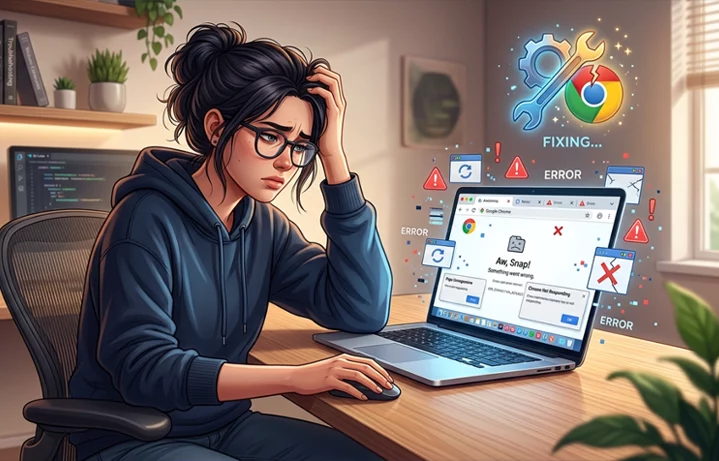
When Chrome keeps crashing, it can turn a simple task into a frustrating one. One moment you are opening a tab, checking email, reading an article, or watching a video, and the next moment the browser freezes, closes itself, or reloads without warning. This kind of problem can happen on almost any device, including laptops, desktops, phones, and tablets. The good news is that in most cases the issue is fixable without advanced technical skills.
This guide explains the most common reasons behind the problem and walks you through practical fixes in a clear, step-by-step way. The goal is to help You don’t only learn the solution—you also learn the real reason the issue starts in the first place. That way, you can solve it properly and reduce the chance of it happening again.
Why the Browser Crashes
Chrome is a fast and powerful browser, but it also uses a lot of system resources. That means it depends on your device’s memory, storage, software updates, extensions, and internet connection. When a single component in the system is faulty, it may cause the browser to behave unpredictably.
A crash often occurs when too many tabs are open, an extension malfunctions, Chrome is outdated, or your device runs low on memory. In some cases, a corrupted browser profile is also responsible. Sometimes the issue is temporary, but repeated crashes usually need a quick cleanup or a device update.
In many cases, users think the app itself is broken, but the real cause is usually something around it. That is why the best fix is not always reinstalling Chrome right away. It is better to check the likely causes one by one and apply the right solution.
Common Signs That Chrome Is Unstable
Before fixing the problem, it helps to recognize the patterns. Some people notice that Chrome crashes only when opening a specific website. Others see it freeze when switching tabs or watching videos. Some users face a complete shutdown after startup, while others experience random restarts during normal browsing.
You may also see slow loading, blank tabs, error messages, or pages that stop responding. In some cases, Chrome may open but close again within seconds. These signs usually mean the browser is under pressure from one or more issues, and that pressure is making it unstable.
Quick Checks Before You Try Bigger Fixes
A few simple checks can save time. First, close other apps running in the background because Chrome may be competing with them for memory. Then restart your device, since a fresh reboot can clear temporary glitches. Make sure your internet connection is stable, because broken connections sometimes look like browser crashes.
It also helps to test whether the issue happens on every website or only one website. If the problem appears only on one page, the website may be the cause rather than Chrome itself. If it happens everywhere, the browser or device is more likely to be the source.
Effective Crash Fixes for PCs and Laptops
While chrome keeps crashing on a computer, the most common reasons are too many extensions, too much cached data, outdated software, low memory, or a broken Chrome profile. Desktop systems often hold many apps open at once, so this browser may struggle if the machine is already busy.
The first thing to try is updating Chrome. An outdated version can cause instability, especially if websites are built for newer browser features. After that, check extensions, because even one bad extension can trigger crashes across multiple tabs. You should also clear the cache if the browser has been storing damaged temporary files for too long.
If the problem continues, create a new user profile in Chrome. A damaged profile can trigger repeated crashes even when the browser is installed correctly. A fresh profile gives the browser a clean environment to run smoothly and often fixes persistent issues.
Stability Fixes for macOS Users
Once chrome keeps crashing on Mac, the problem is often linked to permissions, memory pressure, or browser data that has become corrupted over time. Mac systems are usually stable, but they can still run into browser crashes if Chrome is overloaded or if another app is interfering.
One common solution is to check whether the Mac has enough free storage space. If the drive is almost full, Chrome may not have enough room to work smoothly. It is also wise to close heavy apps like video editors or large file tools while browsing.
Another useful step is to remove suspicious extensions and reset browser settings if needed. Sometimes a browser setting changed by accident can create repeated instability. If Chrome keeps closing on the Mac only after opening a certain website or video service, the problem may be related to hardware acceleration or a graphics issue. Turning that feature off can often help.
Reliable Fixes for Windows 11 Users
If chrome keeps crashing windows 11, the reason may be linked to system updates, graphics drivers, memory usage, or security software. Windows 11 is generally good at managing modern apps, but browser crashes can still happen when Chrome conflicts with a driver or when the system is running too many processes.
This is often fixed by updating both browser and Windows. A mismatch between browser features and system components can create instability. It is also a good idea to check the Task Manager and see whether memory or CPU use is unusually high. If the system is under pressure, Chrome may close itself to protect performance.
Antivirus software or security settings can sometimes interfere with browsing. If crashes begin after a recent update, it may indicate a software conflict. Updating the browser, checking system drivers, and temporarily disabling extensions can help identify and fix the issue.
Troubleshooting Steps for Windows 10
For people dealing with chrome keeps crashing windows 10, the problem is often a mix of older system files, outdated graphics drivers, or Chrome using more resources than the computer can comfortably handle. Windows 10 still works well for browsing, but older setups may struggle if the browser becomes too heavy.
A helpful fix is to reduce the load on Chrome by closing unused tabs and disabling unnecessary extensions. You should also make sure Windows 10 has the latest updates installed, since old system files can create browser instability. Another useful step is checking whether browser runs better in safe mode or with hardware acceleration turned off.
When Chrome crashes after every session, the installation may be corrupted. Reinstalling the browser can replace damaged files and restore normal performance. Before doing so, ensure your bookmarks and passwords are synced to avoid losing important data.
Quick Comparison: Causes vs. Fixes
Problem Area | What It Can Look Like | Best First Fix |
Too many tabs | Chrome slows down, freezes, or closes | Close unused tabs and restart Chrome |
Bad extension | Crashes happen on certain actions | Disable extensions one by one |
Outdated browser | Random instability or website errors | Update Chrome to the latest version |
Low system memory | Browser hangs on heavy pages | Close background apps and restart device |
Corrupted cache | Pages load badly or crash often | Clear browsing data and cache |
Corrupted profile | Chrome fails repeatedly on startup | Create a new browser profile |
| Driver conflict | Crashes during video or graphics use | Update graphics drivers and test hardware acceleration |
Android Crash Fixes
On mobile devices, google chrome keeps crashing android is usually caused by low storage, app cache problems, outdated app versions, or conflicts with system software. Android phones often run many apps in the background, and that can make Chrome less stable, especially on older or low-memory devices.
A simple fix is to clear Chrome’s cache and restart the phone. If the app has collected too much temporary data, it may begin freezing or closing unexpectedly. You should also check for app updates in the Play Store, because newer versions often include crash fixes and performance improvements.
Another useful step is to look at your device storage. When an Android phone is nearly full, apps can behave badly. Removing unused files or apps may help Chrome run more smoothly. If the issue keeps happening, try resetting app preferences or checking whether another app is causing interference in the background.
iPhone App Fixes
In case chrome keeps crashing on iphone, the cause is often related to app updates, low storage, system bugs, or a corrupted app session. iPhones are usually stable, but even on iOS, Chrome can freeze or shut down if the device is running out of memory or if the app data is damaged.
One of the best first steps is to update both iOS and Chrome. App stability often improves after an update. It is also smart to restart the iPhone, because that clears temporary memory issues that may affect the browser. If the crashes continue, offload or reinstall the app so Chrome starts with a cleaner set of files.
Sometimes the problem is not Chrome alone but the amount of stress on the device. If your iPhone is full, too hot, or running many apps at once, the browser may become unstable. Freeing up storage and closing background apps can make a noticeable difference.
How Clearing Cache Improves Stability
Cache is meant to make websites load faster, but over time it can become messy. Some saved files may be outdated, broken, or incompatible with the current version of a site. That is why clearing cache is one of the most effective fixes when Chrome becomes unstable.
This does not usually remove your important data like passwords or bookmarks, but it can remove temporary website files that may be causing trouble. If Chrome starts working better after clearing the cache, that is a sign the browser was holding bad temporary data. In many cases, this alone solves the issue or at least reduces how often crashes happen.
Extension-Related Issues
Extensions are useful because they add features like ad blocking, grammar help, shopping tools, and productivity shortcuts. But they can also become a major cause of crashes. A single outdated or poorly built extension may conflict with Chrome and make the whole browser unstable.
That is why disabling extensions is one of the smartest troubleshooting steps. You don’t have to delete all of them permanently. Start by turning them off, then enable them one by one until you find the one causing the issue. This method is simple and effective, and it can save hours of confusion.
Corrupted Profile Issues
A browser profile stores your settings, bookmarks, extensions, cookies, and other personal browsing data. If that profile becomes corrupted, Chrome may keep crashing even when everything else looks normal. This is especially common after unexpected shutdowns, sync problems, or bad updates.
Creating a fresh profile often fixes this problem because it gives Chrome a clean start. If the new profile works properly, then the old one was likely the source of the crash. This is one of the clearest signs that the issue is not your computer or phone, but the stored browser data itself.
When to Reinstall
Reinstalling Chrome is not always the first step, but it can be very useful when the browser files are damaged. If updates, cache clearing, extension removal, and profile checks do not help, a reinstall may be the simplest path forward.
This works because reinstalling replaces broken program files with clean ones. On computers, it can also remove hidden problems that are hard to spot manually. On phones, reinstalling the app can clear damaged app data and restore normal performance. Before reinstalling, make sure your bookmarks, passwords, and account sync are active so your data stays safe.
Preventing Chrome Crashes in the Future
Once Chrome is working again, a few habits can help keep it stable. Keep the browser updated, remove extensions you do not use, and avoid leaving too many heavy tabs open at once. Also make sure your device has enough storage space and that the operating system is updated regularly.
It is also wise to restart your device occasionally, especially if you use Chrome for long periods each day. A simple restart clears memory and helps the browser start fresh. If you notice a specific website causing trouble, test it in another browser to see whether the site itself is the problem. Small habits like these can prevent many crashes before they begin.
FAQs
Why does Chrome keep crashing on mobile devices?
When chrome keeps crashing on mobile, it is often due to low storage, outdated app versions, or overloaded cache data. Clearing app data or reinstalling the app usually restores normal performance. Device overheating can also contribute to instability.
Why does the browser suddenly close while I’m using it?
This usually happens when the system runs out of memory or too many background processes are active. Heavy websites, multiple open tabs, or low device storage can force the browser to shut down unexpectedly. Restarting the device and closing unused apps often helps stabilize performance.
What can I do if my browser freezes on certain websites?
If freezing happens only on specific sites, the issue is often related to that webpage rather than the browser itself. Removing temporary files or turning off resource-heavy extensions can help pages load more smoothly. Sometimes switching off hardware acceleration also makes pages respond more smoothly.
Why does everything stop working when I open too many tabs?
Each tab consumes memory and processing power. When too many tabs are active, the system may struggle to manage them, especially on low-end devices. This can lead to lag, freezing, or sudden shutdowns. Keeping fewer active tabs helps maintain stability.
How do I fix extension-related performance issues?
Some extensions run continuously in the background and can slow down or destabilize browsing. If performance drops after installing a new extension, disabling it is a good first step. Re-enabling them one by one can help identify the one causing the problem.
What should I do if my browser is not opening at all after an update?
This can happen when update files are incomplete or corrupted. Restarting the device, checking system updates, or reinstalling the browser often solves the issue. It is also helpful to check whether antivirus software is blocking startup processes.
What causes Chrome to behave unpredictably on Windows systems?
When Chrome keeps crashing, it is usually linked to driver conflicts, outdated system updates, or high memory usage. Checking system updates and reducing background load can improve stability significantly.
Is there a difference in stability between desktop and mobile browsers?
Yes, desktop browsers usually depend more on system memory and extensions, while mobile browsers depend more on storage and app data health. Both environments can face crashes, but the causes are usually different.
What is the safest way to restore normal browser performance?
The safest approach is to start with simple fixes like restarting the device, clearing temporary data, and disabling extensions. If the issue continues, updating or reinstalling the browser usually restores stable performance without affecting personal data if syncing is enabled.
Why does Chrome close unexpectedly on Android phones?
When google Chrome keeps crashing, the most common reasons are insufficient storage, corrupted cache, or background app conflicts. Keeping the app updated and freeing up space often resolves the issue.
Final Thoughts
Whenever chrome keeps crashing, the problem usually looks bigger than it really is. In many cases, the fix is a simple one such as clearing cache, disabling extensions, updating the app, or restarting the device. Other times, the issue comes from a corrupted profile, low storage, or a software conflict on your system.
The most important thing is to troubleshoot in a calm and organized way. Start with the easiest checks, then move toward deeper fixes only if needed. Whether you are using Windows, Mac, Android, or iPhone, the same basic idea applies: find the source of instability and remove it step by step. With the right approach, Chrome can usually go back to being fast, stable, and easy to use.
If you want to read more interesting and detailed guides, visit EmbossitWorld now. You’ll find useful Information, and a lot of practical information. Don’t miss out.





Add comment