
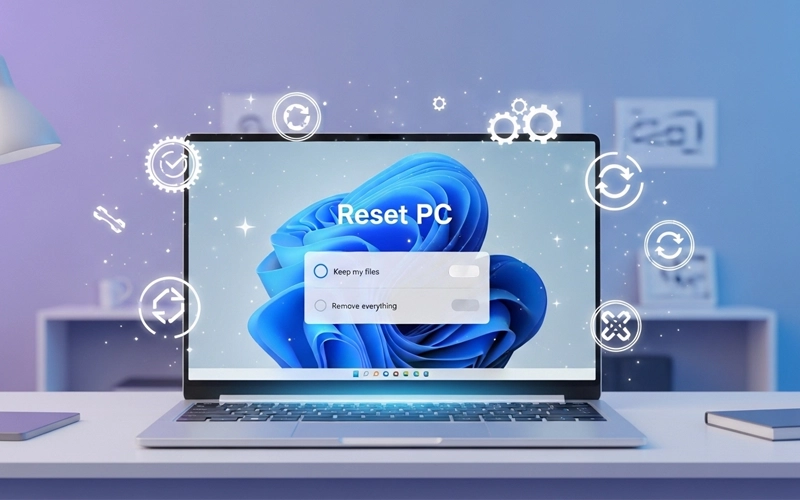
Most people only think about resetting their computer when it starts getting slow, freezing, or showing errors that just won’t go away. Windows 11 does give you a few simple reset options, but many users still get confused about how it actually works, what they might lose, and how to do it safely. In this guide, I’ll walk you through everything in a simple way. You’ll learn different methods, including how to reset Windows 11 to factory settings, how to do it without losing your data, and how it works on both PCs and laptops.
This article is written to help everyday users and not just technical experts. The goal is to make everything easy, comfortable, and safe so that anyone can reset their computer confidently. Whether your system is too slow, filled with unwanted files, crashing often, or you simply want to start fresh, this guide covers everything you need to know.
Understanding What a Reset Really Means
Before you learn how to reset Windows 11, it’s important to understand what a reset actually does. Windows 11 has a built-in reset option that brings your computer back to a clean and stable state. When you use your PC for many months or years, it gathers a lot of temporary files, old software data, registry entries, updates, and other junk. Over time, this extra clutter slows down your computer and can cause different problems.
Resetting Windows 11 helps fix these issues by reinstalling the system in a clean and fresh way. You can choose whether you want to keep your personal files or remove everything. This makes the reset option helpful in many situations. If your computer is not running smoothly, a reset can bring it back to the same performance it had when you first bought it.
Why a Reset Can Improve Your Computer
There are many reasons why someone might reset a Windows 11 computer. Some people deal with a slow system, while others face software problems or damaged system files. In some cases, a virus or malware harms the system so much that fixing it becomes very difficult. In these situations, resetting the computer is often the easiest and safest solution.
You might also want to reset your Windows 11 device when you are selling it or giving it to someone else. Resetting ensures that none of your personal data remains on the machine. If you have installed too many apps and you do not know what is causing the problem, a reset saves you from long troubleshooting sessions.
No matter what the reason is, knowing how to reset Windows 11 to factory settings prepares you to deal with unexpected problems in the future.
What to Do Before Resetting Your PC
Many people start resetting their computer without preparing properly, and later they get stressed when they notice some of their data is missing. Even though Windows 11 gives you an option to keep your files, it’s still best to make sure everything is safely backed up before you begin.
Preparing for a reset is simple. Users should save their important documents, photos, and other essential data in a safe location such as an external hard drive or cloud storage. If you have installed programs that you need again, make sure you have the installation files or setup links. Preparing in this way makes the entire process relaxed and worry-free.
Another preparation step is ensuring your device has enough battery if you are using a laptop, because interruptions during reset can create problems. A desktop PC should remain connected to a stable power source.
Process of Reset Windows from Settings
The most common and easiest method for beginners is resetting through the Settings menu. This method works smoothly on most systems and does not require advanced knowledge.
When you begin the reset process, Windows 11 will ask you if you want to keep your personal files or remove everything. This is helpful because sometimes you just want to fix system problems without losing your files, while other times you may want a completely fresh start.
If you choose to keep your files, the system will remove apps and settings but preserve your photos, documents, and other personal items. This method is especially helpful for users who want to perform how to reset Windows 11 without losing data.
After you choose how you want to reset your PC, Windows 11 also lets you pick how the system should be reinstalled. One option uses the files already saved on your computer, while the other downloads a fresh copy of Windows from the internet. The cloud download option is especially helpful if your system files are damaged, because it installs a clean and updated version of Windows 11.
Once the process starts, your computer restarts several times. During this period, you do not need to do anything. The system automatically reinstalls Windows 11 and prepares the device for normal usage again. The entire process may take some time depending on the speed of your hardware.
Complete guide to Reset Windows to Factory Settings
Many users look for how to reset Windows 11 to factory settings, which means bringing the computer back to its original condition when it was first made by the manufacturer. A factory reset removes everything on the device, deletes all personal data, and restores all settings to their default state.
A factory reset is the best option when your system has become too complicated or full of issues. It is also ideal when you plan to sell your computer or give it to someone else. A factory reset gives you the peace of mind that nothing personal remains on the device.
The factory reset process is very similar to a normal reset, but you must choose the option that removes everything from the system. After confirming, Windows 11 wipes your storage and reinstalls a clean copy of the operating system. At the end, it feels like a brand-new machine.
How to Reset Windows 11 Without Losing Data
Sometimes you just want to fix your computer without losing your important files. Windows 11 gives you that option through “Keep my files,” which is really helpful when your system is acting up—like freezing, crashing, or running slower than usual.
The good thing is that this method removes apps and resets system settings, but your personal files stay safe. So your documents, photos, and folders are not touched. After everything is done, you simply reinstall the apps you need again, and your PC feels fresh without the stress of moving data around.
Even though this process is quite safe, it’s still a smart idea to keep a backup just in case something goes wrong. Overall, it’s a simple and practical way to clean up your system while keeping your important work untouched.
Resetting a Desktop Computer
Even though the reset steps are the same, many users specifically ask how to reset a Windows 11 PC. The good thing is that the reset feature works on all Windows 11 devices, whether it is a desktop computer or a laptop. The only difference is that desktop PCs usually stay connected to a stable power source, which makes the reset process a bit more stable and simple.
For PC users, resetting is very helpful when they face hardware-related problems. If you have changed parts of your system or adjusted many settings, a clean reset can help Windows 11 work better with the new setup. It removes old drivers, conflicting apps, and outdated settings, giving your PC a fresh and stable start.
Once the reset is complete, your PC becomes smoother, faster, and more responsive. This is a great solution for people who use their PCs for heavy-duty tasks such as editing, designing, or gaming. A freshly reset Windows 11 PC performs noticeably better.
Resetting a Laptop Safely
Laptop users frequently look for guides on how to reset Windows 11 laptop, especially when the device has battery problems, storage issues, or slow performance due to long-term usage. Resetting a laptop is similar to resetting a desktop PC, but you must be careful about keeping your laptop connected to a charger.
Many laptops also come with manufacturer-installed tools that help with recovery and reset. These tools are built into the system and allow you to easily restore your laptop to factory condition. However, the built-in Windows 11 reset feature works perfectly even without these tools.
Resetting a Windows 11 laptop is very helpful when it starts becoming slow, noisy, or full of too many background apps over time. After the reset, the laptop feels lighter, runs more smoothly, and becomes more efficient. For students and office workers, this is especially useful because it makes the laptop stable and reliable again for everyday work and study.
How Long Does the Reset Take
Many users hesitate to reset their computer because they are unsure how long the process will take. The duration depends on your device’s speed, storage type, and whether you choose local reinstall or cloud download.
A system with a solid-state drive resets much faster than one with a traditional hard drive. Local reinstall is usually quicker, while cloud download may take extra time because it needs to download fresh system files.
In most cases, the complete process finishes within an hour, though some devices may take slightly longer. During the reset, your computer restarts multiple times and shows progress screens. You simply need to wait until the installation is complete.
After the Reset – What Happens Next
After Windows 11 completes the reset, your device restarts into the initial setup screen. You will be asked to select your region, sign in with your account, and choose your preferences. This is the same setup you see when using the device for the first time.
If you selected the option to keep your files, you will find your personal data in the same location as before. If you selected the option to remove everything, the system will be completely empty, giving you a fresh environment.
At this stage, you can reinstall your applications, adjust your settings, and personalize your device according to your preferences. Many users notice a big improvement in performance right after the reset because the system is now clean and optimized.
When You Should Consider a Reset
There are certain signs that indicate your Windows 11 device needs a reset. If your system takes too long to start, freezes regularly, or shows repeated error messages, a reset can solve most of these problems. If you find it difficult to remove some programs or the system behaves strangely, a reset is often the quickest solution.
Resetting is also helpful when upgrades fail or major updates cause instability. If you experiment with lots of apps, customization tools, or system modifications, eventually things can become messy. A reset clears everything and brings the system back to a stable state.
Even if your system is working fine but feels slower than usual, performing a reset every year or two keeps your computer fresh and fast.
FAQs
1. How do I reset Windows 11 easily?
You can reset Windows 11 by going to Settings > System > Recovery and selecting the Reset PC option. Then choose whether to keep your files or remove everything. The system will automatically reinstall and complete the process.
2. How to restore factory settings on my PC?
Go to Recovery settings and select the option that removes everything. This will erase all personal files, apps, and settings and return your device to its original factory state.
3. How to reset Windows 11 without losing data?
Choose the “Keep my files” option during the reset process. This will reinstall Windows while keeping your personal documents, photos, and videos safe. Apps and settings will still be removed.
4. How long does it take to reset Windows 11?
It usually takes between 20 minutes to 1 hour, depending on your system speed, storage type, and reinstall method. SSD devices complete the process faster.
5. Will resetting Windows 11 delete everything?
It depends on your choice. Selecting “Remove everything” will delete all files, apps, and settings, while “Keep my files” will only remove apps and settings.
6. How to reset a laptop step by step?
Open Settings, go to System Recovery, click Reset PC, and choose your preferred option. Make sure your device is plugged into power during the process.
7. How can reset help fix slow performance?
A reset removes unnecessary files, corrupted settings, and background issues. This gives your system a fresh start and improves speed and stability.
8. Can it be reset from startup or recovery mode?
Yes. If the system is not booting properly, you can use Advanced Startup, then go to Troubleshoot and select Reset this PC.
9. What’s the difference between reset and reinstall?
Reset is a built-in feature in Windows 11 that allows easy recovery. Reinstalling manually requires a bootable USB and is more technical.
10. Is it safe to reset the system?
Yes, it is completely safe and recommended for fixing issues. Just make sure to back up important files before starting.
Conclusion
Learning how to reset Windows 11 is one of the most useful things for any computer user. Whether you want to fix performance problems, remove corrupted files, clean your device before selling it, or simply start fresh, the reset feature gives you complete control. You can choose from different options such as how to reset Windows 11 to factory settings, how to reset Windows 11 PC, how to reset Windows 11 laptop, and how to reset Windows 11 without losing data, depending on your situation.
A reset can turn a slow, problematic computer into a fast and stable one within an hour. It saves time, reduces stress, and avoids long troubleshooting steps. With the information in this guide, you can now reset your Windows 11 device confidently and safely whenever needed.





Add comment