
Introduction
Every time we go online, we end up doing the same small but tiring tasks like logging into accounts, filling forms, and typing personal details again and again. Since almost every website now requires this information, it quickly becomes repetitive and frustrating. That’s where Google Autofill Settings step in, making browsing easier by automatically saving and filling your details whenever needed.
Google has developed a smart system that automatically fills in information such as names, addresses, emails, passwords, and even payment details whenever a user visits a website or fills out a form. This feature is available in Google Chrome and works across all devices connected to a Google account. It helps users save a lot of time and effort by removing the need to type the same details again and again, while also making the overall browsing experience smooth and more convenient.
However, while this feature is highly convenient, it also stores sensitive personal data. That is why understanding how Google Autofill Settings work, and how to properly manage them, is very important for every internet user in 2026.
Understanding How Autofill Works
Google Autofill is a built-in feature in Chrome that gets better with use. When you fill out a form and enter details like your name or address, Chrome will usually ask if you want to save that information. If you choose to save it, the data is securely stored in your Google account or browser so it can be used again later when needed.
Later, when you open similar pages or fill out forms, the browser simply pops up your saved details and fills them in for you. It all happens in a few seconds, so you don’t have to keep typing the same information again and again.
For example, when you shop online for the first time and type in your address, Chrome can save it for you. So the next time you’re checking out on any other website, it can simply fill in your address automatically, and you don’t have to type everything again.
This feature isn’t just for addresses. It can also save things like usernames, login details, and even payment information. That’s what makes it such a useful tool from Google for everyday browsing.
Why People Use Automatic Form Filling in Daily Life
People mainly use Google Autofill Settings because it simply makes life easier. In a busy day, no one really has the patience to keep typing the same details again and again, so this feature takes that stress away and saves a lot of time.
Another big reason is that it helps avoid mistakes. When you enter information manually, especially things like long email addresses or passwords, small errors can easily happen. Autofill helps prevent that by using the correct saved data.
It’s also very useful for online shopping. Instead of filling in your shipping and billing details every single time, you can finish your order in just a few clicks, which makes the whole checkout process much faster.
Still, not everyone knows how to properly manage or control this feature, and because of that, some people worry about their privacy without fully understanding how it actually works.
Autofill on Desktop Browsers
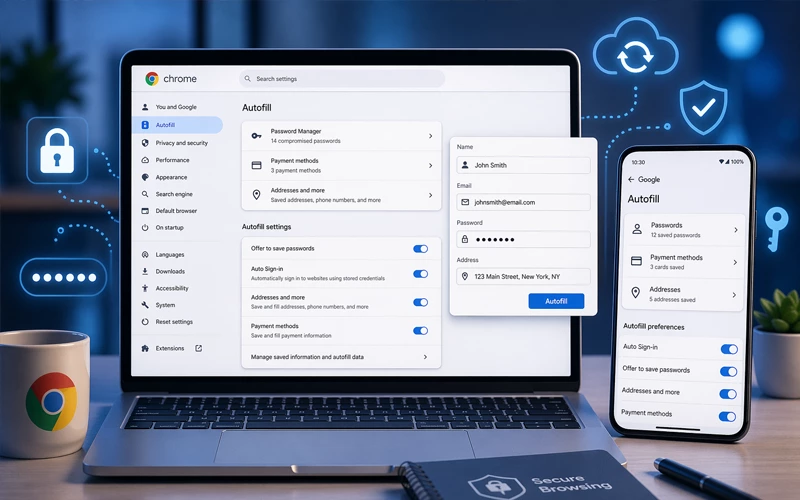
On a desktop computer, Google Autofill is handled mostly through the Chrome browser, where you can easily control what information is saved.
Whenever you use Chrome on your computer, it can fill in details on different types of pages like login screens, signup forms, and even checkout pages while shopping. All of this is managed from your browser settings, especially if you’re signed in with a Google account.
The desktop version gives you more control compared to mobile. You can view, edit, or delete specific saved details whenever you want. Things like passwords, addresses, and payment information can all be managed separately without any confusion.
Because of these options, Chrome on desktop feels more flexible and easy to manage when it comes to autofill data.
How It Works Across Different Devices
Feature | Desktop (Chrome) | Mobile (Android) | iPhone (Chrome) |
Saved Passwords | Available | Available | Available |
Address Autofill | Available | Available | Available |
Payment Details | Available | Available | Available |
Sync with Google Account | Yes | Yes | Yes |
Control Settings | Advanced options | Simple options | App-based control |
| Best Use Case | Work + browsing | Daily mobile use | Cross-device browsing |
Autofill on Mobile Devices
On smartphones, autofill becomes even more useful because most people use mobile devices for browsing. Google Autofill Settings on mobile are integrated with Android systems and Chrome apps.
When you log in to apps or websites on your phone, Google can automatically fill in saved credentials. This is especially helpful for social media apps, email accounts, and shopping platforms.
Mobile autofill is also synced with your Google account, meaning any data saved on one device automatically appears on others. This creates a seamless experience between phone, tablet, and computer.
However, mobile users should be extra careful because phones are more likely to be lost or accessed by others.
Use on iPhone Devices
iPhone users also benefit from Google Autofill Settings, although the system works slightly differently compared to Android. On iPhones, autofill is mainly accessed through the Chrome app or Google services.
Even though Apple has its own autofill system, many users prefer Google Chrome because it syncs data across all devices. This allows iPhone users to access the same saved passwords and information they use on desktops or Android phones.
Autofill on iPhone helps users quickly sign in to websites, complete forms, and manage online accounts without typing everything manually. It brings the same level of convenience while maintaining strong security standards.
How to Manage and Change Saved Settings
Over time, people often need to update or change the information saved in autofill. That’s why the option to manage Google Autofill Settings is so useful.
If someone changes their password or stops using a certain website, they can easily delete or update those saved details. The same goes for things like old addresses or outdated payment methods.
Google gives users full control over what stays saved and what doesn’t, so you can keep only the information you actually need.
It’s a good idea to check these settings from time to time because old or incorrect details can sometimes cause problems when you’re logging in or making online payments.
Autofill for Payment and Credit Card Data
One of the most sensitive parts of autofill is payment information. Google allows users to save credit card details for faster online shopping.
When you enter your card details during checkout, Chrome can ask whether you want to save them securely. If you agree, the information is encrypted and stored in your Google account.
This feature is very helpful for frequent online shoppers because it speeds up the checkout process significantly. However, it also requires caution.
Users should only save payment details on personal devices and should avoid using autofill on shared or public computers to prevent unauthorized access.
Security of Google’s Auto-Fill System
Security is a really important part of Google Autofill Settings. Google takes this seriously and uses encryption along with secure servers to help keep user data safe.
Your passwords and other sensitive details are never stored in simple readable form. Instead, they’re protected in a way that makes it very hard for anyone unauthorized to access them.
Still, no system is perfect, so there’s always a small level of risk. That’s why it’s a good idea to turn on two-factor authentication on your Google account. It adds an extra step of protection and helps reduce the chances of any data getting stolen.
It’s also smart to check your saved autofill data from time to time and clean up anything you don’t need anymore to keep everything secure.
Common Issues Users Face
Sometimes autofill doesn’t work properly, and users may notice things like wrong information being filled or the feature not working at all.
This usually happens when browser settings are outdated or when device sync is not working correctly. In some cases, old cache or cookies can also create these issues.
The good thing is that most of these problems are not serious and can be fixed easily by checking settings or updating Chrome. In most cases, autofill issues are temporary and get resolved quickly.
Benefits of Using Autofill Properly
When you use Google Autofill Settings properly, they can actually make everyday online life a lot easier. You don’t have to keep typing the same information again and again, which saves a good amount of time.
It also helps reduce mistakes because it fills in the saved correct details for you. On top of that, it makes things faster when you’re logging into accounts or making online purchases, so everything feels more smooth and quick.
For students, working professionals, and business users, it can really simplify daily online work and save a lot of effort.
But it only works best when you keep it managed properly. If you update your saved details regularly and keep your account secure, you get all the benefits without worrying too much about privacy.
Frequently Asked Questions
What does browser autofill actually do?
It is a feature that saves your commonly used information like names, emails, and passwords so that forms can be filled automatically when you visit websites.
Is it safe to keep personal details saved in the browser?
Yes, it is generally safe because the data is stored in an encrypted form. Still, security depends on your device safety, so it is important to use strong account protection.
Why is my browser not filling forms automatically anymore?
This usually happens when settings are turned off, sync is not working, or the browser needs an update. Checking settings or restarting the browser often fixes the issue.
Can I stop the browser from saving my details?
Yes, you can disable the saving option anytime from your browser settings if you do not want your information to be stored.
How do I remove saved form data from my browser?
You can go into settings and delete stored entries like passwords, addresses, or payment details either individually or all at once.
Does this feature work on mobile phones too?
Yes, it works on both Android and iPhone devices and can automatically fill forms in apps and websites when enabled.
Can someone access my saved information without permission?
Not directly, but if your device is unlocked, someone could potentially see it. That is why device lock and account security are very important.
Why are my saved payment details not appearing?
This can happen if payment saving is disabled, the card is no longer valid, or browser settings need to be refreshed.
Can I change saved information anytime?
Yes, you can update or edit saved data anytime from your browser settings to keep everything accurate and up to date.
Will my saved data be the same on all devices?
If syncing is turned on, then yes — your saved information will automatically appear on all devices connected to the same account.
Conclusion
Google Autofill Settings is actually one of those features that makes everyday browsing a lot easier. It helps you out by automatically filling in things like forms, passwords, and payment details so you don’t have to type everything again and again.
No matter if you’re using a desktop, mobile, or iPhone, the main idea stays the same — saving your time and making things more convenient. But at the same time, you do need to be a little careful with it.
If you manage your saved data properly, it not only saves time but also keeps things secure. Once you understand how to control and adjust these settings, your browsing becomes much smoother, safer, and hassle-free going forward.





Add comment