
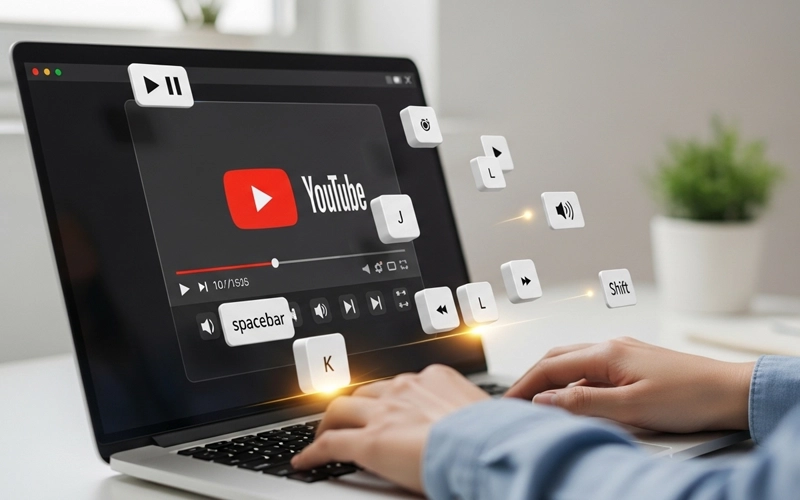
YouTube has become one of the most popular platforms for watching videos, learning new skills, and enjoying entertainment. Every day, millions of videos are uploaded, which can sometimes make it easy to get distracted or feel overwhelmed while browsing content.
However, there are simple ways to make your YouTube experience much smoother and faster. One of the most useful methods is using YouTube keyboard shortcuts. These shortcuts allow you to control video playback, adjust settings, and navigate videos quickly without relying on your mouse.
Whether you are a student, a content creator, or just someone who watches videos for fun, learning these shortcuts can save you time and make your overall experience much more convenient and enjoyable.
Many people don’t even realize that YouTube keyboard shortcuts can make watching videos much easier and faster. Instead of clicking around with a mouse, you can control almost everything with simple keys on your keyboard.
Whether you want to pause a video, skip forward or backward, or even adjust the playback speed, these shortcuts help you do it instantly without any hassle. Once you start using them, they feel very natural and save a lot of time during daily video watching.
In this article, we will share a complete list of YouTube keyboard shortcuts and explain how you can use each one in a simple and effective way to improve your overall experience.
Why You Should Use YouTube Keyboard Shortcuts
Using YouTube keyboard shortcuts can make watching videos feel much easier and smoother compared to using a mouse for every action. Instead of constantly clicking, you can quickly pause or play a video, skip forward or backward, and even adjust the volume with simple keys on your keyboard. This is especially helpful when you are watching long videos or tutorials because it keeps you focused, saves time, and makes the overall viewing experience more comfortable and efficient.
Moreover, YouTube keyboard shortcuts are really helpful for people who find it a bit difficult to use a mouse or trackpad, as they can make navigation much easier and more comfortable. These shortcuts also make the platform smoother to use for everyone in general, especially when you get used to them over time. On top of that, they can save a lot of time for content creators who often need to review or work with videos regularly. Whether you are watching a short tutorial or a long lecture, these shortcuts help you move through the video faster and keep everything simple and convenient.
Play and Pause Videos Easily
The spacebar is one of the simplest but most useful YouTube keyboard shortcuts because it lets you pause or play a video instantly without using your mouse. It’s really handy when you’re watching something and suddenly need to stop for a moment, maybe to take notes or handle something else. You can also use the “K” key for the same pause and play function, which gives you another quick option. Overall, these shortcuts make watching videos feel a lot smoother and save you from constantly moving your cursor around.
When you use the play/pause shortcut along with other controls like fast-forward or rewind, it becomes much easier to move through a video smoothly. Instead of relying on the mouse every time, you can quickly jump to the part you want with just a few keys. Once you get used to these shortcuts, they start to feel very natural and can save you a lot of time while watching videos on YouTube.
Skipping and Rewinding Videos
One of the most useful things while watching videos on YouTube is how easily you can move forward or go back in a video. Instead of dragging the progress bar every time, you can just use simple keys to control it.
If you press the left arrow key, the video goes back by 5 seconds, and if you press the right arrow key, it moves forward by 5 seconds. For slightly bigger jumps, the “J” key takes you back 10 seconds, while the “L” key moves the video forward by 10 seconds.
These shortcuts are really helpful when you want to quickly rewatch something or skip parts of a video that you don’t need.
If you use these shortcuts regularly, you’ll quickly notice that controlling video speed becomes much easier, even without checking the playback bar. They are simple to use but really helpful, especially when you also adjust the playback speed with YouTube keyboard shortcuts to fine-tune how fast or slow the video plays.
Adjusting Playback Speed
Sometimes videos feel a bit slow when you watch them at normal speed, especially if you’re trying to quickly understand the main points or go through a lot of information. In YouTube, you can easily change the speed using keyboard shortcuts. If you press Shift + >, the video will play faster, and if you press Shift + <, it will slow down. This is really useful when you’re watching things like tutorials, online classes, or long interviews because adjusting the speed helps you learn and understand things in a way that feels more comfortable for you.
For people who like a faster and more efficient way of watching videos, using YouTube keyboard shortcuts speed control can be really helpful. It lets you change the playback speed instantly without having to pause the video or open any menus, which makes everything feel much easier and smoother. This is especially useful when you’re watching things like language learning videos, because slowing down the speed can help you catch pronunciation better and follow along more easily.
Volume Control Without the Mouse
Adjusting the volume on YouTube is actually very easy when you use keyboard shortcuts. Instead of using your mouse every time, you can simply press the up arrow key to increase the volume and the down arrow key to lower it. It feels much quicker and more comfortable while watching videos. You can also mute or unmute the sound instantly by pressing the “M” key, which gives you fast control without interrupting what you’re watching.
These shortcuts are part of the full YouTube keyboard shortcuts list, and they’re mainly there to make watching videos easier. Instead of using your mouse again and again, you can quickly control everything from your keyboard and stay focused on the video itself. With a little practice, you’ll notice that navigating videos, controlling playback, and changing settings feels much smoother and more natural, making your overall experience faster and more comfortable.
Navigating Between Videos
YouTube is not only about watching a single video; most of the time, you are also exploring playlists or suggested videos. In such situations, keyboard shortcuts make it much easier to move between videos without using the mouse. For example, pressing Shift + N will take you to the next video, while Shift + P will play the previous video in a playlist. This makes browsing smoother and helps you stay focused without unnecessary interruptions.
These shortcuts are especially helpful when you are watching educational playlists or video series. Instead of manually clicking on each video, you can easily move forward or go back with just a simple key press. It makes the whole experience much faster and more convenient, especially when you are focused on learning. This is another important feature included in the YouTube keyboard shortcuts list that helps improve overall usability and saves time.
Full-Screen and Theater Mode
Watching videos in full-screen can really make the experience more enjoyable and focused. If you want to switch to full-screen quickly, just press the “F” key, and press it again to exit. There’s also “T” for theater mode, which gives you a bigger player without going fully full-screen. These simple shortcuts make it easy to change how you watch videos in just a second, depending on what feels better for you at the moment.
Using these shortcuts regularly makes it easier to adjust how you watch videos without stopping or pausing every time. It just gives you a bit more control, so everything feels smoother while you’re watching. Once you get used to them, moving around YouTube and changing settings becomes pretty quick and simple.
Subtitles and Closed Captions
For many people, subtitles or closed captions are a really important part of watching videos on YouTube. You can easily turn them on or off by pressing the “C” key, which saves you from going into the settings every time. This becomes especially helpful when you’re watching videos in another language or trying to follow an educational lecture where understanding every word matters. Some videos even have subtitles in different languages, and using shortcuts makes it quicker to handle everything without digging through menus.
This might seem like a small feature, but it’s actually very useful. It’s part of the full YouTube keyboard shortcuts list and helps make videos easier to understand and more accessible for everyone while watching.
Moving to Specific Parts of a Video
If you want to jump around a video quickly, YouTube also lets you use number keys. Just press any key from 0 to 9, and it will take you to different parts of the video based on percentage. For example, 0 starts the video from the beginning, and 9 jumps near the end. Pressing “5” takes you right to the middle, which is really useful when you want to skip the intro or quickly reach a specific section. It saves time and makes it easier to find what you’re looking for.
This shortcut is actually part of the YouTube keyboard shortcuts list, but many people don’t really use it or even know about it. Still, it can make a big difference when you want to move around a video quickly. Instead of watching everything from start to end, you can jump between different parts in seconds, which saves time and makes watching videos feel much easier and more comfortable.
Accessing YouTube Menus and Settings
YouTube actually has a lot of useful settings for things like video quality, playback speed, and other viewing options that can make your experience better. But instead of digging through different menus, you can simply press Shift + ? to open a quick shortcut guide on your screen. It works like a small cheat sheet that shows all the available keyboard shortcuts in one place, so you can easily see what each key does and try them whenever you need.
This built-in feature is really helpful for beginners who want to learn all the YouTube keyboard shortcuts without having to look them up online. It puts all the important commands in one place, so you can quickly understand them and start using them right away while watching videos.
Tips to Memorize YouTube Keyboard Shortcuts
Learning shortcuts can feel a bit confusing at first, but after using them a few times, they start to feel very natural. It’s better to begin with the simple ones like play/pause, skipping forward, rewinding, and adjusting the volume. Once you get used to these, you can slowly try the other shortcuts like changing playback speed, switching to full-screen, or turning subtitles on and off. After some practice, these small things really make watching YouTube much easier and smoother.
Another helpful tip is to keep the built-in YouTube keyboard shortcuts list open while you’re learning. It works like a quick reference guide, so you can easily check the keys whenever you forget them. This makes it easier to practice without stress and learn at your own pace. After using them for a while, you’ll naturally start remembering the shortcuts, and everything on YouTube will feel faster and more comfortable to use.
Benefits of Using YouTube Keyboard Shortcuts
Using keyboard shortcuts is not just about making things easier, it actually changes how smoothly you can use YouTube. Instead of clicking around all the time, everything feels quicker and more natural, which also helps you stay focused. If you create videos, it can save you time while reviewing or editing. And if you’re a student or just watching tutorials, it makes learning a bit easier because you can control everything without distractions. Even for normal viewers, it simply makes watching videos more comfortable and less time-consuming.
In short, once you get comfortable with YouTube keyboard shortcuts, they can really change the way you watch videos. Everything starts to feel quicker and easier, and you don’t have to keep relying on your mouse all the time. Overall, it makes using YouTube a more smooth, fast, and enjoyable experience.
YouTube Keyboard Shortcuts FAQs
Q1: What are YouTube keyboard shortcuts?
A1: YouTube keyboard shortcuts are special key combinations that allow you to control video playback, adjust volume, skip videos, and change settings without using your mouse. They help you watch videos faster and more efficiently.
Q2: How can I see all YouTube keyboard shortcuts?
A2: You can view a full list of shortcuts by pressing Shift + ? while on YouTube. This opens the complete YouTube keyboard shortcuts list on your screen, showing every command available.
Q3: How do I pause or play a YouTube video using the keyboard?
A3: Press the spacebar or the K key to pause or play a video instantly. This is one of the most commonly used shortcuts on YouTube.
Q4: How do I skip forward or rewind a video on YouTube?
A4: Use the right arrow key to move forward 5 seconds and the left arrow key to rewind 5 seconds. You can also press J to rewind 10 seconds and L to skip ahead 10 seconds.
Q5: How can I change YouTube playback speed using the keyboard?
A5: Press Shift + > to increase playback speed and Shift + < to decrease it. These shortcuts help you watch videos faster or slower without opening the settings menu.
Q6: Is there a shortcut to mute YouTube videos?
A6: Yes, press the M key to mute or unmute a video instantly. You can also use the up and down arrow keys to adjust the volume in small steps.
Q7: Can I jump to a specific part of a YouTube video using the keyboard?
A7: Yes, pressing numbers 0 to 9 jumps to 0% to 90% of the video. For example, pressing 5 takes you to the middle of the video.
Q8: How do I toggle full-screen mode on YouTube using the keyboard?
A8: Press the F key to switch to full-screen mode. Press F again to exit full-screen. You can also press T to enable theater mode.
Q9: Are there shortcuts for YouTube subtitles or captions?
A9: Yes, press the C key to turn subtitles or closed captions on or off. This is useful for watching foreign-language videos or tutorials.
Q10: Can YouTube keyboard shortcuts help with playlists?
A10: Absolutely. Press Shift + N to play the next video in a playlist and Shift + P to play the previous video. This makes navigating long playlists much faster.
Q11: How do I access YouTube settings using the keyboard?
A11: Press Shift + ? to open the shortcut menu. You can also use keyboard shortcuts for quick actions like adjusting playback speed, volume, or turning captions on and off without opening the settings manually.
Q12: Do YouTube keyboard shortcuts work on all devices?
A12: Keyboard shortcuts work on desktops and laptops. They are not available on mobile apps, as touchscreen controls replace the keyboard functions.
Q13: Are these shortcuts customizable?
A13: Currently, YouTube does not allow full customization of keyboard shortcuts. You can only use the default shortcuts provided by YouTube.
Q14: Why should I learn YouTube keyboard shortcuts?
A14: Learning these shortcuts saves time, improves productivity, makes video navigation smoother, and reduces the need to constantly use a mouse. They are especially useful for students, content creators, and anyone who watches long videos.
Q15: Where can I find a printable YouTube keyboard shortcuts list?
A15: You can either press Shift + ? on YouTube for the on-screen list or search online for a printable YouTube keyboard shortcuts list. Many websites provide PDFs or infographics for easy reference.
Conclusion
YouTube keyboard shortcuts are more than just time-saving tricks—they are essential tools for anyone who spends a lot of time on the platform. From basic functions like play and pause to more advanced controls such as adjusting playback speed, managing volume, navigating through videos, and handling subtitles, there is almost a shortcut for every action. With regular practice, these shortcuts become second nature, making your overall viewing experience much more efficient, smooth, and enjoyable.
By using this guide and exploring the YouTube keyboard shortcuts list, you can fully unlock the potential of YouTube and take complete control of the way you watch videos. Whether you are a casual viewer, a student, or a content creator, these shortcuts are designed to make everything simpler, faster, and more convenient for you. With regular use, you will notice how much easier it becomes to navigate and manage videos. So start practicing today, and soon you’ll find yourself relying less on the mouse and enjoying a much smoother YouTube experience.





Add comment