
Introduction
Forgetting your iPhone passcode is something many users experience at some point. It often happens after setting a new code and then not remembering it later, or when the device hasn’t been used for a long time. In some cases, kids or other users may enter the wrong passcode several times, which can lock or disable the phone entirely. When this happens, people usually start looking for a safe and reliable way to reset their iPhone without needing the password.
The good thing is that you can reset your iPhone even if you don’t remember the password, as long as you use the right steps. There are official methods available that work on nearly every iPhone model. In this guide, you’ll find simple, step-by-step instructions written in easy English, so even beginners can follow along without any confusion.
This guide includes all the important iPhone models, such as how to reset iPhone 11, how to reset iPhone 12, how to reset iPhone 13, how to reset iPhone XR, and even the latest iPhone 16. It also explains how to return your iPhone to factory settings and what steps you should take before selling or trading your device.
Understanding What Happens During an iPhone Reset
Before you start the process, it’s important to know what happens when you reset your iPhone. A reset, particularly a factory reset, erases all the data on your device. This means all your photos, videos, apps, messages, and personal settings will be deleted. Once the reset is complete, your iPhone will be restored to its original state, just like a brand-new device straight out of the box.
That’s why many people choose to reset their iPhone not only when they forget the password, but also when the device becomes slow or starts facing software issues. A proper reset can help solve many common problems and often makes the phone run smoother and faster again.
However, one important thing to keep in mind is that after resetting your iPhone, you may be asked to enter your Apple ID and password to activate the device again. This security feature is there to protect your personal data from unauthorized access. So, if you are planning to reset your phone, make sure you remember your Apple ID details before starting the process.
When You Should Reset Your iPhone
There are several situations where resetting your iPhone becomes necessary. Sometimes, it is the only way to regain access when you are locked out. Other times, people reset their device to fix performance issues or to get it ready for a new user, such as when selling or giving it away.
Here are a few common situations when you might need to reset your iPhone:
- You forgot your iPhone passcode and cannot unlock it.
- Your iPhone is disabled after entering the wrong passcode several times.
- Your device is running very slowly or keeps freezing.
- You purchased a second-hand iPhone that is locked.
- You want to sell or trade your iPhone and need to erase all personal data.
In all these situations, knowing how to reset an iPhone without a password becomes very useful and sometimes absolutely necessary. It can help you quickly regain access to your device or prepare it properly for a fresh start without any hassle.
Important Things to Do Before Resetting
Before resetting your iPhone, it’s important to keep a few key things in mind. Taking these simple precautions can help you avoid losing important data and ensure the entire process goes smoothly without any problems.
First, if you still have access to your iPhone, make sure to create a backup of all your important data. You can use Apple iCloud or a computer to save your files. This ensures that you can easily restore your photos, apps, and other data after the reset.
Secondly, ensure your iPhone has enough battery or keep it connected to a charger during the reset. The process can take several minutes, and you don’t want the device to power off unexpectedly, which could cause problems.
Another important step is to sign out of your Apple ID if you can. This is especially helpful if you are resetting your iPhone to sell or trade it, as it allows the next user to set up the device easily without facing activation or account-related problems.
Method 1: How to Reset iPhone Without Password Using a Computer
One of the most reliable ways to reset your iPhone is by using a computer. This method is compatible with nearly all iPhone models and is officially recommended by Apple, making it a safe and effective option.
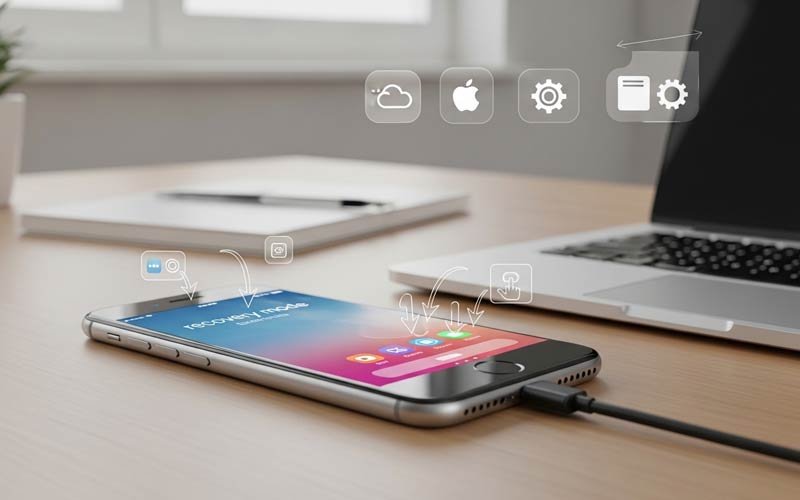
To start, connect your iPhone to a computer using a USB cable. If you are on a Windows PC, open iTunes; if you are using a Mac, open Finder. Next, you need to put your iPhone into recovery mode. This step is crucial, as it tells the computer that your device needs to be restored, allowing the reset process to proceed safely.
Once your iPhone is in recovery mode, a message will appear on your computer asking whether you want to update or restore the device. Choose the restore option. This will delete all data on your iPhone and install a fresh version of the operating system, returning the device to its original factory settings.
This method is commonly used by people looking for a way to reset an iPhone without a password, and it works smoothly on many models. Whether you have an iPhone 11, iPhone 12, iPhone 13, or even a newer device like the iPhone 16, this approach remains reliable and effective.
Method 2: How to Reset iPhone With Buttons
Another effective method is resetting your iPhone using the hardware buttons. This option is especially useful when your screen is locked and you’re unable to access the settings, making it a practical solution in such situations.
To begin, quickly press and release the volume up button, then quickly press and release the volume down button. Next, press and hold the power button until the recovery mode screen appears. This process may take a few seconds, so be patient and do not release the button too early.
Once your iPhone enters recovery mode, connect it to a computer and follow the restore steps. This method is simple and effective, especially for those who want to reset their iPhone using buttons without needing the password.
It works well for a wide range of models, including the iPhone XR, iPhone 13, and other similar devices, making it a reliable option for most users.
Method 3: Using iCloud to Reset iPhone Remotely
If your iPhone is connected to the internet and linked to your Apple ID, you can reset it remotely using iCloud. This method is very convenient, especially if your phone is lost or you’re unable to access it physically.
To use this method, log in to your Apple iCloud account from another device. Once logged in, open the Find iPhone feature and select your iPhone from the list of devices. You will then see an option to erase iPhone, which will remotely reset your device to factory settings.
When you choose this option, your iPhone will be fully reset, and all data on the device will be erased. This method is especially popular for those who want to reset their iPhone to factory settings without needing a cable or computer.
Model-Based Explanation for Better Clarity
Although the reset steps are similar across most iPhone models, many users prefer instructions specific to their device. For instance, if you are looking for how to reset an iPhone 11, the process typically involves putting the phone into recovery mode and restoring it using a computer.
Similarly, if you are learning how to reset an iPhone 12 or iPhone 13, the steps are almost the same. You use the same button combination to enter recovery mode, and then complete the restore process through iTunes on Windows or Finder on a Mac.
For older models like the iPhone XR, people often look for how to reset it, and the steps remain very similar. Even for the latest models, such as the iPhone 16, the process hasn’t changed much, allowing users to follow a consistent method across different devices.
How to Reset iPhone to Factory Settings
A factory reset completely erases all data from your iPhone, restoring it to its original, out-of-the-box state. This is usually done to fix major software issues or to get the device ready for a new user.
There are several ways to perform a factory reset, such as using a computer, entering recovery mode, or using iCloud. All these methods lead to the same result: a completely clean and fresh iPhone, ready for use or transfer.
Knowing how to reset your iPhone to factory settings is important, as it allows you to maintain your device and resolve many common problems quickly and effectively.
How to Reset iPhone for Trade In
If you plan to sell or trade your iPhone, performing a proper reset is very important. This ensures that all your personal data is completely erased and cannot be accessed by anyone else.
Before resetting, make sure to back up your data so you can restore it later if needed. Then, sign out of your Apple ID and reset the device using one of the methods we discussed earlier.
Knowing how to reset an iPhone for trade-in is essential for protecting your privacy and preparing the device for the next user.
Common Mistakes to Avoid
Many users make simple mistakes during the reset process, which can cause issues. A common error is not backing up important data beforehand, leading to permanent loss of photos, apps, and other files.
Another frequent mistake is forgetting Apple ID credentials. After a reset, you may need this information to activate your iPhone again. Some users also unplug their device in the middle of the reset, which can create errors or even damage the system.
It’s also risky to use unofficial tools or software. To reset your iPhone safely, always rely on trusted and official methods provided by Apple.
Tips to Prevent This Issue in the Future
To prevent these problems in the future, it’s important to take a few precautions. Always try to remember your passcode or keep it stored securely. Using Face ID or Touch ID can make unlocking your iPhone faster and easier.
Regularly backing up your data is also crucial, as it keeps your files safe even if something goes wrong. Additionally, keeping your Apple ID secure will help you avoid complications during resets or device activation later on.
Frequently Asked Questions
Can I reset iPhone without password?
Yes, you can reset your iPhone without a password by using recovery mode, iTunes, Finder, or iCloud. These are official methods provided by Apple and they work for almost all iPhone models.
How to reset iPhone without password and computer?
You can reset your iPhone without a computer by using Apple iCloud. Simply log in to your Apple ID from another device, open the Find iPhonefeature, and choose the erase iPhoneoption to reset your device remotely.
How do I reset a locked or disabled iPhone?
If your iPhone is locked or disabled, you need to put it into recovery mode using the hardware buttons and then restore it using a computer. You can complete the process through iTunes on Windows or Finder on a Mac. This will remove the passcode and reset the device to its factory settings.
Will factory reset remove everything from iPhone?
Yes, a factory reset will completely erase all data from your iPhone, including apps, photos, contacts, messages, and settings. After the process is finished, your device will be restored to its original state, just like a brand-new iPhone.
Can I reset iPhone without Apple ID password?
You can reset your iPhone without the Apple ID password, but after the reset, the device may ask for your Apple ID credentials to activate it. Without this information, you may not be able to fully use the phone due to security restrictions.
How long does it take to reset iPhone without password?
The reset process typically takes around 15 to 30 minutes. However, it can take a bit longer depending on your internet speed, the iPhone model, and the method you are using.
Is it safe to reset iPhone without password?
Yes, it is completely safe as long as you follow official methods like iTunes, Finder, or Apple iCloud. Always avoid using unknown or unofficial tools to keep your device and data secure.
How to reset iPhone for trade in?
To reset your iPhone for trade-in, first create a backup of your data so you can restore it later if needed. Then, sign out of your Apple ID, and finally erase all content and settings from your device. This ensures your personal data stays safe and the iPhone is ready for the next user.
Conclusion
Resetting your iPhone without a password may seem tricky at first, but it becomes simple once you follow the right steps. In this guide, you’ve learned several safe methods to reset your device, including using a computer, hardware buttons, and iCloud.
No matter which iPhone model you have—whether it’s the iPhone 11, 12, 13, XR, or iPhone 16—the process is straightforward and effective. By carefully following the instructions, you can reset your device without any problems.
Always remember to back up your data and keep your Apple ID secure. These precautions will help you avoid complications and keep your iPhone safe in the long run.
If you want to read more interesting and detailed guides, visit EmbossitWorld now. You’ll find useful iPhone tips, tech tutorials, and a lot of practical information. Don’t miss out.





Add comment