
Introduction
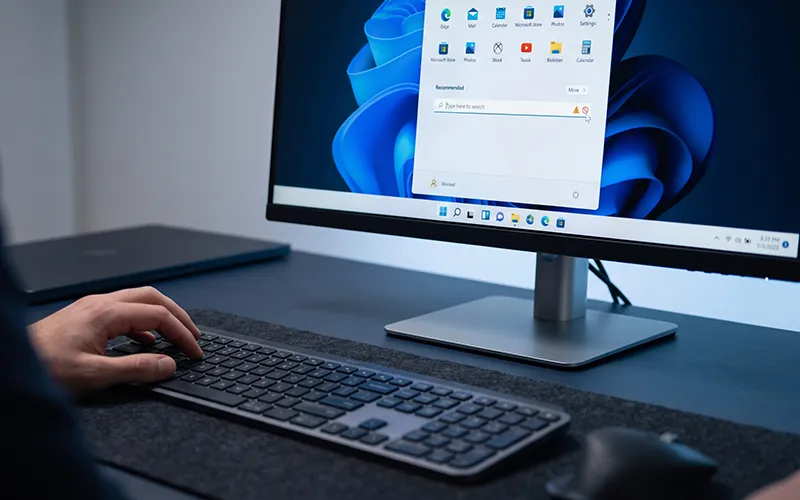
The Windows search bar is a useful feature that helps you open applications, find documents, change settings, and locate other items on your computer. Instead of searching through different folders, you can enter a name in the search box and find the item you need. However, sometimes the search panel opens but does not respond when you press keys. In other cases, you may be able to type normally, but Windows does not show the expected results.
If your Windows 11 search box isn’t accepting keyboard input, these troubleshooting steps can help you identify the cause and get it working again, the right solution depends on the symptoms you experience. A temporary taskbar problem may need a simple restart, while an input-related issue may require checking the keyboard or a Windows text-input process. Missing search results can have a different cause, such as incomplete indexing.
This guide explains seven practical solutions for troubleshooting Windows Search. It also covers specific problems involving the Start menu, SearchHost.exe, Windows 10, and File Explorer. Start with the simpler methods and move to advanced repairs only when necessary. Test the search box after each step so you can identify which change, if any, resolves the problem.
Quick Fixes for a Windows 11 Search Bar That Won’t Let You Type
If the Windows 11 search bar opens but does not accept keyboard input, try these steps first:
- Restart your computer and test the keyboard in Notepad.
- Open Task Manager and restart Windows Explorer.
- Run exe from the Windows Run dialog to check whether text input starts working again.
- If the search interface remains unresponsive, restart SearchHost.exe through Task Manager.
- If the problem continues, check Windows Search, indexing settings, and available Windows updates.
These steps address different possible causes, so one solution may work while another does not. If you can type into the search box but cannot find files, focus on the indexing section instead of treating the problem as a keyboard-input failure.
Why Is the Windows 11 Search Bar Not Typing?
Windows Search depends on several components working together. The taskbar displays the search interface, Windows processes handle search-related operations, and text-input components allow you to enter letters and numbers. A problem with one of these components may leave the search panel visible but prevent it from accepting input.
The symptoms can provide useful clues. If the keyboard also fails in Notepad or another application, the issue may involve the keyboard, its connection, or an input setting. If the keyboard works everywhere except the taskbar search field, the problem may be related to the Windows interface or its text-input components.
Another situation occurs when the search box accepts text but does not display useful results. This may involve Windows Search or the index used to locate files. High CPU usage or repeated crashes involving SearchHost.exe can indicate a separate search-process problem. Identifying the exact symptom before changing settings helps you avoid unnecessary repairs.
Windows 11 Search Bar Not Working? 7 Simple Ways to Fix It
1. Restart Your Computer and Test Your Keyboard
Restarting your computer is a sensible first step when Windows Search suddenly stops responding. A restart closes running processes and starts them again, which may clear a temporary software problem. It does not repair every underlying issue, but it is an easy method to try before changing system settings.
Save any open work first. If the Start menu works, open it, select the power icon, and choose Restart. If the Start menu is not responding, press Ctrl + Alt + Delete, select the power icon on the screen, and restart the computer.
After Windows starts, click the search field and try typing a familiar application name. If nothing appears, open Notepad using the Run dialog by pressing Windows + R, typing notepad, and pressing Enter. Test your keyboard there.
If typing works in Notepad but not in the search field, the keyboard itself may not be the main problem. Continue with the Windows troubleshooting steps below. If typing fails in several applications, reconnect the keyboard, try another USB port if applicable, or check the keyboard and language settings before assuming that Windows Search is responsible.
2. Restart Windows Explorer Through Task Manager
Windows Explorer manages important parts of the Windows desktop, including the taskbar and File Explorer. If the interface becomes unresponsive, restarting its process may restore normal taskbar behaviour without requiring a complete computer restart.
Press Ctrl + Shift + Esc to open Task Manager. If Task Manager opens in a simplified view, expand it to show the full list of processes. Locate Windows Explorer under the Processes tab, select it, and choose Restart. The desktop or taskbar may disappear briefly while the process reloads.
Wait for the taskbar to return, then click the search field and test the keyboard. You should also check whether the Start button responds normally.
If Windows Explorer is not visible in the list, review the available processes carefully rather than ending unrelated tasks. Restarting Explorer is different from restarting the Windows Search service, so continue to the next method if the search box still does not accept text.
3. Check the Windows Search Service
The Windows Search service supports search-related operations and indexing. If the service is stopped or encounters an error, some search functions may not work correctly. However, a service problem does not explain every case in which the search field refuses keyboard input.
Press Windows + R, enter services.msc, and press Enter. In the Services window, locate Windows Search and open its properties. Review the service status and the available controls. If the service is running and Restart is available, you can try restarting it. If it is stopped, check whether Start is available.
Do not change the startup type without a clear reason, especially if the computer is managed by your employer or school. If the service cannot start or displays an error, write down the message before trying additional repairs.
Close the Services window and test the search field again. If typing still fails but other applications accept text, continue to the text-input troubleshooting method. If typing works but results are missing, review the indexing guidance later in this article.
4. Restart SearchHost.exe and Check Text Input
Windows 11 uses SearchHost.exe for parts of its search experience. If the search interface becomes stuck, restarting this process may help it load again. Windows can normally start the process again when it is needed, but ending unrelated system processes can create additional problems.
Press Ctrl + Shift + Esc to open Task Manager and select the Details tab if it is available. Look for SearchHost.exe. If the process is present and you are confident you have identified the correct entry, select it and choose End task. Reopen Windows Search and check whether the process starts again and accepts keyboard input.
If the search panel opens but you still cannot type, test the Windows text-input component. Press Windows + R, enter the following path, and press Enter:
C:\Windows\System32\ctfmon.exe
This launches a Windows component associated with text input. Return to the search box and try typing again. If the issue remains, do not repeatedly terminate processes or change startup settings without a specific reason.
These steps are diagnostic options rather than guaranteed repairs. If the keyboard works in other programs but the search interface remains unresponsive, continue with the next solution.
5. Check Search Settings and Rebuild the Index if Needed
Windows maintains an index to help find supported files and their information quickly. If the index is incomplete, search results may be missing or delayed. Rebuilding the index creates a new search catalogue, but it is mainly useful when Windows cannot locate content. It is unlikely to fix a search field that does not display any typed letters.
To review indexing settings, open Settings with Windows + I. Go to Privacy & security and select Searching Windows or the similarly named Search settings page available on your version of Windows. Review the search mode and the locations included in indexing.
Windows provides Classic and Enhanced indexing modes. Classic focuses on selected common locations by default, while Enhanced can index a broader range of personal folders and files. Enhanced indexing may use additional system resources, so choose the mode that fits your needs.
You can also open Control Panel by pressing Windows + R, typing control, and pressing Enter. Search for Indexing Options. If the option is available, open Advanced and look for the rebuild control under the troubleshooting section. Confirm the action only when you are ready to recreate the index.
Indexing may take time, particularly if many files are stored on the computer. Results can remain incomplete while the process runs. Let Windows finish and test searches for files you know exist.
6. Repair Windows System Files With DISM and SFC
If the search problem occurs alongside other Windows errors, built-in system repair tools may help. DISM checks and repairs the Windows component store, while System File Checker checks protected system files and attempts to replace damaged versions with correct copies.
These tools are more advanced than restarting Explorer, so use them if simpler steps have not resolved the issue or you suspect a wider Windows problem.
Open Task Manager with Ctrl + Shift + Esc. Use the option to run a new task if available, enter cmd, and enable the administrator permission option if it appears and you have permission. You can also open Command Prompt through another available method that provides administrator access.
Run this command first:
DISM /Online /Cleanup-Image /RestoreHealth
Wait for the operation to finish. Depending on the system, it may take several minutes or longer. Do not close the window while the command is still running.
Next, run:
sfc /scannow
Allow the scan to complete and read the final message. If Windows reports that it repaired system files, restart the computer and test the search bar again. If a command returns an error or cannot repair some files, record the exact message and investigate that error instead of repeating the same commands without a reason.
7. Install Windows Updates and Review Recent Changes
Windows updates can include reliability improvements, security fixes, and changes that address known software problems. If your search issue is caused by a bug that has been corrected in a later release, installing an appropriate update may help.
Open Settings with Windows + I, select Windows Update, and choose Check for updates. Follow the instructions for any applicable update and restart the computer if requested. After Windows starts again, check whether the search bar accepts keyboard input.
If the issue started immediately after installing a particular update or application, review the timing of the change. Look for reliable guidance about that specific update before uninstalling anything. Removing an update without a clear reason can also remove important security or reliability improvements.
If updates fail to install, note the error code and investigate the update problem separately. Avoid downloading unofficial repair tools or scripts from unfamiliar websites. Use trusted Windows recovery options if the problem persists and several system features remain broken.
How to Fix the Windows 11 Search Bar When You Cannot Type
If the search panel opens but keyboard input does not appear, concentrate on text input and the search interface rather than immediately rebuilding the index.
First, test typing in Notepad. If the keyboard works there, return to the taskbar search field and restart Windows Explorer. If that does not help, use Task Manager to check for SearchHost.exe and restart that process as described above.
You can also run ctfmon.exe using the Run dialog. After launching it, test the search field again. If you use multiple keyboard layouts, press Windows + Space to review the available languages and switch to the layout you normally use.
If the same issue affects several applications, reconnect the keyboard or test another input device where possible. If only Windows Search is affected, continue checking Windows updates and the system components described in this guide. Do not add programs to startup or change the Registry simply because a single test fails.
How to Fix Windows Start Menu and Search Not Working in Windows 11
When both the Start menu and the search field stop responding, the issue may involve the Windows interface rather than search indexing alone.
Open Task Manager with Ctrl + Shift + Esc and restart Windows Explorer. Wait for the taskbar to return, then test the Start menu and search field separately. If neither responds, restart the computer using the power controls available through Ctrl + Alt + Delete.
If the problem continues, check for Windows updates and consider whether it began after a recent software installation or system change. You can also test another Windows user account to determine whether the issue is limited to your profile. If another account works normally, your original profile may be involved, although this test alone does not prove the cause.
Back up important files before attempting advanced recovery. If several core Windows features remain broken, consult trusted Windows support guidance before resetting the operating system.
How to Fix Windows 10 Search Bar Not Working
Windows 10 has a different interface from Windows 11, but several troubleshooting methods are similar. Start by restarting the computer and testing the keyboard in another application. If the keyboard works in Notepad but not in the taskbar search box, restart Windows Explorer through Task Manager.
You can also press Windows + R, enter services.msc, and press Enter. Locate Windows Search and review its status. If restarting the service is available and appropriate for your configuration, try it and then test the search field again.
If the search box accepts text but does not return expected files, open Control Panel and review Indexing Options. Check the indexed locations and consider rebuilding the index if it appears incomplete.
Windows 10 standard support ended on October 14, 2025. In 2026, check whether your device is eligible for Extended Security Updates or whether it can move to a supported Windows version. The available options depend on your device and circumstances.
Windows 11 Search Not Working: Should You Use a Registry Fix?
The Windows Registry stores configuration settings used by Windows and applications. Incorrect changes can affect system behaviour, so editing it should not be the first response to a search problem. There is no single registry modification that safely resolves every situation in which the search bar stops accepting text.
Before considering Registry Editor, try restarting Windows Explorer, checking the Windows Search service, testing text input, and reviewing Windows updates. If an official Microsoft guide identifies a particular registry setting for your exact issue, follow the instructions for your Windows version.
Before changing a registry key, back up the relevant key using the Export option in Registry Editor. Press Windows + R, type regedit, and press Enter. Navigate only to the path specified by the trusted instructions. Select the relevant key, choose File > Export, and save the backup in a safe location.
Do not delete unfamiliar entries or import registry files from unverified websites. If you cannot confirm which setting applies to your system, leave the Registry unchanged. A generic registry fix copied from another computer may not address your problem and could create additional errors.
How to Fix Windows File Explorer Search Not Working
File Explorer search helps locate documents, pictures, folders, and other items stored on your computer. If it does not return the files you expect, start by checking the spelling of the search term and any filters that might exclude results.
Press Windows + E to open File Explorer. Navigate to a folder where you know a file exists and search for part of its name. If the file appears in that location but not in a broader search, review the folders included in Windows indexing.
Open Settings, select Privacy & security, and review Searching Windows. Depending on the Windows version, you may also find indexed-location controls through Control Panel’s Indexing Options. Check whether the relevant folders are included.
Files on disconnected drives, excluded folders, or some network locations may not appear as quickly as indexed files. Confirm that external drives are connected and network locations are accessible before changing system settings.
Remember that File Explorer search problems and taskbar typing problems are not always the same. If you can type into File Explorer but cannot type into the Windows taskbar search field, focus on the search interface and text-input troubleshooting instead of repeatedly rebuilding the index.
What to Do If Windows Search Still Does Not Work
If none of the previous methods solves the problem, review the symptoms before attempting more advanced changes. Check whether the keyboard works in other applications, whether the Start menu responds, and whether the problem affects one Windows user account or several.
Write down any error messages shown by the Windows Search service, DISM, or SFC. This information can help you identify the next troubleshooting step without repeating methods that have already failed.
If the issue started after a recent change, investigate that change using reliable support guidance. On a work or school computer, contact the system administrator before changing services, Registry settings, or security policies.
Windows recovery options may be appropriate when multiple system features are broken and simpler repairs have failed. Read the available recovery choices carefully and back up important files first, because some recovery actions can remove applications or personal data.
Conclusion
A Windows 11 search bar that refuses to accept keyboard input can interrupt everyday tasks, but several troubleshooting methods can help you narrow down the cause. Begin with a computer restart and a keyboard test, then restart Windows Explorer and investigate the relevant search processes.
If the problem involves text input, testing ctfmon.exe may provide another useful diagnostic step. If you can type but cannot find files, reviewing indexing settings is more appropriate. DISM, SFC, and Windows updates can help investigate wider system problems, while Registry changes and operating system recovery should be approached carefully.
The most useful approach is to identify the exact symptom, try one suitable solution at a time, and record any errors that appear. This makes troubleshooting more focused and reduces the risk of changing settings that are unrelated to the problem.
Frequently Asked Questions
1. Why is my Windows 11 search bar not letting me type?
This may happen because of a Windows process or text-input issue. Restart your PC and test the keyboard.
2. How do I fix the Windows 11 search bar quickly?
Restart your computer or Windows Explorer. If the problem continues, check Windows Search.
3. Why does the Windows search box open but stay blank?
A temporary system issue or Windows Search problem may cause a blank panel. Restart Windows Explorer and check for updates.
4. How do I restart SearchHost.exe in Windows 11?
Open Task Manager, find SearchHost.exe, and select End task. Then open Windows Search again.
5. Can ctfmon.exe fix a search bar that will not type?
It may help with some text-input issues, but it does not work in every case.
6. Why is Windows Search not finding my files?
Check your search settings and indexed locations. Rebuilding the search index may help restore missing results.
7. How do I fix the Windows 10 search bar not working?
Restart your PC, test your keyboard, and restart Windows Explorer. Check indexing settings if results are missing.
8. Is it safe to change the Registry to fix Windows Search?
Registry changes can cause system problems. Try simpler fixes first and back up the Registry before making any necessary changes.
If you want to read more interesting and detailed guides, visit EmbossitWorld now. You’ll find useful Information, and a lot of practical information. Don’t miss out.





Add comment