
Introduction
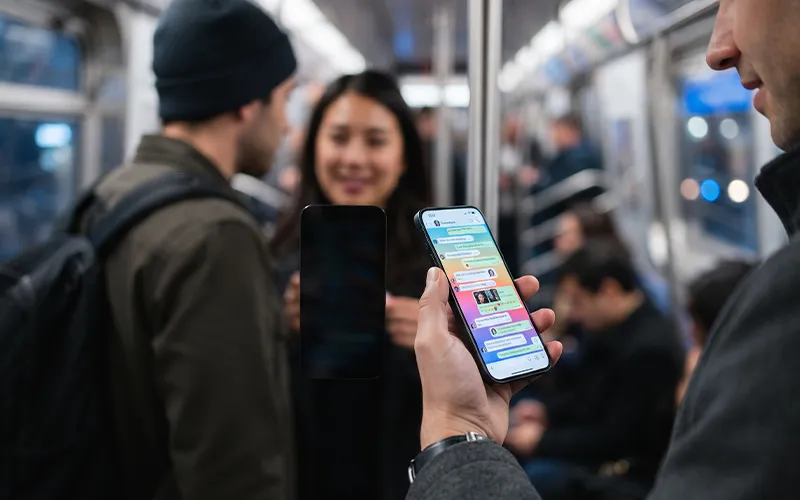
Using a smartphone in a public place can sometimes make you feel uncomfortable. When you are checking private messages, reading emails, opening your banking app, entering a password, or looking at personal photos, people sitting or standing beside you may be able to see your display. This is especially common when you use your phone on a bus, train, airplane, in a restaurant, at school, or in a busy office.
An iPhone privacy screen is designed to reduce this problem by limiting what people can see from the sides of the display. Instead of allowing the screen to remain clearly visible from a wide viewing angle, a privacy filter makes the content easier to see from the front while making it much harder to read from an angle.
There is one important detail about this feature that is often misunderstood. Apple does not currently provide a standard iPhone setting that simply turns the normal display into a side-view privacy display. You may find searches such as “how to turn on iPhone privacy screen” or “iPhone privacy screen settings,” but these searches can refer to different privacy features, apps, or physical screen protectors. Apple does provide several privacy and accessibility tools, but they are not the same as a physical privacy filter.
In this guide, you will learn what this feature actually means, how a privacy protector works, what to look for when buying one, how viewing angles affect privacy, and which iPhone settings can provide additional protection.
What Is an iPhone Privacy Screen?
An iPhone privacy screen normally refers to a physical privacy filter or privacy screen protector placed over the phone’s display. Its main purpose is to reduce the visibility of your screen when someone looks at it from the side.
A standard clear screen protector is mainly designed to protect the glass from scratches, fingerprints, and sometimes impact. A privacy protector has an additional optical layer that restricts the viewing angle. When you look directly at the phone, the display can remain relatively clear. When another person looks from the left or right, the content becomes darker, less visible, or difficult to read.
This is useful because smartphones contain a lot of sensitive information. A notification may show part of a private message. An email may contain work information. A banking application may display financial details. Even a simple conversation can contain information that you do not want strangers to see.
The effectiveness of a privacy filter depends on its design, quality, brightness, viewing angle, and the position of the person looking at the screen. It is not a perfect security system, but it can make casual visual snooping much more difficult.
Does iPhone Have a Built-In Privacy Screen Setting?
A question that many iPhone users frequently have is whether this feature is actually available. At present, there is no normal iPhone setting that works like a physical privacy filter and automatically blocks people sitting beside you from viewing the display.
Therefore, if you search for an iphone privacy screen setting, you should be careful with websites or videos claiming that a hidden switch can instantly create a side-view blocking effect.
Apple does offer several genuine privacy featuresFor instance, the Privacy & Security settings on your iPhone allow you to check which apps can access personal information such as photos, contacts, location, camera, and microphone, and change those permissions whenever needed. Apple also includes Safety Check, which lets users review and manage the information and access they have shared. These features protect your information digitally, but they do not change the physical viewing angle of the display.
There is also a feature called Screen Curtain. When VoiceOver is enabled, Screen Curtain can turn off the display while the iPhone remains active. This can be useful when you want the display hidden completely, but it is an accessibility feature and is not the same as a side-view privacy filter.
Best iPhone Privacy Screen Protector: What Should You Look For?
When people search for the best iphone privacy screen protector, they often focus only on how dark the screen becomes from the side. That is important, but it should not be the only factor.
First, check compatibility with your exact iPhone model. Screen sizes, camera areas, edges, and dimensions can differ between models. A protector designed for one version may not fit another version correctly.
How to Protect Your iPhone Screen from Side Viewing
If your goal is to physically prevent people nearby from easily reading your display, the simplest approach is to use a compatible privacy screen protector.
Search for a protector specifically made for your iPhone model. Check whether it supports the display size, front camera area, Face ID components, and edge design of your phone. Before installation, clean the display carefully because dust particles can create bubbles underneath the protector.
Installation should normally be done in a clean environment with minimal dust. Align the protector carefully before pressing it onto the display. Once installed, check the edges and test the touchscreen.
You should also test the privacy effect from different positions. Hold the phone directly in front of you and then view it from the left and right. This gives you a better idea of how well the product works in real situations.
iPhone Privacy Settings That You Should Also Use
A privacy screen protects what people can see physically, but digital privacy requires a different approach.
To manage your privacy options, go to the Settings app and open the Privacy & Security section, where you can check and adjust your preferences. Apple allows you to manage permissions for different types of personal information. You can check the information each app can access and adjust its permissions whenever needed. You should also review location access. Not every app needs to know your location all the time. Check each app’s location permission and only allow access when it is genuinely required. Photos are another important area. Instead of giving every application access to your entire photo library, review which apps have permission and provide only the access you are comfortable with.
Camera and microphone permissions should also be checked. If an application does not need these permissions for its main purpose, you may want to review whether access is necessary.
These settings do not create a physical privacy filter, but they help protect the information stored on your phone.
Safari Privacy Is Also Important
Screen privacy is only one part of overall iPhone privacy. Your web browsing activity can also contain personal information.
Apple’s Safari Private Browsing mode is designed to reduce the amount of browsing information Safari keeps. Apple says Private Browsing does not remember the pages you visit, your search history, or AutoFill information, and it provides additional protections against known trackers.
To use it, open Safari and create a Private tab. The exact interface can vary with the iOS version, so it is useful to follow Apple’s current instructions for your device.
Remember that Private Browsing and a physical screen protector solve different problems. Private Browsing concerns browser activity, while a privacy filter concerns people physically looking at your screen.
What About an iPhone Privacy Screen App?
You may also see searches for an iphone privacy screen app. It is important to understand what an app can realistically do.
An ordinary application cannot physically change the viewing angle of your display. It may provide a dark overlay, privacy-themed interface, or other visual effects, but that is not equivalent to a true optical privacy filter.
If an app claims that it can make the entire physical display invisible to people at the side while remaining perfectly clear to you, be cautious about such claims. A software application cannot reproduce the optical properties of a dedicated privacy filter simply by changing a normal screen setting.
Before installing any privacy-related application, check what permissions it requests and why it needs them. Privacy software should not create a new privacy problem by requesting unnecessary access to your personal information.
Is the “iPhone Privacy Screen Beta” Real?
The phrase iphone privacy screen beta may appear in online searches, social posts, videos, or discussions about upcoming features. However, a search phrase should not automatically be treated as proof that Apple has released a feature with that name.
Apple’s official documentation is the better source when checking whether a feature is available. Current Apple documentation describes privacy controls, Safety Check, Private Browsing, Screen Curtain, and other privacy-related functions, but these are separate features rather than a standard software switch that blocks side viewing.
If Apple introduces a new display privacy feature in a future iOS update, its availability, supported models, and settings should be confirmed through Apple’s official release notes or user guide.
Apple iPhone Privacy Screen and Physical Privacy Filters
The phrase apple iphone privacy screen can be confusing because Apple sells some third-party privacy accessories through its online store.
For example, Apple’s store currently lists a Belkin UltraGlass 2 Privacy Screen Protector for iPhone 17 Pro. The product description says its privacy filter is designed to protect text, email, and sensitive content from side viewing.
This shows an important difference: a privacy screen protector can be sold for an iPhone without being a built-in Apple software feature.
When shopping, always check the exact model compatibility and product specifications instead of assuming that every iPhone privacy accessory works with every iPhone.
Benefits of Using a Privacy Protector
One major advantage is privacy in crowded environments. If you frequently use your phone in public, a privacy filter can reduce the chance of someone casually reading your screen.
Another advantage is peace of mind when working with sensitive information. You may not always notice when someone is looking over your shoulder, especially in a busy office or public transport.
A good privacy protector can also provide some of the normal benefits associated with screen protectors, such as scratch resistance. However, protection levels vary by product, so the privacy feature and physical protection should be evaluated separately.
For people who travel frequently, work remotely, or regularly use financial and business applications in public, visual privacy can be a useful additional layer.
Possible Disadvantages
Privacy filters are not perfect. One common disadvantage is reduced brightness or clarity, especially when the phone is viewed away from the ideal angle.
Some users may also notice a slightly different appearance compared with a completely clear protector. This can depend on the material and optical design.
Another issue is screen sharing. If you want to show something to the person sitting beside you, a strong privacy filter may make the display harder for them to see.
There can also be installation problems. Dust, fingerprints, bubbles, or poor alignment can affect the appearance of the screen. For this reason, careful installation is important.
A privacy filter should therefore be selected according to your daily needs rather than simply choosing the darkest option available.
Frequently Asked Questions
- Does iPhone have a built-in privacy screen feature?
There is no standard iPhone setting that turns the normal display into a side-view blocking screen. A physical privacy filter is generally used when the goal is to make the display harder to read from the side.
- How do I turn on iPhone privacy screen protection?
If you are using a physical privacy protector, there is no software switch to activate it. Once correctly installed, its viewing-angle effect works automatically. Apple’s Screen Curtain is a separate accessibility feature that requires VoiceOver and turns the display off rather than creating a side-view filter.
- What is the best iPhone privacy screen protector?
The right choice depends on your iPhone model and your priorities. Look for accurate model compatibility, a useful viewing-angle restriction, good touch sensitivity, clear front viewing, and a design that does not make the display unnecessarily difficult to use.
- Can an iPhone privacy screen app block side viewing?
A normal app cannot reproduce the optical effect of a physical privacy filter. An app may change what appears on the display, but it cannot physically restrict the direction from which the screen’s light can be clearly viewed.
- Does the privacy screen protect my passwords and banking information?
It can reduce the chance of someone nearby reading information directly from your display, but it does not provide complete security. You should still use a strong passcode, Face ID, secure apps, and good privacy habits when handling sensitive information.
- What does the privacy screen protector side view look like?
From the front, a good protector can remain relatively clear. From the side, the display usually becomes darker or less readable. The exact result depends on the product, viewing angle, screen brightness, and surrounding lighting.
- Is iPhone privacy screen mode available in iOS?
There is no normal iOS mode that works like a physical side-view privacy filter. Apple does provide other privacy-related features, including Privacy & Security controls, Safety Check, Private Browsing, and Screen Curtain, but each has a different purpose.
- How can I get better privacy when using my iPhone in public?
A privacy protector can help reduce side viewing. You should also avoid entering sensitive information when strangers are very close, review notification previews, keep your phone locked when not in use, and regularly check app permissions under Privacy & Security.
Final Thoughts
An iPhone privacy screen can be a practical way to reduce unwanted side viewing, especially when you use your phone in public places. The key point is that a physical privacy protector and Apple’s built-in privacy settings are two different things.
If your main concern is people reading your display from the side, choose a quality privacy screen protector that is made for your exact iPhone model. Pay attention to viewing angle, brightness, touch response, fit, and installation quality.
At the same time, use Apple’s built-in privacy controls to manage app permissions, location access, photos, camera, microphone, and other personal information. Apple’s Safety Check can also help you review sharing and account access.
Do not confuse Private Browsing, Screen Curtain, or Privacy & Security settings with an optical side-view filter. Each feature has a different purpose. Screen Curtain can hide the display completely while VoiceOver remains active, while Private Browsing protects aspects of browsing activity.
For everyday public use, the best approach is to combine a suitable physical privacy protector with sensible security habits. This gives you better control over what people around you can see while also helping protect the information stored on your device.


Add comment