
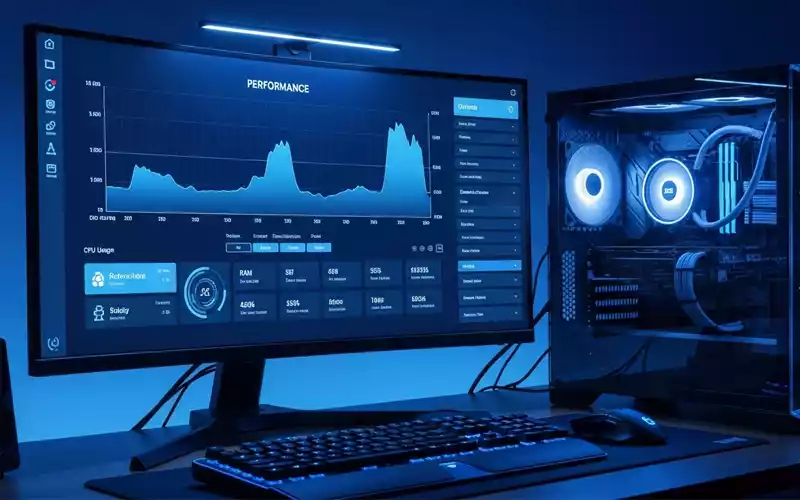
If your computer suddenly becomes slow or starts freezing while you’re working or playing a game, it can be really annoying. In most cases, this happens because your CPU is under too much load. That’s why many people search for how to lower CPU usage to fix this issue, as it directly affects speed and overall performance. Whether you’re gaming, streaming, editing videos, or just browsing, too much CPU usage can ruin your experience.
The good thing is that you don’t need to be a technical person to solve this issue. Even if you’re not very experienced with computers, you can still fix it by following a few simple steps. In most cases, you can easily reduce CPU usage and improve your PC’s speed and smooth performance without any complicated methods.
In this guide, I’ll walk you through easy and practical ways to boost performance on different systems like Windows 10, Windows 11, Mac, gaming setups, and even when you are streaming or using OBS.
What is CPU Usage and Why It Matters
CPU stands for Central Processing Unit, and you can think of it as the brain of your computer. It controls everything happening on your system, whether you’re opening a simple app, playing a heavy game, or working with large files.
CPU usage simply tells you how much of your processor is being used at any given time. It changes depending on what you’re doing on your computer.
When everything is normal, your system runs smoothly and feels responsive. But when CPU usage gets too high, things start to slow down. You might notice delays when opening apps, lag while switching between tasks, or in some cases, your computer may even freeze for a few seconds.
That’s usually when people start searching for ways on how to lower CPU usage windows 10 or other operating systems, especially when they want their PC to feel fast again.
This kind of issue usually happens when too many programs are running at the same time. Sometimes background apps keep using resources without you noticing. In other cases, outdated software, viruses, or heavy applications like games, video editors, or streaming tools can put extra pressure on your CPU.
Common Reasons for High CPU Usage
Before you try to fix the problem, it actually helps to understand what is causing it in the first place. A lot of people skip this step, but once you know the reason, it becomes much easier to solve the issue.
In most cases, the problem starts when too many background apps are running together. Each app uses a bit of CPU power, and when they all run at the same time, it puts extra load on your system. Sometimes the issue can also come from outdated drivers or an old operating system, because older software is not always well-optimized and can use more resources than needed.
Another common cause is viruses or malware, which can quietly increase CPU usage without you even realizing it. And if you are gaming or streaming, things get even heavier — high graphics settings and encoding processes can put a lot of pressure on the CPU. That’s why many people search for how to lower cpu usage in games and how to lower cpu usage while streaming.
How to Lower CPU Usage on Windows 10 and Windows 11
If you’re using Windows, it doesn’t really matter whether it’s Windows 10 or Windows 11 — the steps are pretty much the same. A lot of people start noticing performance issues and then search for how to lower cpu usage windows 11 or Windows 10 because both systems tend to run background services that can quietly use up system power.
The first thing you should do is open Task Manager by pressing Ctrl + Shift + Esc. Once it opens, you’ll be able to see which programs are using the most CPU. From there, just close the ones you don’t really need or aren’t using at the moment.
Another thing you can do is turn off startup programs. A lot of apps automatically start running as soon as you switch on your PC, even if you don’t really need them. This can slowly increase CPU usage right from the beginning and make your system feel a bit heavy. You can easily manage this from the Startup tab in Task Manager and disable the ones you don’t use.
Keeping your Windows system up to date is really important. When you install updates, they often fix small bugs and help your system run better. If you’re using an old or outdated version, your computer might start using more CPU than it actually needs, which can slow things down.
You should also check for malware using Windows Defender or any trusted antivirus. Sometimes hidden threats use CPU in the background.
How to Lower CPU Usage in Games
Gaming is one of the main reasons behind high CPU usage, especially on modern systems. A lot of players often try to figure out how to lower cpu usage in games because today’s games are much more demanding and need stronger hardware to run smoothly.
One of the easiest ways to fix this problem is by lowering your in-game settings. When you use high graphics settings, your CPU has to work much harder. If you reduce things like shadows, textures, and background effects, it can really help reduce CPU usage and make the game run more smoothly.
Keeping your graphics drivers updated can really make a difference. New driver updates are usually optimized to improve performance and can help reduce CPU load, making your system run more efficiently.
You can also turn on Game Mode in Windows, which helps your system focus more on gaming by prioritizing resources. This can be especially helpful if you are trying to learn how to lower cpu usage while gaming.
How to Lower CPU Usage While Gaming and Streaming
If you are gaming while streaming at the same time, your CPU has to work much harder than usual. That’s why many people look for ways on how to lower cpu usage while streaming.
Streaming software like OBS uses your CPU to encode video, which can put a heavy load on your system. One simple fix is switching from CPU encoding (x264) to GPU encoding like NVENC or AMD encoder. This can really help reduce CPU usage and make things run more smoothly.
You can also lower your stream settings. Reducing the resolution and bitrate can ease the pressure on your CPU without affecting quality too much.
It’s also a good idea to close any unnecessary apps while streaming. Even small background programs can affect performance when your system is already under load.
And if you want even better multitasking, upgrading your RAM can help your system handle everything more smoothly, which also indirectly reduces CPU pressure.
How to Lower CPU Usage on OBS
OBS is a really powerful tool, but it can also put a heavy load on your CPU if it’s not set up properly. That’s why many users look for ways on how to lower cpu usage on obs.
One of the simplest things you can do is adjust your OBS settings. Lowering your output resolution and frame rate can make a big difference. For example, switching from 60 FPS to 30 FPS can noticeably reduce CPU usage and help your system run more smoothly.
Another helpful step is using hardware encoding instead of software encoding. This moves the work from your CPU to your GPU, which can greatly improve performance.
You should also keep your OBS setup simple. Too many scenes, overlays, animations, or effects can easily increase CPU usage, so it’s better to use only what you actually need.
Lastly, running OBS as an administrator can sometimes improve performance and reduce small system issues that may affect CPU usage.
How to Lower CPU Usage on Mac
Mac users also face CPU issues, especially when they start using heavy apps like video editors or having too many browser tabs open at the same time. That’s why many people search for how to lower cpu usage mac.
A good place to start is the Activity Monitor. It shows you exactly which apps are using the most CPU, so you can close the ones you don’t really need. This alone can make your Mac feel much faster.
It’s also important to keep macOS updated. Apple often releases updates that improve performance and make the system run more efficiently.
Another simple but effective tip is managing your browser tabs. Having too many tabs open at once can quietly use up CPU and slow things down without you realizing it.
If you’re using an older Mac, reducing visual effects in system settings can also help improve overall performance and make the system feel smoother.
Reduce Background Processes for Better Performance
One of the easiest ways to reduce CPU usage is by cutting down background processes. A lot of apps keep running in the background even when you’re not actively using them, and they quietly take up system resources.
You can also turn off unnecessary services from your system settings, but it’s important to be careful and avoid disabling anything that your system actually needs to run properly.
Removing programs you don’t use anymore is another simple fix. Some apps still run background tasks even after you stop using them, which can slowly increase CPU usage.
Overall, keeping your system clean and well-organized really helps in maintaining lower CPU usage and better performance.
Update Drivers and Software Regularly
Outdated drivers are often a hidden reason behind high CPU usage, and many users don’t really pay attention to them. However, keeping them updated is actually very important for smooth performance.
Graphics drivers, chipset drivers, and regular system updates all help improve performance and fix bugs that can slow your system down. Updated software is usually more optimized, so it uses fewer system resources.
It’s a good habit to check for updates from time to time. This simple step can save you from many performance issues and keep your system running smoothly.
Scan for Malware and Viruses
Sometimes, high CPU usage can also be caused by malware. These harmful programs often run quietly in the background and use up system resources without you even noticing.
Running a full system scan can help you find and remove these threats. It’s always better to use trusted antivirus software and keep it updated for better protection.
You should also avoid downloading files from unknown or untrusted sources, because they may contain hidden malware that can slow down your system.
Adjust Power Settings for Better Performance
Power settings also affect CPU usage. In Windows, you can switch to High Performance mode for better speed.
Balanced mode saves energy but may limit performance. Choosing the right power plan depends on your usage.
For gaming and heavy tasks, High Performance mode is recommended.
Upgrade Hardware if Needed
If your system is old, software fixes may not be enough. In this case, upgrading hardware is the best solution.
Adding more RAM improves multitasking and reduces CPU load. Switching from HDD to SSD makes your system faster.
If possible, upgrading your CPU can provide a major performance boost.
FAQs
How to lower CPU usage without closing programs?
You can lower CPU usage without closing programs by reducing background processes, updating drivers, and lowering app settings. You can also set process priority to “Low” in Task Manager to reduce CPU load without closing apps.
Why is my CPU usage so high when playing games?
CPU usage becomes high in games because of high graphics settings, background apps, and outdated drivers. Modern games require more processing power, which increases CPU load.
How to lower CPU usage while gaming on low-end PC?
To lower CPU usage on a low-end PC, reduce in-game settings, close all background apps, enable Game Mode, and update drivers. Lowering resolution can also improve performance.
How to fix 100% CPU usage in Windows 10?
To fix 100% CPU usage in Windows 10, open Task Manager and find the process using high CPU. Disable startup apps, update Windows, and run a malware scan to solve the issue.
How to reduce CPU usage in Windows 11 permanently?
You can reduce CPU usage in Windows 11 by disabling unnecessary services, keeping your system updated, removing bloatware, and optimizing power settings for performance.
How to lower CPU usage on OBS while streaming?
Lower CPU usage on OBS by switching to GPU encoding, reducing stream resolution, lowering FPS, and limiting scenes and sources.
Does lowering graphics reduce CPU usage?
Yes, lowering graphics settings can reduce CPU usage, especially in CPU-heavy games. It helps reduce the workload on both CPU and GPU.
How to reduce CPU usage while streaming and recording?
To reduce CPU usage while streaming and recording, use hardware encoding, lower bitrate and resolution, and close unnecessary background programs.
Why is my CPU usage high when idle?
High CPU usage when idle is usually caused by background apps, system updates, or malware. You should check Task Manager to identify the cause.
How to lower CPU usage on MacBook?
To lower CPU usage on a MacBook, close unused apps, reduce browser tabs, update macOS, and monitor processes using Activity Monitor.
Can overheating cause high CPU usage?
Yes, overheating can cause CPU throttling, which affects performance and sometimes leads to unusual CPU usage behavior.
How to check which program is using CPU?
You can check CPU usage by opening Task Manager on Windows or Activity Monitor on Mac to see which program is using the most CPU.
Does SSD reduce CPU usage?
An SSD does not directly reduce CPU usage, but it improves system speed and reduces load time, which helps overall performance.
How to stop background processes from using CPU?
You can stop background processes by disabling startup programs, uninstalling unnecessary apps, and turning off background permissions in settings.
Is high CPU usage bad for gaming?
Yes, high CPU usage can cause lag, stuttering, and FPS drops in games, which affects the gaming experience.
Final Thoughts
Learning how to lower CPU usage is essential if you want a fast and smooth computer experience. Whether you are using Windows 10, Windows 11, Mac, gaming setups, or streaming tools like OBS, the right steps can make a big difference.
From closing background apps to updating drivers, optimizing settings, and scanning for malware, each step helps reduce CPU load. If you are a gamer or streamer, adjusting graphics and encoding settings is especially important.
By following these simple methods, you can improve your PC performance instantly without spending money. And if your system still struggles, upgrading hardware can take your experience to the next level.





Add comment