
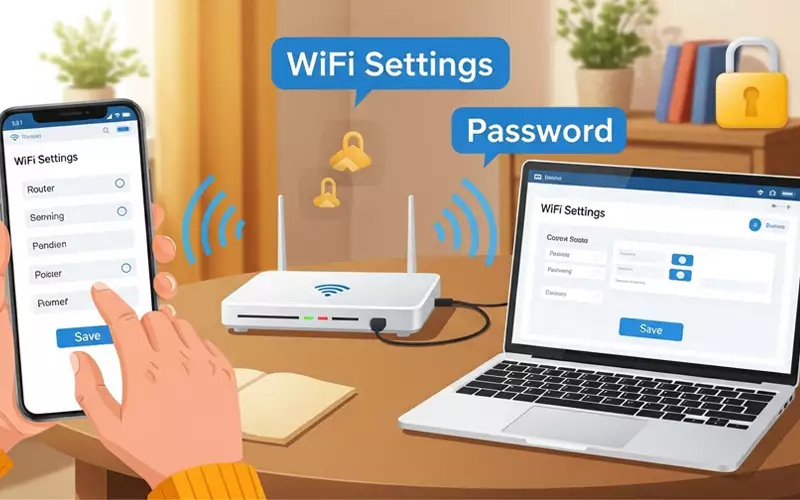
Many people don’t think about changing their WiFi password until an issue arises. It could be that your internet is running slowly, strangers are connecting to your network, or you just can’t remember your old password. Whatever the reason, knowing how to change WiFi password on router is an essential skill in today’s world.
The good news is that changing your WiFi password is actually very simple. Whether you are on a computer or a mobile device, the steps are nearly the same. Just follow a few easy instructions, and in a matter of minutes, your WiFi network will be safe and secure once again.
In this detailed guide, you will discover how to change WiFi password on router step by step, whether you are using a phone or a computer. You will also learn how popular internet providers such as Spectrum, Verizon, and Xfinity manage the process of updating your password.
Why You Should Change Your WiFi Password
A lot of people set their WiFi password once and then never think about changing it. This can be risky because, over time, more and more people might gain access to your network without you even knowing.
When too many people connect to your WiFi, your internet can slow down significantly. Sometimes, neighbors or unknown users might even use your data without permission. That’s why it’s always a smart idea to update your password regularly.
Another key reason to update your password is security. If your password is weak or outdated, hackers can easily figure it out. By changing your password regularly, you help protect your personal data, devices, and online activities.
Things You Need Before Changing WiFi Password
Before you begin, there are a few important things you need to have ready. First, make sure your device is connected to your WiFi network. You won’t be able to change the password if your device isn’t connected.
Second, you need access to your router’s settings. To do this, you should know your router’s IP address, username, and password. Most routers use addresses like 192.168.1.1 or 192.168.0.1 to log in.
If you have never changed your router’s login details, you can usually find the default username and password printed on the back of your router.
How to Change WiFi Password on Router Using Phone
If you mostly use a smartphone, you’ll be glad to know that changing your WiFi password from your phone is simple and convenient.
First, open a browser on your phone, like Chrome or Safari. In the address bar, type your router’s IP address and hit enter. This will take you to your router’s login page.
Next, enter your username and password to log in. Once you’re inside the settings panel, look for an option labeled “Wireless Settings” or “WiFi Settings.”
Here, you’ll see your current network name and password. Simply delete the old password and type in a new, strong one. After that, click the save or apply button to confirm the change.
Within a few seconds, your router will update the password. Your WiFi may disconnect temporarily, and you’ll need to reconnect using the new password.
This is the simplest method for anyone looking for how to change wifi password from mobile, and it works on nearly all types of routers.
How to Change WiFi Password on Router Using PC
If you prefer using a computer or laptop, the process is very similar, and it can be even easier thanks to the larger screen.
Open your browser and enter your router’s IP address in the address bar. Press enter, then log in using your router’s username and password.
Once you access the dashboard, navigate to the wireless or security settings. There, you will find the option to change your WiFi password.
Enter a new password that is strong and secure. Be sure to include a mix of letters, numbers, and symbols to make it difficult for anyone to guess.
After saving the changes, your router will restart or refresh its connection. All devices will temporarily disconnect, and you’ll need to reconnect using the new password.
This is the standard method for anyone who wants to learn how to change WiFi password on router using a PC.
How to Change WiFi Password Spectrum
If you use Spectrum internet, the steps are a little different, but the process is still very simple and straightforward.
To change your WiFi password with Spectrum, log in to your account using their official website or mobile app. Once you’re logged in, navigate to the internet settings and choose your network.
From there, you can easily update your WiFi name and password. Once you save the changes, your network will restart automatically.
Many people specifically look for how to change wifi password spectrum, and this method works for most Spectrum routers.
How to Change WiFi Password Verizon
If you’re using Verizon, changing your WiFi password is pretty straightforward. Just open a browser and log in to your router using its IP address and admin details.
Once you’re in, head over to the wireless settings and update your password. After saving, your devices will disconnect, so you’ll need to reconnect with the new password.
You can also do this through the Verizon app if you prefer using your phone, which makes the process even quicker.
Xfinity How to Change WiFi Password
If you’re using Xfinity, you can change your WiFi password through their app or website without much effort. Just log in to your account, go to the internet section, and select your network.
From there, edit your WiFi settings and enter a new password. After saving, your network will restart, and you’ll need to reconnect your devices using the updated password.
The whole process only takes a few minutes and doesn’t require any technical skills.
Tips for Creating a Strong WiFi Password
Whenever you change your WiFi password, always choose a strong one. Avoid using simple passwords like your name, phone number, or “12345678.” A strong password should be at least 8 to 12 characters long and include a mix of uppercase letters, lowercase letters, numbers, and special symbols.
Also, avoid sharing your password with too many people. If you do share it, make sure to update it again after some time to keep your network secure.
What to Do After Changing WiFi Password
After updating your WiFi password, all connected devices will automatically be disconnected. You’ll need to reconnect your phone, laptop, smart TV, and other devices using the new password—this is completely normal. If any device doesn’t connect, try forgetting the network and reconnecting again.
Common Problems and Solutions
Sometimes, users encounter minor issues while changing their WiFi password. A common problem is forgetting the router login details. In this case, you can reset your router by pressing the reset button for a few seconds, which will restore all settings to default.
Another issue is entering the wrong IP address. Always make sure you type the correct address in your browser. If your internet stops working after changing the password, simply restart your router and reconnect your devices.
FAQs – How to Change WiFi Password on Router
1. How to change WiFi password on router step by step?
Yes, this is one of the most searched questions. To change your WiFi password, open your browser, type your router IP address, log in to your router settings, go to wireless settings, and update your password. Save changes and reconnect your devices.
2. How to change WiFi password from mobile?
Many users search this because they prefer phones over computers. You can change your WiFi password using your mobile by opening a browser, entering your router IP address, logging in, and updating the password in wireless settings.
3. What is the default IP address to change WiFi password?
This is a very common question. Most routers use IP addresses like 192.168.1.1 or 192.168.0.1. You can find the exact IP address on the back of your router.
4. How to change WiFi password without router login details?
Yes, people search this a lot. If you don’t know your login details, you can reset your router by pressing the reset button. After that, you can log in using default username and password.
5. How to change WiFi password on router using PC?
This is another popular search. The method is simple: open a browser on your computer, enter the router IP address, log in, go to WiFi settings, and change your password.
6. How to change WiFi password Spectrum?
Spectrum users often search this. You can change your WiFi password by logging into your Spectrum account via their website or app, going to internet settings, and updating your password.
7. How to change WiFi password Verizon router?
Many Verizon users ask this question. You can log in to your Verizon router settings using a browser or app, then go to wireless settings and change your WiFi password easily.
8. Xfinity how to change WiFi password?
This is a high-search keyword. Xfinity users can change their WiFi password through the Xfinity app or website by going to network settings and editing the password.
9. Why should I change my WiFi password regularly?
People also search this for security reasons. Changing your password helps protect your network from hackers and unknown users, and it can also improve internet speed.
10. What to do after changing WiFi password?
After changing your password, all devices will disconnect. You need to reconnect them using the new password. If any device does not connect, try restarting it.
Final Words
Learning how to change WiFi password on router is actually very easy. Whether you’re using a phone or a PC, the process is quick and straightforward.
Regularly updating your password helps keep your network secure and maintains stable internet speed. It also protects your personal data from unauthorized access.
By following the steps in this guide, you can change your WiFi password easily without any confusion. Whether you use Spectrum, Verizon, or Xfinity, the basic process is largely the same.
Take a few minutes today to update your WiFi password. It’s a small step that can make a big difference for your online security.
For more informative articles, visit our website: embossitworld.com





Add comment